
Table of Contents
- How It Works
- Requirements
- Creating a Rule
- Choosing an Action
- Selecting Shipping Methods
- Setting Conditions
- Advanced Conditions
- Rule Settings
- Use Cases
Shipping rules let you control what your customers see at checkout. Use them to override carrier rates, offer free shipping, apply surcharges, apply discounts, or hide methods entirely — based on cart contents, destination, product type, and more.
Before building your first rule — or if rates aren't behaving as expected — read How Shipping Rules Work. It explains how ShipperHQ evaluates rules and how conditions are assessed. Understanding that model may save you significant time.
Once your rules are set up, use Test Your Rates in the ShipperHQ Dashboard to confirm they're working as expected before going live.
How It Works
Shipping rules consist of two parts: an action (what happens) and one or more conditions (when it happens). Actions determine what ShipperHQ does — replace a rate, add a surcharge, or hide a method entirely. Conditions scope that action to a specific situation: a cart total, a destination, a product type, or a combination of factors.
When a customer reaches checkout, ShipperHQ evaluates your active rules and applies any whose conditions are met. For a full explanation of how multiple rules interact and the order they're evaluated in, see How Shipping Rules Work.
If a rule isn't working as expected, see Troubleshooting Shipping Rules for troubleshooting steps and common scenarios.
Requirements
- Carriers configured with at least one shipping method — methods must exist before you can assign them to a rule
- Shipping Groups created and products assigned — required if your rule will use Shipping Group conditions or actions
- Shipping Zones created — required if your rule will use Shipping Zone conditions
Creating a Shipping Rule
The rule builder walks you through each decision in sequence: action first, then methods, then conditions. Once you've finished, the rule is active immediately — use Test Your Rates to confirm it's working as expected before going live.
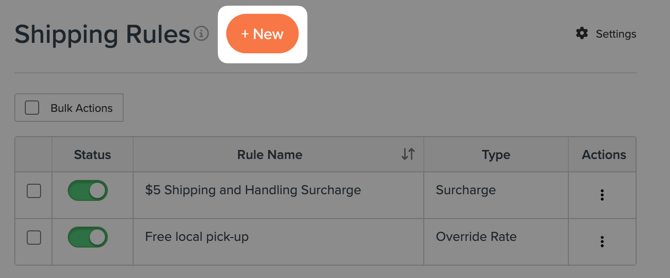
1. Go to Shipping Rules in the ShipperHQ Dashboard.
2. Select +New to open the rule builder.
3. In Action, choose what happens to the rate or method (see Choosing an Action below for guidance).
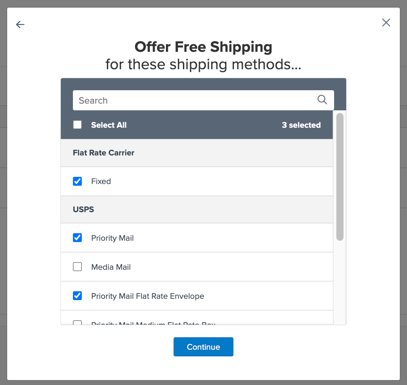
4. In Shipping Methods, select the carrier methods this rule will act on. At least one is required.
5. In Conditions, set what must be true for the action to fire and define each one to control exactly when the rule applies (see Setting Conditions below for available types and examples).
6. Review the rule summary and auto-generated name, then click Finish.
Each step is covered in detail in the sections below.
Rule Names: Rules are auto-named based on the action you first select. If you change the action later, the name won't update. Edit it manually to keep your rules list organized.
Choosing an Action
The action determines what happens when conditions are met. Choose the one that matches your goal — it also determines the rule type, which affects how the rule interacts with others when multiple rules are active.
Set Rules
Set rules replace the carrier-calculated rate with a rate you define. They are evaluated after Surcharge rules. When multiple Set rules apply to the same shipment, the first one to run takes precedence by default – use Overwrite Set Rate in the Advanced tab to make a specific rule override any previously applied Set rate.
Override Rates Replaces the carrier rate with a flat amount, a percentage of the shipping price or order value, or a combination of both. Use this to offer a flat rate for a specific zone, or to replace live carrier rates with your own pricing.
Example scenarios:
- Overriding carrier rates with custom rates
- Set rate as fixed shipping fee set on the product
- Offer a flat rate option for a specific zone
Offer Free Shipping Replaces the carrier rate with $0. Use this for free shipping promotions based on cart value, destination, or product type.
Example scenarios:
- Set free shipping on certain items only
- Free shipping to specific shipping zone
- Offer free shipping for orders over a certain value of certain products
Surcharge Rules
Surcharge rules add to or subtract from the rate already determined. They are evaluated before Set rules by default.
Surcharge Rates Adds to the rate displayed by your chosen methods — by a flat amount, a percentage of the shipping price or order value, or a combination of both. Use this for handling fees, fuel surcharges, or oversized item premiums.
Example scenarios:
- Add a surcharge on certain items in the cart
- Surcharge shipping rates based on cart price
- Create surcharge rates over a certain weight threshold
Discount Rates Reduces the rate displayed by your chosen methods — by a flat amount, a percentage, or a combination of both. Use this to offer loyalty discounts or promotional rate reductions on specific methods.
Example scenarios:
Hide Rules
Hide rules remove methods from checkout entirely. They are evaluated last, after all rate calculations are complete.
Hide Methods Removes selected shipping methods from checkout when conditions are met. Use this to suppress overnight shipping for items requiring standard handling, or to restrict certain carriers to specific zones.
Example scenarios:
- Restrict specific methods for certain products
- Restrict shipping methods to specific zones
- Hide methods at a certain weight, price, or quantity
Selecting Shipping Methods
Select the carrier methods this rule will act on. At least one is required, and you can add or remove methods at any time after the rule is created. Methods not assigned to this rule are unaffected.
Setting Conditions
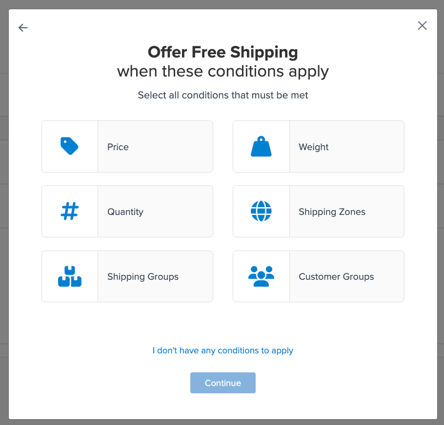
Conditions scope a rule to a specific situation — they define what must be true in the cart for the action to fire. Without conditions, a rule applies to every checkout request for its assigned methods. You can set a single condition or combine multiple types to get more precise: a Shipping Group and a Shipping Zone together, for example, would trigger a rule only when a particular product type is headed to a particular destination.
If you're not sure which condition type fits your goal, the Use Cases section below has examples organized by shipping goal. For a full explanation of how condition logic works, see How Shipping Rules Work.
Available condition types include:
- Price — trigger a rule when the cart total crosses a threshold. Example: offer free shipping on orders over $100.
- Weight — trigger a rule based on the cart's total weight. Example: apply a surcharge for orders over 50 lbs.
- Quantity — trigger a rule based on the number of items in the cart. Example: hide a method when more than 10 items are present.
- Shipping Zones — scope a rule to a specific destination. Example: restrict overnight shipping to certain states.
- Shipping Groups — scope a rule to orders containing specific products. Example: add a handling surcharge when a hazmat item is in the cart.
- Customer Groups — scope a rule to a specific customer segment. Example: offer free shipping to wholesale accounts. Customer Groups must be enabled before use — go to Shipping Rules › ⚙️ Settings to turn it on.
Advanced Conditions
The Advanced tab contains additional filtering conditions and actions that give you finer control over how individual rules behave. To access it, open a rule by clicking its name from the Shipping Rules list.
Valid Dates
Valid From and Valid To allow you to restrict a rule to a specific date and time. You can use this for a shipping promotions. For example, if you wanted to run a Free Shipping promotion during spring break, you could set it to begin in the morning of the first day and end in the evening of the last day.
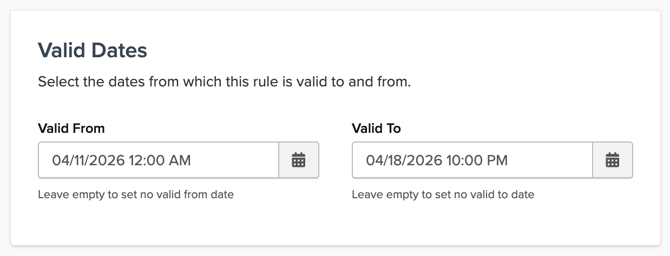
These fields refer to the date the rate is requested (i.e. when the order is placed), and are not related to the estimated delivery date.
For example, with a rule set "Valid From April 11" and "Valid To April 18," an order placed on April 10 would not qualify for the promotion, but an order placed April 12 would, regardless of the estimated delivery date.
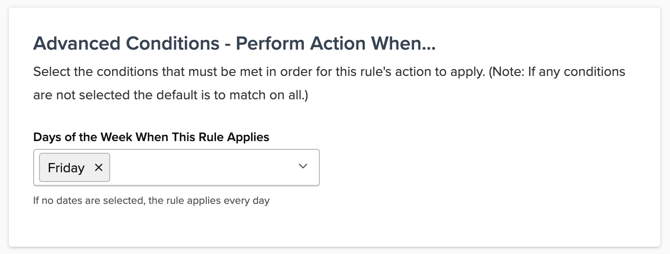
Advanced Conditions — Perform Action When
These filters scope a rule to additional factors not available in the standard Conditions panel. If no options are selected, the rule applies to all values for that factor.
To enable or disable which of these conditions are available across all your rules, go to Shipping Rules › ⚙️ Settings › Filter Based On.
- Days of the Week — restrict a rule to specific days. Example: apply a surcharge only on Friday orders to account for weekend handling.
- Origins — restrict a rule to shipments from specific warehouse origins.
- Boxes — restrict a rule to orders packed into specific box types.
- Address Type — restrict a rule based on whether the destination is residential or commercial.
Advanced Actions
These settings control how this rule behaves in relation to other rules. To enable additional options in this panel, go to Shipping Rules › ⚙️ Settings › Apply Actions.
For a full explanation of how these settings work, see How Shipping Rules Work.
- Rule Processing Order — sets the sequence in which this rule is evaluated relative to others of the same type. Enter a number from 0 (earliest) to 999 (latest). Leave empty if sequence doesn't matter.
- Stop Further Rule Processing — when checked, prevents any subsequent rules of the same type from being evaluated after this rule fires. Useful when you need a rule to be definitive — for example, ensuring a free shipping rule cannot be overridden by a later surcharge rule.
- Overwrite Set Rate — applies to Set rules only. By default, when multiple Set rules apply to the same shipment, the first one to run takes precedence and later Set rules do not replace it. Check this box to make this rule override any previously applied Set rate, regardless of order.
Global Rule Settings
Rule Settings control which advanced conditions and actions are available across all your shipping rules, and configures some global behaviors that affect how rules are evaluated. Changes here apply to every rule.
To open Rule Settings, go to Shipping Rules and click the ⚙️ Settings icon at the top right of the landing page, under the Profile icon.
Filter Based On
Enables condition types globally. When a condition type is set to Yes, it becomes available in the Conditions panel of every rule.
- Zones — enables Shipping Zone conditions. On by default.
- Shipping Filters — enables Shipping Filters as a condition type. Shipping Filters are saved, reusable conditions that combine multiple criteria — price, weight, quantity, or shipping group — using OR logic. Enable this if you want to use named filter presets across multiple rules rather than configuring the same conditions repeatedly.
- Shipping Groups — enables Shipping Group conditions. On by default.
- Customer Groups — enables Customer Group conditions. Must be enabled before Customer Groups appear as a condition option in any rule.
- Address Type — enables Address Type as a condition in the Advanced tab of each rule.
Apply Actions
Enables additional action types and behaviors. When an option is set to Yes, the corresponding fields or actions become available in the rule builder.
- Per Unit Price Rules — enables per-quantity and per-weight pricing fields in the rule's action configuration. Useful for items where a base rate plus a per-item charge is more accurate than a flat rate — for example, stacked or small hardware items.
- Per Unit Weight Rules — enables per-weight pricing fields. Similar use cases to Per Unit Price Rules.
- Product Listing Shipping Fees — enables rules to use the flat shipping fee defined on individual products in your platform, rather than setting a rate within the rule itself. Useful when products already have fixed shipping fees configured at the product level.
- Minimum Price — enables a minimum shipping price field on individual rules, preventing the displayed rate from falling below a set threshold.
- Maximum Price — enables a maximum shipping price field on individual rules, capping the displayed rate at a set threshold.
- Rule Processing Order — enables the Rule Processing Order field on the Advanced tab of each rule, allowing you to control the sequence in which rules of the same type are evaluated. See How to Use Rule Processing Order for full details.
- Run Surcharge Rules before Set Rules — switches the default evaluation order so Surcharge rules are evaluated before Set rules. See How Shipping Rules Work for how this affects rate calculation.
Use Cases
These examples are a good starting point for the most common shipping rule configurations:
Restricting methods:
- Restrict hazardous goods to Ground Shipping
- USPS only for APOs/PO Boxes
- Hide all methods and show error
Setting custom rates:
- Set the shipping price to $50 for every SHED added to the cart going to NY
- Offer a flat rate option for a specific zone
- Overriding carrier rates with custom rates
Offering free shipping:
Adding surcharges:
- Surcharge rates by 20% when OVERSIZE items are in the cart
- Add a surcharge on certain items in the cart
FAQ
How do I apply a rule only during certain dates or days?
Use the Valid Dates and Days of the Week fields on the Advanced tab of any rule. Valid Dates restricts the rule to a date range based on when the rate is requested — not the estimated delivery date. Days of the Week restricts the rule to specific days of the week. See the Advanced Conditions section for full details.
How do I make sure one rule fires before another of the same type?
Enable Rule Processing Order in Shipping Rules › ⚙️ Settings › Apply Actions, then set a processing order number on the Advanced tab of each rule. Lower numbers run first. If you want the first rule to prevent any later rules of the same type from firing, also enable Stop Further Rule Processing on that rule. See How Shipping Rules Work for a full explanation of how evaluation order affects your results.
How do I apply a rule only when a specific product is in the cart?
Assign the product to a Shipping Group, then use that Shipping Group as a condition on your rule. For example, to add a handling surcharge whenever a fragile item is in the cart, create a Shipping Group for fragile items and add it as a condition on a Surcharge rule. See How to Configure Shipping Groups for setup details.
How do surcharge levels affect my total?
When creating a Surcharge or Discount rule, you can apply the rate to the entire shipment or to each item or box within a shipping group individually. Flat surcharges produce different totals depending on which you choose — percentage surcharges produce the same result either way. For a cart with 5 boxes at $4 per box ($20 total shipping):
- $1 flat surcharge per cart: $21
- $1 flat surcharge to each box: $25
- 10% surcharge per cart: $22
- 10% surcharge to each box: $22
Why don't I see the condition to filter a rule by customer groups or shipping filters?
Certain filters are off by default. To enable them, go to Shipping Rules › ⚙️ Settings › Filter Based On and toggle condition types on. Changes apply across all rules — individual rules are unaffected unless the condition type they use is disabled.
Additional Resources
- How Shipping Rules Work
- How to Configure Shipping Groups
- How to Configure Shipping Zones
- Setting Up & Using Dimensional Packing
- Delivery Date & Time
- Address Validation
- Duties and Taxes