
Overview
Dimensional Packing ensures your shipping rates reflect real-world packing behavior by determining which boxes your products will ship in based on dimensions, weight, and packing rules. This results in far more accurate rates for carriers like UPS, FedEx, USPS, and others that use dimensional weight.
Table of Contents- Overview
- Requirements
- Setup
- Live Rate & Custom Carriers
- Dimensional Packing & Advanced Settings
- Miscellaneous
- Related Articles
Requirements
Dimensional Packing is available on ShipperHQ Standard, Advanced, and Enterprise plans.
Setup
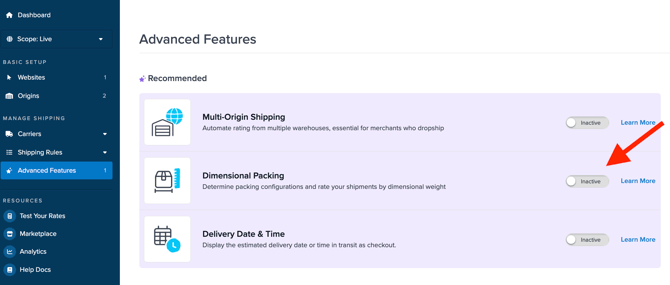
- Go to Advanced Features in your dashboard and toggle Dimensional Packing to enable it.
- Click the Settings icon to choose carriers that will use Dimensional Packing and Boxes. Leave unchanged if all enabled carriers should use this feature.
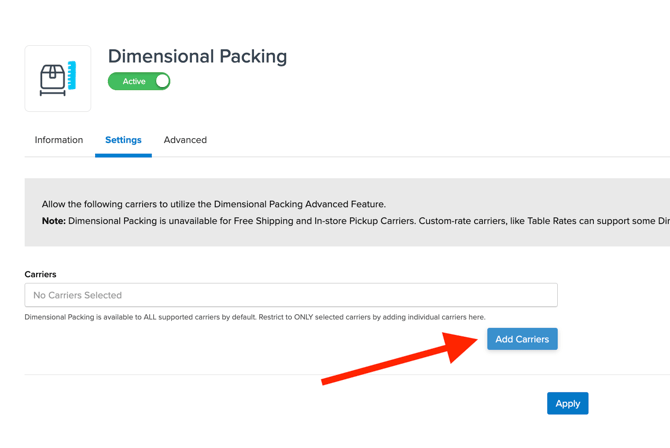
Once done click apply to save your changes.
Enabling Dimensional Packing calculates rates based on dimensional weight, not dead weight, ensuring more accurate rates for your customers. By adding Boxes to ShipperHQ, you align with your business logic and enhance rating accuracy.
For optimal use, gather the following for Dimensional Packing:
- Product dimensions (as provided in your eCommerce platform)
- Package dimensions you use for shipping (envelopes to pallets)
- Products needing special handling, identified as Packing Rule Groups
Ensure dimensions less than one include a prefixed 0, e.g., "0.5" rather than ".5".
Go to Boxes → Add New Box
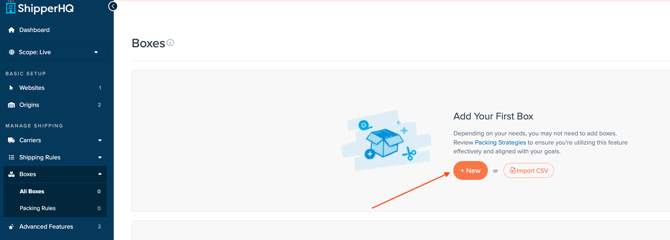
(Keep it simple — start with 3–5 common box sizes.)Additionally for more information defining box sizes please see the guide below:
How to Define Box Sizes
Once you have defined your box sizes, you can can test them inside ShipperHQ using the Test Your Rates Calculator
Live Rate & Custom Carriers
With Live Rate carriers, ShipperHQ calculates the optimal box based on your product dimensions and chosen boxes in ShipperHQ. Packing Rules can set special handling instructions for specific products. Accurate package dimensions and weights provide precise carrier rates when combined with essential shipping details.
For Custom Rate Carriers, rates are configured within ShipperHQ rather than through a carrier's API. For detailed steps, see our Dimensional Shipping with User-Defined Rates.
Note: Dimensional Packing is unavailable for the following live rate and custom carriers:
- Free Shipping
- In-Store Pickup
- Same Day Carriers
- Ascent Global Logistics (3PL)
- Averitt Freight
- Dayton Freight
- Echo Global Logistics (3PL)
- JTS Freight
- NEMF
- Oak Harbor Freight
- Old Dominion Freight (ODFL)
- PITT OHIO
- UPS Ground with Freight Pricing
- Southeastern Freight Lines (SEFL)
Dimensional Packing Advanced Settings
Dimensional Padding and Tolerance
Configure dimensional padding or tolerance settings to account for packaging materials such as bubble wrap, foam inserts, or corrugated dividers. Adjust these settings within the Dimensional Packing Advanced Feature settings:
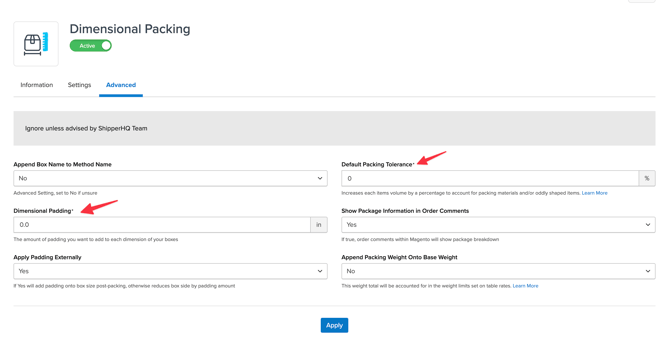
How dimensional padding affects box volume
When Apply Padding Externally is set to No, dimensional padding is applied internally — reducing the available space inside the box rather than increasing the box's external footprint.
This means the padding value does not reduce the physical size of the box. Instead, it reduces the internal volume available for packing products.
The padding value is applied per dimension — once to length, once to width, and once to height. It is not applied per side.
Example:
A box with external dimensions of 97" × 4.5" × 4.5" with 0.5" of internal dimensional padding applied results in available internal dimensions of 96.5" × 4" × 4".
The external box size remains 97" × 4.5" × 4.5", and this is the information used for Live Rate calculations with carriers like UPS and FedEx.
| Length | Width | Height | |
|---|---|---|---|
| External box dimensions | 97" | 4.5" | 4.5" |
| Padding applied (per dimension) | − 0.5" | − 0.5" | − 0.5" |
| Available internal dimensions | 96.5" | 4" | 4" |
The external dimensions are always what ShipperHQ sends to the carrier for rate calculation. The internal dimensions determine how much product can fit in the box during packing.
Miscellaneous
How ShipperHQ Packs Boxes
ShipperHQ uses the Best-Fit packing algorithm. The algorithm checks that product dimensions do not exceed box dimensions, and rotates boxes when needed. It assesses volume by comparing products to box volumes and considers weight and quantity limits. Learn more on our packing examples page.
Fallback Boxes: SHQ CUSTOM Box
If no packing boxes are defined or if defined boxes cannot accommodate your products, ShipperHQ uses a fallback named SHQ_CUSTOM, sized to the largest item in the cart. For multi-item orders, the entire cart is rated using the largest item's dimensions, which may result in lower shipping costs than actual packing would require.
Defining appropriate packing boxes produces more accurate shipping costs that reflect real-world packing behavior.
Master Box Packing
You can set master packing boxes for specific SKUs. For example, if you sell wine in cases of 12 but also ship individually, use this feature to pack efficiently.
Packing Rules
Packing Rules allow different handling for product sets within ShipperHQ. Options include separate shipping, multiple fixed boxes, and limited box choices. See Packing Rules Configuration for more details.
Modify packing quantities in boxes with detailed guides such as this article. If a product ships in multiple boxes, refer to how to set up multiple fixed boxes.
Assigning Boxes Directly to Products
On supported platforms like Magento and Zoey, assign products directly to specific boxes, though using Packing Rules is generally preferred to reduce management overhead.
Setting Products as Malleable
On compatible platforms, set products as Malleable to account only for volume, ideal for foldable items like flags or t-shirts.