
Table of Contents
- Requirements
- Do You Need Variant-Level Attributes?
- Assigning Attributes to Products
- Verifying Your Configuration
- FAQ
- Metafield Reference
ShipperHQ uses product attributes to determine which shipping rules, rates, and restrictions apply to each item at checkout. By assigning attributes to your products, you enable ShipperHQ to differentiate between items — applying the right Shipping Groups, Origins, or Packing Rules based on each product's characteristics. To connect your ShipperHQ configuration to your products, you assign attribute values to each product in Shopify through its metafield system.
For example: if you sell furniture and want large items like sofas to ship via freight carriers while smaller accessories ship standard, you would create two Shipping Groups in ShipperHQ — say, FREIGHT and STANDARD — then tag each product in Shopify with the group it belongs to. When a customer checks out, ShipperHQ reads those tags and returns the appropriate rates.
Managing large catalogs? If you need to assign attributes to 100+ products, see the FAQ entries How do I bulk edit attributes using Shopify's native editor? and How do I bulk edit attributes using a third-party app? at the bottom of this article.
Requirements
- The Shipping Groups, Origins, or Packing Rules you plan to use must already be created in ShipperHQ — the names you assign to products must exactly match the names in your dashboard:
- Variant product attribute support requires a ShipperHQ Standard plan or above.
Using Multi-Origin & Dropship? If you use Multi-Origin & Dropship, there is an alternative to assigning Origins via metafields. See How to configure Multi-Origin Shipping for details before proceeding.
Do You Need Variant-Level Attributes?
Most stores use product-level attributes (one Shipping Group or Origin per product, regardless of variant). This is the default ShipperHQ behavior and works when all variants of a product ship the same way. However, some use cases require setting up attributes at the variant level.
Use variant-level attributes when:
- Different variants have different dimensional requirements (for example, a bike with 26" wheels needs a different box than one with 29" wheels)
- Variants require different handling or surcharges (for example, a 10-bulb light fixture requires special handling while a 4-bulb version ships standard)
- Variants ship from different Origins (for example, red items ship from Warehouse A while blue items ship from Warehouse B)
To enable variant-level attributes, go to Websites in your ShipperHQ dashboard, open the Advanced panel, and uncheck "Use Parent for Attributes" — see Products with Variations for configuration details. If you don't see the Advanced panel, confirm your ShipperHQ plan is Standard or above (variant support is not available on Starter plans).
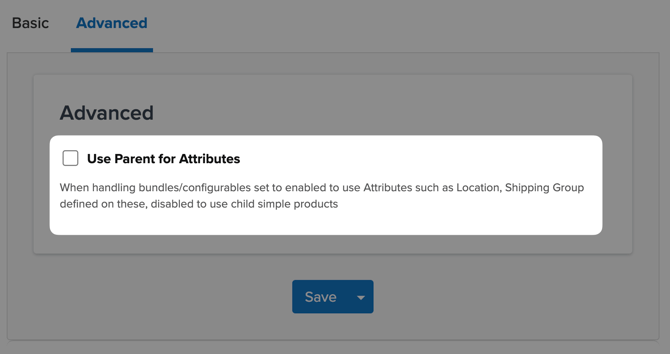
Once you've determined whether you need product-level or variant-level attributes (and enabled variant support if needed), proceed to assign attributes.
Assigning Attributes to Products
The ShipperHQ app adds an "Edit Shipping Properties" option to your Shopify products that lets you assign Shipping Groups, Origins, Packing Rules, and dimensions. When you save these values, Shopify creates metafields automatically — you don't need to set up anything in Shopify's metafield system first.
⚠️ If variant attributes are empty, ShipperHQ will not fall back to parent product attributes — variants must have their own values assigned.
Updating Individual Products
- In your Shopify admin, go to Products and select a product or variant product.
- Under the More Actions dropdown, click Edit Shipping Properties.
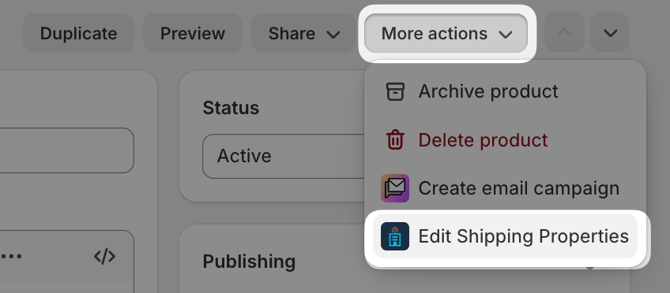
Can't find Edit Shipping Properties? See FAQ: I don't see the ShipperHQ fields after installing the app. - Enter the exact name of your Shipping Group, Origin, or Packing Rule in the relevant field. Names are case-sensitive and must match your ShipperHQ dashboard exactly.

If using dimensional shipping, enter the length, width, and height. Use numeric values only (for example, 12, 8, 6) — the unit is configured in your ShipperHQ settings.
To assign multiple Shipping Groups or Origins, separate them with a hash symbol (#) with no spaces — for example,GROUP-A#GROUP-B.
⚠️ Packing Rules are called "Dimensional Groups" in Shopify — these are the same thing. If you've created Packing Rules in ShipperHQ, enter those names in the "Dimensional Groups" field. - Click Save to apply the changes.
Ready to assign attributes to more products? You can repeat these steps for each product, or define metafields in Settings › Custom Data › Products to enable bulk editing. See How do I bulk edit attributes using Shopify's native editor? for details.
Verifying Your Configuration
After assigning product attributes, verify your configuration is working:
- Go to your ShipperHQ dashboard and open Test Your Rates.
- Add a product you've tagged to the test cart.
- Enter a shipping address and click Get Rates.
- Verify that only the expected carriers or rates appear based on the Shipping Group, Origin, or Packing Rule you assigned.
If rates don't appear as expected, see How to Troubleshoot Shopify Requests for common issues and solutions.
Verifying attributes were saved:
To confirm Shopify created the metafields correctly:
- Go to Products and select a product you've updated.
- Scroll down to the Product metafields section (may need to expand). Defined metafields will appear.
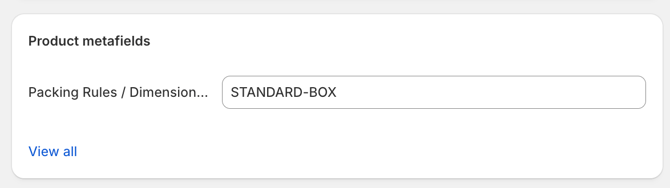
If you haven't defined your metafields, you can see them by clicking View all, then Unstructured product metafields.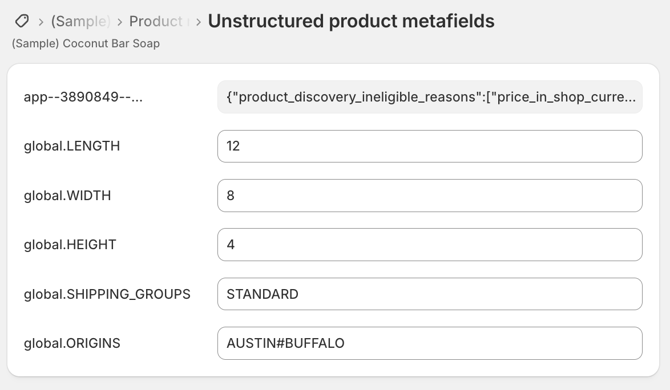
- Verify the values match what you entered, and also match what you've entered into ShipperHQ.
If metafields don't appear or values are incorrect, re-save the product and check again. If the issue persists, contact ShipperHQ support.
FAQ
Do I need to assign attributes to every product?
No — only products that require special shipping rules or configurations need attributes assigned. Products without attributes are rated using your default carriers and methods. For example, if most products ship standard rates and only oversized items need special handling, you'd only assign Shipping Groups to the oversized products.
I don't see "Edit Shipping Properties" after installing the ShipperHQ app. What's wrong?
First, verify the ShipperHQ app is installed and connected — go to Settings › Apps and sales channels and confirm ShipperHQ appears in your list. If it's installed but you don't see "Edit Shipping Properties":
- Check your Shopify user permissions — you need product editing access.
- Try using Shopify's bulk editor as an alternative: go to Products, select products, click Bulk Editor, then click Columns and enable the ShipperHQ metafield columns (like "Shipping groups", "Origins", "Dimensional groups").
- Contact ShipperHQ support for assistance.
Why can't I edit variant shipping properties?
If "Edit Shipping Properties" only shows parent product fields and not variant-level fields, check two things:
- Your ShipperHQ plan must be Standard or above — variant support is not available on Starter plans.
- In your ShipperHQ dashboard under Websites, the "Use Parent for Attributes" setting must be unchecked — see Products with Variations for configuration details.
I assigned attributes but they're not applying at checkout. How do I troubleshoot?
Follow this troubleshooting sequence:
- Verify exact name matching — Go to your ShipperHQ dashboard and copy the exact name (case-sensitive) from your Shipping Group, Origin, or Packing Rule configuration. Paste it into Shopify without any modifications. See common formatting mistakes below.
- Re-save the product — Sometimes metafields don't sync immediately. Open the product in Shopify, click Save again without making changes, then test.
- Use Test Your Rates — In your ShipperHQ dashboard, go to Test Your Rates, add the product to the test cart, and enter a shipping address. This tests the ShipperHQ side directly without Shopify's storefront involved. If it works in Test Your Rates but not on your store, the issue is in how data is being sent from Shopify.
- Check transaction logs — In your ShipperHQ dashboard, go to Logs › Transaction and look for the most recent request from your Shopify store. Expand the request details and look for the product attributes in the data being sent. If they're missing or incorrect, the issue is on the Shopify side.
How do I assign multiple Shipping Groups or Origins to one product?
Use a hash symbol (#) with no spaces to separate values — for example, FRAGILE#OVERSIZED or WAREHOUSE-A#WAREHOUSE-B. Enter this in the "Edit Shipping Properties" field or in the metafield value if editing via bulk editor.
Note for Multi-Origin users: If you're using Multi-Origin & Dropship with inventory-based origin assignment, there's an alternative method that reads origins directly from your Shopify inventory locations. See How to configure Multi-Origin Shipping for details.
I'm migrating from Magento. Why do I have to assign attributes?
Unlike Magento where ShipperHQ attributes are configured automatically during extension setup, Shopify requires manual metafield assignment. The concepts are the same (Shipping Groups, Origins, Packing Rules), but the implementation method is different.
How do I bulk edit attributes using Shopify's native editor?
Shopify's built-in bulk editor automatically shows ShipperHQ metafields as columns with names like "Shipping groups", "Origins", and "Dimensional groups" once you've assigned attributes to at least one product. To use it:
- Go to Products in your Shopify admin.
- Select the products you want to update.
- Click Bulk Editor.
- Click Columns and enable the ShipperHQ metafield columns you need.
- Edit values directly in the table.
- Click Save when finished.
Defining metafields in Shopify: Once you've assigned attributes to at least one product, the ShipperHQ metafield columns will appear in Shopify's bulk editor automatically. However, if you delete those columns from your view, they won't reappear unless you add definitions for them.
You can add definitions by going to Settings › Metafields and metaobjects › Products, clicking View unstructured metafields, and clicking Add definition next to each field. Add any name (e.g. for global.HEIGHT, you can name it "HEIGHT"), click Select type, and select Single line text. Save your changes.
How do I bulk edit attributes using a third-party app?
For catalogs with hundreds or thousands of products, metafield import/export apps like Metafields2 or Matrixify let you export products to CSV, update metafield values in a spreadsheet, and import them back.
Download a sample CSV file showing the correct column headers and format: sample_shipperhq_product_attributes.csv
When exporting and importing CSV files:
- Your export will include your existing product data — add the ShipperHQ metafield columns shown in the sample CSV
- Save files using UTF-8 encoding — other formats will cause import failures
- Values must exactly match the names in your ShipperHQ dashboard (case-sensitive)
- Use a hash symbol (#) to separate multiple values (for example,
GROUP-A#GROUP-B)
For complete metafield specifications, see the Metafield Reference section below.
Note on metafield types: In 2021, Shopify updated available types for metafields, deprecating the "string" type used by ShipperHQ. If using Metafields2, set new metafields to "single_line_text_field".
What's the difference between "Packing Rules" in ShipperHQ and "Dimensional Groups" in Shopify?
They're the same thing — Shopify calls them "Dimensional Groups" in the "Edit Shipping Properties" panel, but ShipperHQ calls them "Packing Rules" in the dashboard. The metafield key is DIMENSIONAL_GROUPS for historical reasons. When you enter a Packing Rule name in Shopify's "Dimensional Groups" field, ShipperHQ reads it as a Packing Rule assignment.
What are the most common formatting mistakes when assigning attributes?
Case mismatch: ShipperHQ is case-sensitive. Oversized and OVERSIZED are different. Always copy the exact name from your ShipperHQ dashboard.
Trailing spaces: SURCHARGE (with a space) won't match SURCHARGE (without a space). Watch for extra spaces when copying and pasting.
Wrong separator: Use a hash symbol (#) to separate multiple values, not a comma. GROUP-A#GROUP-B is correct; GROUP-A, GROUP-B is wrong.
Unit symbols included: For dimensions, enter numeric values only. 12 is correct; 12 in is wrong. The unit is set in ShipperHQ settings.
Character differences: An underscore (_) is not the same as a hyphen (-). If your ShipperHQ name uses ORIGIN-A, entering ORIGIN_A won't match.
Metafield Reference
This technical reference is for users working with third-party bulk editing apps or custom integrations. If you're using "Edit Shipping Properties" or Shopify's native bulk editor, you don't need this information.
When you use "Edit Shipping Properties", Shopify creates metafields with these specifications:
| Attribute | Namespace | Key | Type | Value Format | Example |
|---|---|---|---|---|---|
| Shipping Groups | global | SHIPPING_GROUPS | single_line_text | Exact Shipping Group name from ShipperHQ dashboard (case-sensitive) | SURCHARGE |
| Origins | global | ORIGINS | single_line_text | Exact Origin name from ShipperHQ dashboard (case-sensitive) | AUSTIN |
| Packing Rules (Dimensional Groups) | global | DIMENSIONAL_GROUPS | single_line_text | Exact Packing Rule name from ShipperHQ dashboard (case-sensitive) | STANDARD-BOX |
| Length | global | LENGTH | single_line_text | Numeric value only, no units | 12 |
| Width | global | WIDTH | single_line_text | Numeric value only, no units | 8 |
| Height | global | HEIGHT | single_line_text | Numeric value only, no units | 6 |
| HS Code | global | HS_CODE | single_line_text | Harmonized System code | 6203.42.40 |