
Table of Contents
This article helps you identify the cause of a shipping rate problem and routes you to the right article to resolve it. Start with the symptom that best describes what you're seeing, then follow the diagnostic steps.
Rates Are Wrong
Use this section if a shipping method is showing at checkout but the amount is unexpected — too high, too low, or different from what you or your carrier anticipated. Choose the description that best fits:
- Rates were correct, then briefly wrong, then corrected themselves → Rates were wrong briefly, then self-corrected.
- Rates changed and stayed wrong → Rates changed unexpectedly.
- Rates don't match a specific quote your carrier gave you → Rates don't match what my carrier quotes.
- Rates have always seemed wrong, or you're not sure where to start → Rates are higher or lower than expected.
Rates were wrong briefly, then self-corrected
Rates that dip wrong and recover on their own are almost always a temporary outage or timeout. These steps help you identify the source so you know whether any action is needed on your end.
Before you start:
- Did the issue affect all carriers, or one specific carrier?
- Was there a pattern — same timeframe, same carrier, same order type?
A single-carrier pattern points toward a carrier-side outage. A random or all-carrier occurrence points toward a ShipperHQ timeout.
Check whether your carrier had a reported outage during that period.
Check the carrier's status page or contact their support team to confirm.
If yes → carrier outage. See Handling Carrier Downtime for more information on backup rates.
If no → go to Check whether ShipperHQ timed out on the request.
Check whether ShipperHQ timed out on the request.
If ShipperHQ times out, most platforms will display no shipping methods appearing at checkout, rather than incorrect rates.
Shopify merchants may see Shopify's backup rates appear instead — native Shopify rates that serve as a fallback when ShipperHQ doesn't respond in time. See Shopify backup rates are appearing to confirm and manage them.
For timeout handling more broadly, see Handling Carrier Downtime.
If there is no evidence of a timeout:
- If only one carrier was impacted → go to Rates don't match what my carrier quotes.
- If all carriers were impacted, or you're not sure → go to Rates are higher or lower than expected.
Rates changed unexpectedly
Use this section if rates were correct at some point and then changed and stayed wrong. The most common cause is an external event — a carrier rate update or a recent configuration change — rather than a misconfiguration that was always there.
Check your carrier's website for recent rate change announcements.
If a rate change was announced that coincides with when you noticed the problem → ShipperHQ is returning the correct new rates. No configuration change is needed.
If no rate change announcement → does the rate differ from a specific quote your carrier gave you?
If yes → go to Rates don't match what my carrier quotes.
If no → go to Rates are higher or lower than expected.
Rates don't match what my carrier quotes
Use this section if you have a specific rate from your carrier to compare against and it doesn't match what ShipperHQ returns. The most common causes are negotiated vs. retail rate settings, residential surcharges, or sandbox credentials in production — all of which are straightforward to check and correct.
Before you start:
- Does it affect all carriers, or one specific carrier? If one carrier is off, focus there — credentials, account type, or that carrier's surcharge structure are the likely causes.
- Is the gap consistent, or does it vary by order? A variable gap points toward order-specific factors like address type or package dimensions.
- Is a residential address involved? Residential surcharges are a common source of discrepancy between carrier quotes and ShipperHQ rates.
Check for a connection error.
In ShipperHQ, go to Carriers and check for any error on the affected carrier.
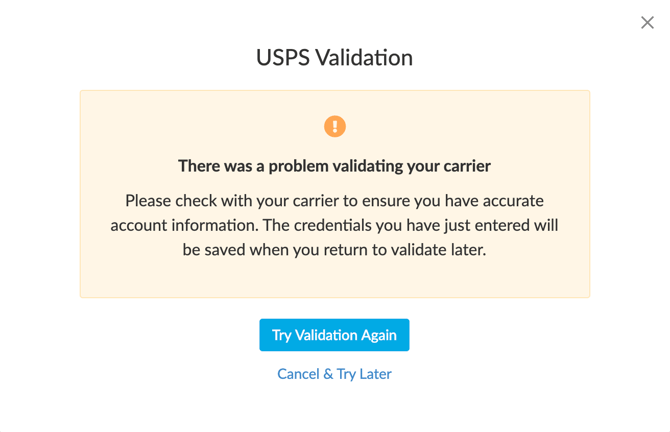
If you see an error → Troubleshooting Carrier Authentication Errors.
If no error → go to Check your negotiated rates setting.
Check your negotiated rates setting.
In your carrier settings, locate the account type field. If you have a negotiated rate agreement with your carrier, confirm it's set to "negotiated" or "account rates" rather than "retail" or "published." UPS and FedEx both require this to be set explicitly — it doesn't default to negotiated.
See Verify Carrier Settings ⧉ for instructions.
If set to retail → change to negotiated and retest.
If already correct → go to Confirm you're using production credentials.
Confirm you're using production credentials.
In your carrier settings, verify the API key or account number matches your production carrier account, not a test or sandbox account. Sandbox credentials typically return published retail rates.
If you're on sandbox credentials → swap to production and retest.
If already on production → go to Check for a residential surcharge.
Check for a residential surcharge.
Carrier quotes from a carrier's website default to commercial delivery. ShipperHQ detects residential addresses and applies the carrier's residential delivery surcharge, which can add several dollars per shipment depending on carrier and service.
Compare the carrier's quote for the same address type. If the gap closes when you quote residential on the carrier side → this is expected behavior; no configuration change needed.
If the gap remains → go to Check for carrier-level fees and accessorials.
Check for carrier-level fees and accessorials.
In your carrier settings, review any configured surcharges — fuel surcharges, delivery area surcharges, additional handling fees, or other accessorials. These are applied on top of the base rate and may account for the difference.
If you find a fee that's incorrect or unexpected → adjust and retest.
If fees look correct or don't account for the gap → go to Rates are higher or lower than expected.
Rates are higher or lower than expected
Use this section if rates have always seemed off, you've exhausted the other paths, or you're not sure where to start. This is the broadest category and covers packing-related rate differences and rule-driven rate changes.
Check for a rule with a date range or time window condition that may have ended.
Date and time conditions are the only rule conditions that can stop firing without any manual change or change in cart inputs.
If yes → How to Apply Shipping Rules Based on Dates.
If no → go to Check whether anything in ShipperHQ or on your platform changed recently.
Check whether anything in ShipperHQ or on your platform changed recently.
Enterprise plans: If you have the Activity Log feature enabled, check there first — it provides a searchable record of configuration changes with date and time. If it wasn't enabled before the issue started, it won't show earlier changes.
If something changed, check based on what it was:
- Rule change — review the rule in Test Your Rates to confirm whether it's firing and what it's doing. → Troubleshooting Shipping Rules
- Carrier settings change — verify rate type, handling fees, and account credentials. → How to Resolve Shipping Rate Discrepancies
- Product or attribute change — check whether the affected product's shipping group assignment or dimensions have changed, as these affect which rules fire and how rates are calculated.
- Platform-side change — confirm ShipperHQ is still connected as the active rate provider and that carrier-calculated shipping is still enabled on the relevant shipping profile.
If nothing was changed → go to Check whether anything changed about the orders or products rules are evaluating.
Check whether anything changed about the orders or products rules are evaluating.
Rules may be evaluating correctly against changed inputs. Things to check:
- Cart value or weight changes — a threshold condition that previously triggered may no longer be met
- Shipping group reassignment — a product moved to a different group may now match a different rule or no rule at all
- Customer group or tag changes — if the affected customer recently changed groups or had a tag added or removed, any rule with that condition will behave differently. Shopify: if you're using Shopify Flow to apply customer tags at checkout, the tag must be present before ShipperHQ sends the rate request. Configure Flow to apply the tag with no delay. If tags are applied after order placement, allow at least 5 minutes before the update runs.
If any of these match → review the relevant rule in Test Your Rates to confirm how it's evaluating. For more on diagnosing rule conditions, see Troubleshooting Shipping Rules.
If not → go to Check whether a percentage handling fee is compounding with a flat fee.
Check whether a percentage handling fee is compounding with a flat fee.
If you have both a flat handling fee and a percentage modifier configured on a carrier, the order of operations may produce a higher rate than expected. ShipperHQ applies the flat fee first, then applies the percentage modifier to the combined total — base rate plus flat fee — rather than to the base rate alone.
For example, a $10 base rate with a $6 flat fee and a 1.7× modifier produces: ($10 + $6) × 1.7 = $27.20, not $10 × 1.7 + $6 = $23.
To check: go to your carrier settings and review the handling fee and rate modifier fields. If both are configured and the math accounts for the discrepancy → adjust the flat fee or modifier to produce the intended rate.
If handling fees aren't the cause → go to Check whether this is a multi-origin order.
Check whether this is a multi-origin order.
If the order ships from multiple origins, ShipperHQ retrieves rates from each origin separately and combines them. The combined total can look unexpected if you're comparing against a single-origin quote or if one origin is returning a higher rate than anticipated. Use Test Your Rates to review each origin's rates individually to identify which origin is producing the unexpected amount.
If yes → How to Troubleshoot Origin Issues.
If not → go to Check whether packing logic is affecting the rate.
Check whether packing logic is affecting the rate.
If you see a "rate shopping — shipping" line item and the rate is lower than expected, this is likely working as intended — rate shopping selected the lowest combined rate across multiple origins.
For other rate differences, ShipperHQ may be rating on dimensional weight or selecting a box that results in a higher billable weight than the actual shipment weight. Use Test Your Rates and review the packing details to confirm which box was selected and what billable weight was used. For platform log-based methods, see Which Box Did ShipperHQ Pack for My Order?
Note: if you're seeing the exact same dollar amount across many different products or weights, packing logic is unlikely to be the cause — a rate cap, rate override rule, or fixed surcharge is more likely. Go to Check whether anything in ShipperHQ or on your platform changed recently and look for a rate override rule.
If the box or billable weight differs from what you expected → Troubleshooting Dimensional Boxes Not Packing as Expected.
If packing logic looks correct → see Getting More Help below.
Free Shipping Isn't Working As Expected
This section covers possible root causes of free shipping options behaving unexpectedly at checkout.
Free shipping isn't appearing
Use this section if free shipping was expected at checkout but didn't show up. The first step is to confirm how free shipping is configured, since the diagnostic path differs depending on whether it's set up via a carrier or a rule.
Before you start — how is free shipping set up?
- Via a Free Shipping carrier — check Carriers in ShipperHQ for a carrier with type "Free Shipping" → Free shipping carrier isn't appearing.
- Via a shipping rule — check Shipping Rules for a rule with action "Offer Free Shipping" → Free shipping rule isn't appearing.
- Not sure, or it may have been removed — check both Carriers and Shipping Rules; if neither has free shipping configured, it either hasn't been set up yet or was removed. → Free Shipping Custom Carrier or How to Offer Free Shipping on Orders over $X.
Free shipping carrier isn't appearing
Check whether the carrier is enabled and conditions are met.
In your carrier settings, confirm:
- The carrier is toggled on
- The Minimum Order Amount (Basic tab › Free Shipping Rules) is set correctly and the cart meets it
- The destination is within the carrier's service area (Basic tab › Carrier Service Area › Only Ship to These Shipping Zones)
- No package weight limit is blocking it (Package tab › "Don't Show Carrier When Product Weight > Max Package Weight" — if enabled, the carrier won't show if any product exceeds the configured maximum)
- The cart products belong to the qualifying shipping group — if only some products are in the qualifying group, the carrier may not appear in a mixed cart
- For any shipping groups involved, check that Shipping Methods Restricted To is not blank or misconfigured — if set incorrectly, it can suppress methods the group should allow
If any of these are misconfigured → correct and retest.
If all look correct → go to Check for a rule suppressing the carrier method.
Check for a rule suppressing the carrier method.
In Shipping Rules, scan the Shipping Methods column for any rule that targets the free shipping carrier or method:
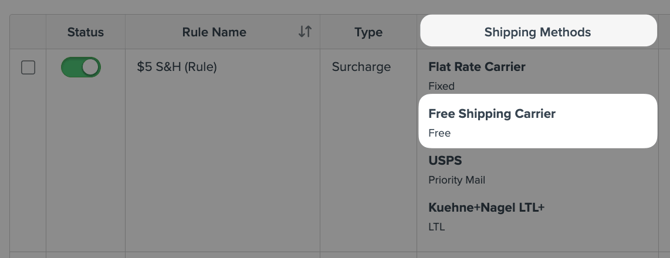
If no rule is suppressing it → see Getting More Help below.
Free shipping rule isn't appearing
Confirm the rule is enabled and targeting the right method.
In Shipping Rules, confirm the free shipping rule is active and that the carrier method it targets is also enabled.
If the rule is disabled or the target method is unavailable → correct and retest.
If both are enabled → go to Check for a Hide rule suppressing the method.
Check for a Hide rule suppressing the method.
Even if your free shipping rule is configured correctly, a Hide rule targeting the same carrier method can remove it from checkout after the free shipping rule fires. In Shipping Rules, scan for any Hide rule that includes the method your free shipping rule targets. If you find one, update or remove it and retest.
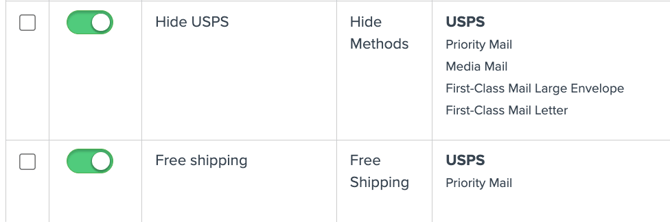
If no rule is suppressing it → go to Check the rule's Apply This Rate To setting.
Check the rule's Apply This Rate To Setting
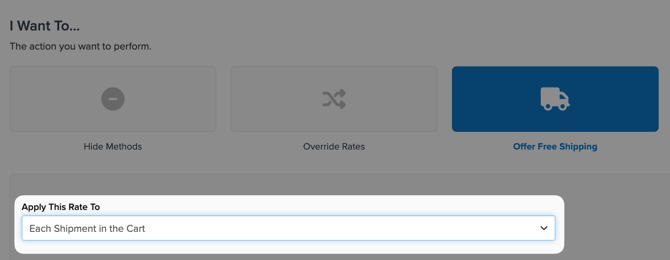
Go to Shipping Rules, open the free shipping rule, and check the Apply This Rate To field.
If set to "Each Shipping Group in the Cart," the price threshold is evaluated per group — not against the combined cart total. A cart with $60 in one group and $60 in another won't trigger a $100 threshold. Change Apply This Rate To to "Each Shipment in the Cart" to evaluate against the combined cart total, then retest.
If already set to "Each Shipment in the Cart" → go to Check whether the rule condition is being met.
Check whether the rule condition is being met.
Use Test Your Rates to simulate the order and review the Rate Details panel — check Flat Rules Applied to confirm whether the rule fired.
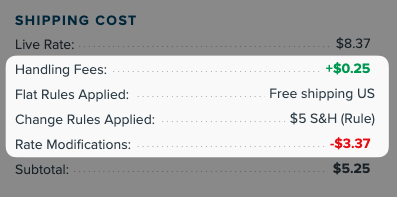
If it didn't fire, work through the most common causes:
- Price threshold not met due to per-group evaluation — if Apply This Rate To is set to "Each Shipping Group in the Cart," the threshold is evaluated per group, not against the combined cart total. A cart with $60 in one group and $60 in another won't trigger a $100 threshold. This is the most common cause. Change Apply This Rate To to "Each Shipment in the Cart" to evaluate against the combined cart total.
- Product not assigned to the qualifying shipping group — new or recently added products may not have the correct shipping group set. Check the product's shipping group assignment in ShipperHQ or your platform.
- Rule targeting the wrong carrier method — if you recently changed carriers, the rule may still target the old method. Open the rule and update the selected shipping methods.
- Unassigned products affecting evaluation — products with no shipping group assigned, including virtual or donation products, may affect how the rule evaluates conditions. → Troubleshooting Shipping Rules.
- Customer group or tag condition not matching — confirm the customer is in the correct group or has the correct tag. Shopify: if you're using Shopify Flow to apply customer tags at checkout, the tag must be present before ShipperHQ sends the rate request. Configure Flow to apply the tag with no delay.
- Multi-origin order — "Offer Free Shipping" rules behave differently on multi-origin orders and may not suppress paid rates as expected. → Troubleshooting Shipping Rules — Rate Issues
If none of the above explains it → see Getting More Help below.
Free shipping is appearing when it shouldn't
Use this section if free shipping is showing at checkout for orders that shouldn't qualify. Before looking at ShipperHQ rules, check your platform — some platforms have native free shipping methods and promotions that operate independently of ShipperHQ and can appear alongside or instead of your configured rates.
Before you start:
- Does it appear for all orders, or specific orders? If all orders, the rule condition may be too broad or missing entirely. If specific orders, check what they have in common.
- Did free shipping appear after a qualifying cart, then the cart was edited? Some platforms don't re-evaluate shipping when the cart changes mid-checkout — if a customer added items to qualify and then removed them, free shipping may persist until the session resets. This is a platform caching behavior, not a ShipperHQ configuration issue.
Check whether the source is platform-level.
- BigCommerce → Check Store Setup › Shipping › Checkout Shipping Options › Default Shipping Rules for an enabled Free Shipping toggle, and Marketing › Promotions for any active free shipping promotion. → "Free Shipping" shown in the cart but not in ShipperHQ?.
- WooCommerce → Check WooCommerce › Settings › Shipping › Shipping Zones for an enabled Free Shipping method, and WooCommerce › Coupons for any active free shipping coupon. → Free Shipping Still Showing on WooCommerce After Disabling ShipperHQ Rules.
- Shopify, Magento, other platforms → Check your platform's discount codes and cart price rules for any active free shipping promotion.
If the platform isn't the source → go to Identify where the free shipping is coming from in ShipperHQ.
Identify where the free shipping is coming from in ShipperHQ.
- Check Carriers for a Free Shipping carrier type — if one exists, review its settings (Minimum Order Amount, service area, any conditions). If the carrier has no minimum order amount or overly broad settings → that's the source; tighten the configuration.
- Check Shipping Rules for any active free shipping rule — if one exists and you don't expect it to be firing → go to Check the rule condition and scope.
If you find both a carrier and a rule, use Test Your Rates › Rate Details to confirm which one is returning the free shipping method.
Check the rule condition and scope.
Review the condition for the firing rule — is the cart value threshold too low, the shipping group scope too broad, or a zone condition missing? Tighten the condition to exclude orders that shouldn't qualify. → Troubleshooting Shipping Rules.
Shipping Methods Are Missing or Unexpected
Use this section if something is wrong with which carriers or methods are showing at checkout — either something expected is missing, something unexpected is showing, or nothing is showing at all.
- If you're using a table rate carrier → Table rate carrier issues
- If nothing is returning at all → No shipping methods at checkout
- If a specific carrier recently stopped showing → Expected carrier is missing
- If the carrier is showing but a specific method isn't → Expected method is missing within a carrier
- If something is showing that you didn't configure → Unexpected carrier or method is showing
Table rate carrier issues
Use this section if you're using a table rate carrier. Table rate carriers use a static rate table rather than live carrier API calls, so authentication errors, API failures, and carrier outages don't apply — the main thing to check is whether your rate table has a matching row for the cart.
Check whether your rate table has a row matching this cart.
Table rates return nothing if no row matches the cart's weight, value, or destination zone. Common gaps:
- Weight boundary gaps — check whether the affected cart's weight falls on or near a row boundary. If your table has rows for 0–10 kg and 11–20 kg, a cart weighing exactly 10.5 kg may fall between rows depending on how boundaries are configured.
- Missing zone — confirm the destination is covered by a shipping zone in your table. If the destination state, postcode, or country isn't assigned to a zone, no row will match.
- Product combination gaps — some products are only in the table for certain shipping groups. A mixed cart with products from different groups may find no single row that covers the combination.
If you find a gap → add or adjust the relevant row(s) and retest.
If the table looks complete → Expected carrier is missing, starting at step 4.
No shipping methods at checkout
Use this section if nothing is returning at checkout at all. Work through these steps in order — the most common causes are product data, shipping group setup, and authentication, and they're fast to rule out.
For a full reference of possible causes grouped by area, see No Shipping Methods at Checkout.
Check for a carrier authentication or connection error.
In ShipperHQ, go to Carriers and check for any error indicator on your active carriers.
If you see an error → Troubleshooting Carrier Authentication Errors.
If no errors → go to Check whether all products in the cart have weight and dimensions assigned.
Check whether all products in the cart have weight and dimensions assigned.
ShipperHQ requires weight at minimum to retrieve rates. Missing weight on any product in the cart can block all rates from returning.
If weight or dimensions are missing → add them and retest.
If all products have weight → go to Check whether products are assigned to a shipping group.
Check whether products are assigned to a shipping group.
Products without a shipping group assignment can block rate retrieval for the entire cart.
If any products are unassigned → assign them and retest.
If all products are assigned → go to Check whether the shipping group name matches exactly between ShipperHQ and your platform.
Check whether the shipping group name matches exactly between ShipperHQ and your platform.
ShipperHQ matches shipping groups by name. If the name passed from your platform doesn't match exactly — including capitalization, spacing, or special characters — ShipperHQ won't recognize the group and rates won't return.
- Shopify — the shipping group value is set via a product metafield. Confirm the metafield value on the product matches the shipping group name in ShipperHQ exactly, including case. → Troubleshoot Shopify Requests.
- Other platforms — check the shipping group attribute on the product record in your platform and compare it character-for-character against the name in ShipperHQ.
If there's a mismatch → correct the value and retest.
If names match → go to Check for a Hide rule suppressing all methods.
Check for a Hide rule suppressing methods.
A Hide rule with overly broad conditions can remove methods from checkout for carts it wasn't intended to affect.
In Shipping Rules, look for any active Hide rule and check its conditions against this cart's attributes — destination, cart value, and product type are the most common culprits. If you find one that's matching when it shouldn't be, tighten the condition and retest.
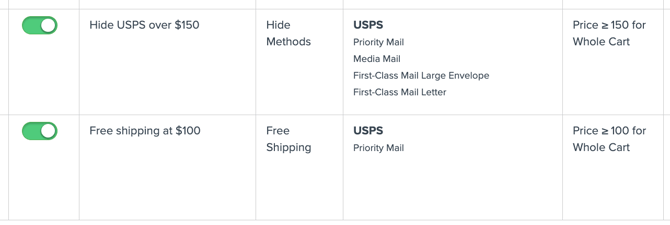
In this example, a free shipping rule triggers at $100 but the methods are suppressed at $150. Orders over $150 would not show the Free Shipping option.
If no rule explains it → go to Check carrier service area settings.
Check carrier service area settings.
Restrictions that can block all rates for a destination:
- PO box or APO/FPO address (many carriers don't serve these)
- Destination outside the carrier's configured shipping zones
- Territory destinations (Puerto Rico, Guam, US Virgin Islands) that aren't included in the carrier's service area
If the destination isn't covered → configure an alternative carrier for that destination or inform the customer.
If the destination should be covered → go to Check your platform's carrier-calculated shipping settings.
Check your platform's carrier-calculated shipping settings.
- Shopify — confirm carrier-calculated shipping is enabled on the shipping profile that covers this product and destination. If you've recently made changes to your Shopify shipping profiles or plan settings, confirm carrier-calculated rates are still enabled. → Troubleshoot Shopify Requests.
- BigCommerce — if you have any custom address fields configured in your store, check whether any are being treated as required by ShipperHQ even if they're optional in BigCommerce. A custom field (such as a VAT or tax ID field) that isn't populated can block rate retrieval. Try entering a value in the field and retesting — if rates return, that field is the cause. See Getting More Help below.
- Other platforms — confirm ShipperHQ is connected as the active rate provider and that no platform-native rates are overriding it.
If the platform setting is correct → No Shipping Methods at Checkout for remaining checks, then see Getting More Help below.
Expected carrier is missing
Use this section if other carriers are returning rates but one specific carrier isn't. Since the issue is isolated to that carrier, narrow the investigation to its configuration, service area, and any rules that might be suppressing it.
Check for a carrier authentication or connection error.
In ShipperHQ, go to Carriers and check for an error on the affected carrier.
If you see an error → Troubleshooting Carrier Authentication Errors.
If no error → go to Confirm the carrier is enabled.
Confirm the carrier is enabled.
In your carrier settings, confirm the carrier is toggled on.
If it's disabled → enable and retest.
If already enabled → go to Check the carrier's service area settings.
Check the carrier's service area settings.
The carrier may not be configured to serve this destination. In carrier settings, review:
- Shipping zones — confirm the destination is included
- Any explicit exclusions (PO boxes, APO addresses, territories)
If the destination isn't covered → update service area settings or configure an alternative carrier.
If service area looks correct → go to Check for a rule with a zone condition affecting this destination.
Check for a rule with a zone condition affecting this destination.
A Hide rule scoped to a shipping zone can suppress a carrier for specific destinations even if the carrier's service area settings are correct. In Shipping Rules, look for any active Hide rule with a zone condition and check whether the affected destination falls within that zone. If it does, the Hide rule is suppressing the carrier for that destination.

For example, if you previously hid all non-USPS methods for a zone including APO, Hawaii, and Alaska, then later added a UPS method targeting all US states, the Hide rule would suppress the UPS method.
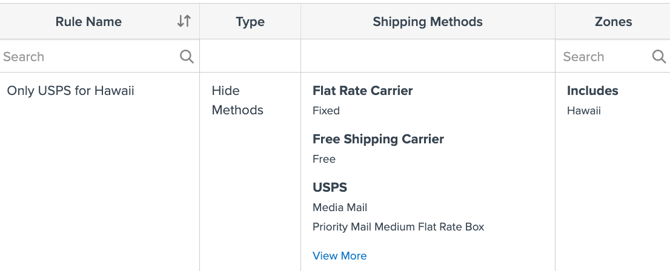
If you find one → adjust the zone condition or disable the rule and retest.
If no zone-condition rule explains it → go to Check for a Hide rule targeting this carrier directly.
Check for a Hide rule targeting this carrier directly.
In Shipping Rules, scan for any active Hide rule that includes this carrier in its selected methods. If you find one, check whether its condition is intentional for this cart — it may have been set up for a different purpose and is broader than intended.
If you find one → adjust or disable the rule and retest.
If no rule explains it → see Getting More Help below.
Expected method is missing within a carrier
Use this section if the carrier is returning rates but one specific method isn't showing. Since other methods from this carrier are appearing, authentication and the carrier's overall service area aren't the issue — the investigation is at the method level. If all methods from this carrier are gone rather than just one, go to Expected carrier is missing instead.
Confirm the method is enabled in carrier settings.
In your carrier settings, locate the services or methods list and confirm the expected method is toggled on.
If it's disabled → enable and retest.
If already enabled → go to Check whether the shipping group name matches exactly between ShipperHQ and your platform.
Check whether the shipping group name matches exactly between ShipperHQ and your platform.
ShipperHQ matches shipping groups by name. A mismatch — including differences in capitalization, spacing, or special characters — means ShipperHQ won't recognize the group and won't return methods that depend on it.
- Shopify — confirm the metafield value on the product matches the shipping group name in ShipperHQ exactly, including case. → Troubleshoot Shopify Requests.
- Other platforms — check the shipping group attribute on the product record in your platform and compare it character-for-character against the name in ShipperHQ.
If there's a mismatch → correct the value and retest.
If names match → go to Check for method-level service restrictions.
Check for method-level service restrictions.
Some carrier methods have destination restrictions that operate independently of the carrier's general service area:
- FedEx Ground — does not deliver to PO boxes or APO/FPO addresses
- UPS Ground — restricted for some remote or rural destinations
- For other carriers, check the carrier's published service guide if you're unsure whether the method serves this destination
If the destination isn't covered by this method → no configuration change will resolve it; use an alternative method or carrier.
If the destination should be covered → go to Check for a freight threshold suppressing this method.
Check for a freight threshold suppressing this method.
If you have an LTL freight carrier configured with a minimum weight threshold, ShipperHQ hides all other carriers when that threshold is met — the assumption is that everything ships LTL. Check your LTL carrier settings for a minimum cart weight. If the affected cart meets or exceeds that threshold, LTL is triggering and parcel methods are being suppressed by design.
Two platform-specific conditions can also trigger LTL regardless of weight:
- Magento — a product marked to ship freight only triggers LTL for any cart containing it
- BigCommerce — a product in a shipping group configured to exclusively ship freight triggers LTL
If LTL is triggering unexpectedly → review the minimum weight threshold on the LTL carrier, or check whether any product in the cart has a freight-only flag or freight-only shipping group.
If no freight threshold or freight-only product applies → go to Check for a rule with a zone condition affecting this destination.
Check for a rule with a zone condition affecting this destination.
A Hide rule scoped to a shipping zone can suppress a specific method for certain destinations even if the carrier's service area settings are correct.
In Shipping Rules, look for any active Hide rule with a zone condition and check whether the affected destination falls within that zone.
For example, if you previously set up a Hide rule to suppress all non-USPS methods for destinations like APO addresses, Hawaii, and Alaska, then later added UPS Ground targeting all US states, the Hide rule would suppress UPS Ground for those destinations even though you intended it to be available there.
If you find one → adjust or disable the rule and retest.
If no zone-condition rule explains it → go to Check for a Hide rule targeting this method directly.
Check for a Hide rule targeting this method directly.
In Shipping Rules, scan for any active Hide rule that includes this specific method in its selected methods. If you find one, check whether its condition is intentional for this cart — it may have been set up for a different purpose and is broader than intended.
If you find one → adjust or disable the rule and retest.
If no rule explains it → see Getting More Help below.
Unexpected carrier or method is showing
Use this section if something is showing at checkout that shouldn't be. If you recognize the carrier as one you configured in ShipperHQ, go to A ShipperHQ carrier or method is showing unexpectedly. If you don't recognize it, it's likely coming from your platform — go to A carrier is showing that you didn't configure in ShipperHQ.
A ShipperHQ carrier or method is showing unexpectedly
Check for a Hide rule whose condition isn't being met.
If a carrier or method is showing unexpectedly, a Hide rule may have been configured to suppress it but isn't firing for this cart. In Shipping Rules, look for any Hide rule targeting this carrier or method and review its condition against the affected cart's attributes — the condition may be too narrow, or a cart attribute it depends on (destination, cart value, shipping group) may not match.
If you find one → adjust the condition and retest.
If no rule explains it → see Getting More Help below.
A carrier is showing that you didn't configure in ShipperHQ
This is most commonly a platform-level method, not a ShipperHQ-configured carrier.
-
Shopify — Shopify has a backup rates feature that activates if ShipperHQ doesn't respond within Shopify's timeout window. See Shopify backup rates are appearing below for how to identify them, what triggers them, and how to disable them if needed.
-
BigCommerce, WooCommerce, Magento — check your platform's native shipping settings for any enabled shipping methods that may be appearing alongside or instead of ShipperHQ rates.
Shopify backup rates are appearing
Shopify backup rates are native Shopify shipping rates that appear at checkout when ShipperHQ doesn't respond within Shopify's timeout window. They look like regular shipping options with no indication in the checkout UI that they're backup rates.
Confirm backup rates are the source. In Shopify, go to Settings › Shipping and delivery and look for the backup rates section — it shows how often they've been triggered recently.
If they're triggering frequently, the most common causes are complex multi-origin setups and LTL carriers, both of which take longer to respond and are more likely to exceed Shopify's timeout. If the issue persists, contact ShipperHQ Support with the timeframe and affected carrier.
To disable backup rates, remove or disable the native Shopify rates in Settings › Shipping and delivery. Note that without backup rates, customers will see no shipping options at checkout if ShipperHQ times out.
Getting More Help
If you've worked through the steps above and the discrepancy remains, contact ShipperHQ Support at support@shipperhq.com. To help the team diagnose the issue quickly, include:
- Your transaction ID or quote ID for the checkout attempt — find yours using the guide for your platform:
- How to Find Transaction IDs for WooCommerce
- How to Locate Your Quote ID in BigCommerce
- How to Find Your Transaction ID in Magento 2
- Shopify — a screenshot of the cart and checkout, plus the order URL
- What you expected — for example, "Expected FedEx Ground at $12.50, but only USPS Priority appeared."
- Your Test Your Rates output — a screenshot or paste of the Test Your Rates result showing the expected rate.
For general guidance on transaction IDs across platforms, see ShipperHQ Quote or Transaction ID.
Additional Resources
- How to Resolve Shipping Rate Discrepancies
- No Shipping Methods at Checkout
- Rates Show in Test Your Rates But Not at Checkout
- Troubleshooting Rate Discrepancies Between Test Your Rates and the Storefront
- Troubleshooting Carrier Authentication Errors
- Troubleshooting Shipping Rules
- Handling Carrier Downtime
- Activity Log
- Troubleshoot Shopify Requests
- Free Shipping Custom Carrier
- How to Offer Free Shipping on Orders over $X
- "Free Shipping" shown in the cart but not in ShipperHQ?
- Free Shipping Still Showing on WooCommerce After Disabling ShipperHQ Rules
- How to Apply Shipping Rules Based on Dates
- Reauthenticating Your UPS Account