
Table of Contents
- Before You Start
- Step 1: Verify Your Test Matches Your Storefront
- Step 2: Check Your ShipperHQ Configuration
- Step 3: Review Your Shipping Rules
- If the Issue Persists
Test Your Rates is ShipperHQ's built-in rate simulator, and a useful first step when rates behave unexpectedly. This article covers what to do when Test Your Rates returns rates that differ from what appears at checkout — either different amounts, different methods, or methods that appear in Test Your Rates but are missing entirely at checkout.
If you're not seeing rates at checkout at all and haven't used Test Your Rates yet, start with How to Resolve Shipping Rate Discrepancies in ShipperHQ for general rate troubleshooting.
Before You Start
Test Your Rates is only useful for comparison if it's replicating your storefront scenario exactly. Before diagnosing a discrepancy, confirm:
- You're testing with the same products and quantities as the storefront order
- The ship-to address in Test Your Rates matches the checkout address exactly — including street address, not just zip code
- The shipping group, customer group, and origin assigned to the products in Test Your Rates match what's configured on the platform
- You're running Test Your Rates against the same scope your storefront is using — changes made in one scope don't affect another, and Test Your Rates only appears for a scope once it's been configured. If you recently used the Scope Copy Tool to migrate between scopes, verify the migration completed correctly — packing rules and carrier configurations are common points of divergence.
Even small differences — a decimal off on weight, a missing street address, a mismatched shipping group — will cause Test Your Rates to return different rates. Rule these out before investigating further.
Step 1: Verify Your Test Matches Your Storefront
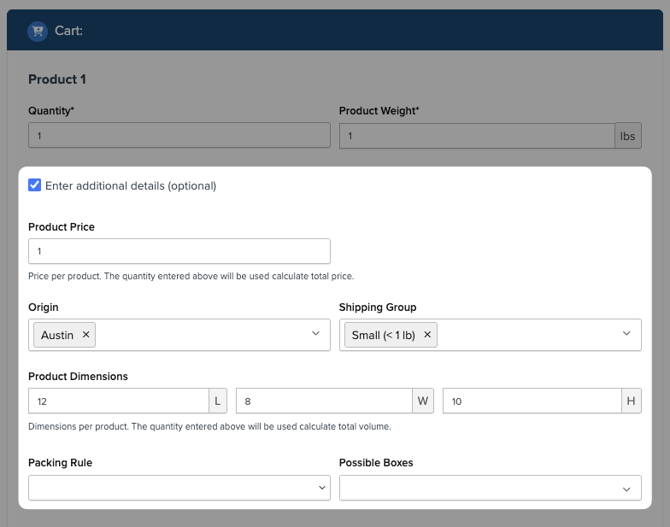
Compare the following between your Test Your Rates test and the storefront cart:
- Products and quantities — Confirm the SKUs and quantities are identical
- Ship-to address — Use the full address, not just city/state/zip; a residential vs. commercial address classification can affect rates
- Shipping groups — Confirm products in Test Your Rates are assigned to the same shipping groups as on your platform
- Customer group — If your store uses customer groups, confirm the group in Test Your Rates matches the customer's group at checkout
- Origin — Confirm Test Your Rates is using the same origin as the storefront request
- Dimensions and weight — Confirm Test Your Rates product dimensions and weight match what your platform is sending to ShipperHQ
To replicate a storefront cart as accurately as possible, use Show All Options + in the Test Your Rates cart section to expose the full set of fields.
Step 2: Check Your ShipperHQ Configuration
If your Test Your Rates setup matches the storefront and rates still differ, review your configuration for factors that could affect rate calculation:
Weight and dimensions
Go to the product in your platform and confirm that Length, Width, and Height are all populated. ShipperHQ does not calculate with partial dimensions — if any dimension is missing, ShipperHQ removes all dimensions from the rate request and falls back to weight only.
Note that the weight value your platform sends to ShipperHQ can differ slightly from what's in the product record due to platform-side rounding. Even a small difference — for example, 0.44 lb vs. 0.45 lb — can push a shipment into a different weight tier on a table rate carrier.
Packing configuration
If dimensional packing is enabled, confirm the correct boxes are assigned and that packing rules are applied consistently between Test Your Rates and your storefront. Use Which Box Did ShipperHQ Pack? to review what boxes were selected for a given request.
Carrier settings
Check for carrier-level handling fees, declared value settings, or negotiated rate configurations that may be applying differently than expected. Go to Carriers › [carrier name] and review the Fees and Account Settings tabs. If you're expecting negotiated rates, confirm the negotiated rates flag is enabled on the carrier and that your credentials are current — if negotiated rates aren't being applied, ShipperHQ returns retail rates instead.
Origins (multi-origin setups)
If you have multiple origins configured, confirm which origin the storefront request actually used — don't rely on which origin is selected in Test Your Rates. Nearest-warehouse or inventory location logic can select a different origin than expected. Use Advanced Shipment Details or the transaction log to verify which origin was used. See How to Troubleshoot Origin Issues for further guidance.
Platform-specific setup
Confirm ShipperHQ can read your product data correctly from your ecommerce platform. See Platform-Specific Setups for platform-specific considerations.
Step 3: Review Your Shipping Rules
If the cart and configuration are identical and rates still don't match, the discrepancy may be caused by a shipping rule applying differently at checkout than in Test Your Rates.
The most common cause of a rule working in Test Your Rates but not at checkout is that the platform isn't passing the shipping group attribute to ShipperHQ correctly, so the rule condition is never met at checkout. Before reviewing rule logic, confirm the shipping group is actually being transmitted by checking the transaction log for the checkout attempt.
- Check whether any rules are scoped to specific shipping groups, origins, or destinations — a rule may be meeting its conditions in Test Your Rates but not at checkout, or vice versa
- Review any hide/restrict rules, carrier zone restrictions, or origin restrictions that could affect method visibility
- Confirm that surcharge or discount rules aren't applying to one context but not the other
If a rule appears to be firing in Test Your Rates but not at checkout, open the rule and review its conditions carefully against the actual checkout scenario.
If the Issue Persists
If you've worked through the steps above and the discrepancy remains, contact ShipperHQ support at support@shipperhq.com. To help the team diagnose the issue quickly, include:
- Your transaction ID or quote ID for the checkout attempt — find yours using the guide for your platform:
- How to Find Transaction IDs for WooCommerce
- How to Locate Your Quote ID in BigCommerce
- How to Find Your Transaction ID in Magento 2
- For Shopify: a screenshot of the cart and checkout, plus the order URL
- What you expected — for example, "Expected FedEx Ground at $12.50, but only USPS Priority appeared"
- Your Test Your Rates output — a screenshot or paste of the Test Your Rates result showing the expected rate
For general guidance on transaction IDs across platforms, see ShipperHQ Quote or Transaction ID.