
Overview
In 2024, UPS updated its APIs security protocol to OAuth 2.0. If you see a “Reauthentication required - Update now” message next to UPS under your Carriers in ShipperHQ, it’s time to complete the update.
Why this matters: UPS is shutting down its old authentication service on December 31st, 2025. If you don’t update by then:
- UPS negotiated rates and contract only services (like Ground Saver) will stop showing at checkout
- ShipperHQ will default to daily UPS rates until you reauthenticate
The good news? Updating takes just a few minutes, and keeps your shipping and checkout running smoothly.
Steps to Reauthenticate Your UPS Account
1. Log in to ShipperHQ and navigate to Carriers. If you see the message “Reauthentication required Update now” next to UPS, click “Update now”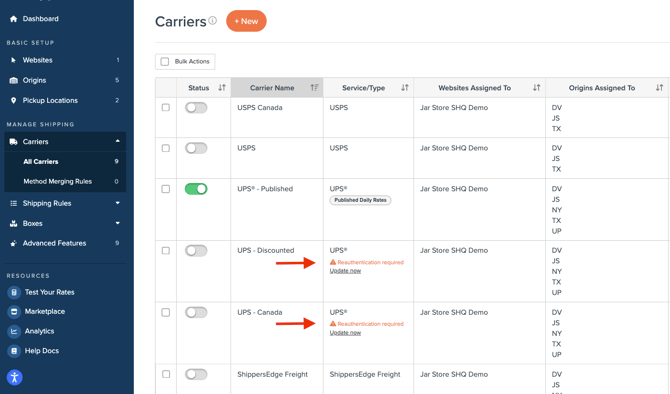
2. Enter your 6-digit UPS Shipping Account Number. You can find this number in your UPS.com account under Accounts and Payment. Once you’ve entered your Shipping Account Number, hit “Continue”
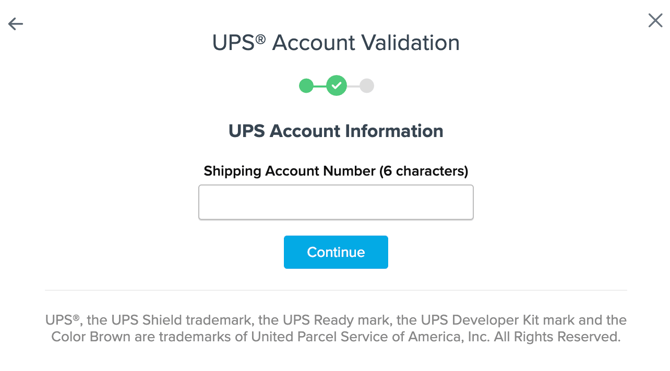
3. Select “Enter Credentials.” You’ll be prompted to login to your UPS.com account

4. Enter your username or email address and accept terms

5. Enter your UPS account password
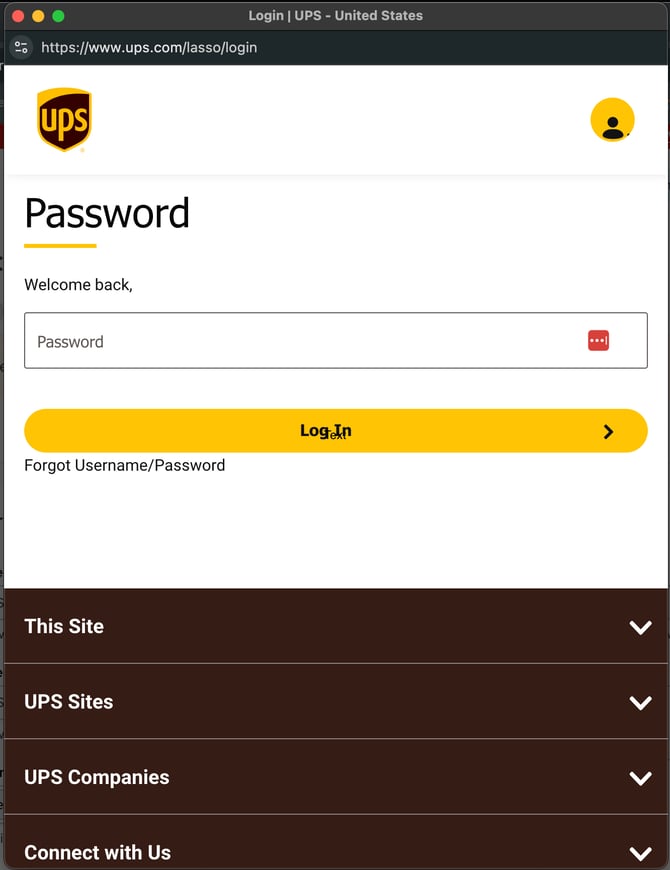
6. You’re all set! Your ShipperHQ account will return your negotiated UPS rates and services as usual.
Troubleshooting
- Already reauthenticated but being asked to do it again?
Your ShipperHQ account likely has multiple scopes. You may have authorized one scope, but not all of them. To resolve this, complete the authorization flow for every scope. - Already reauthenticated but still not seeing expected rates?
The UPS Account, entered in ShipperHQ, may not be linked to the UPS.com Profile. Please confirm, by logging into your UPS.com profile to confirm the UPS Account number entered in ShipperHQ is linked. - Don’t have an active UPS shipping account?
Reference this UPS guide: Add Shipper Account Numbers. - Using a CampusShip account?
UPS.com accounts tied to CampusShip can’t connect to third party tools. You'll need to use a standard, non-CampusShip UPS.com account to authorize UPS in ShipperHQ.