
Table of Contents
- Initial Troubleshooting Steps
- Rate Issues
- Carrier Method Visibility Issues
- Destination and Zone Issues
This article helps you diagnose and resolve issues with shipping rules that aren't behaving as expected — for example, a rule that isn't firing, a rate that's wrong, or a method that's appearing or missing when it shouldn't be.
This article assumes you've already identified a shipping rule as the likely cause of your issue. If you're not sure whether your problem is rule-related, start with Diagnosing Shipping Rate Issues for a broader diagnostic starting point. If you're not yet familiar with how ShipperHQ evaluates shipping rules, How Shipping Rules Work provides a useful mental model before diving in.
Initial Troubleshooting Steps
Before working through the specific scenarios below, run through these steps. They apply to almost every rule-related issue and will tell you where to focus.
Tip: If you have multiple rules configured, temporarily disabling rules that aren't related to the issue can make it easier to isolate the cause. Re-enable them once you've confirmed the behavior.
Step 1: Run a test in the rate tester
The rate tester is your primary diagnostic tool. Before changing any configuration, reproduce the problem there first.
Go to Test Your Rates and set up a test that matches the cart and destination where the issue occurs. Click Get Rates, then expand the affected carrier result and open Rate Details. The fields to look at are:
- Flat Rules Applied — shows which set rules fired on this result (e.g. free shipping, overrides)
- Change Rules Applied — shows which surcharge/discount rules fired on this result
- Rate Modifications — shows how the rate was adjusted based on the rules
- Handling Fees — shows any surcharges applied at the carrier level
If your rule appears in Flat or Change Rules Applied, it fired. If the result is still wrong, the issue is in how the rule is configured — not whether it's running. Work through the relevant scenario in the sections below.
If your rule does not appear in Flat or Change Rules Applied, it didn't fire. Continue to Step 2.
If the carrier doesn't appear in the results at all, the problem is upstream of rule evaluation. Rules control what happens to rates after a carrier returns them — they can't act on a carrier that isn't responding. Check your carrier configuration, including weight limits, service area restrictions, and address type settings, before looking at rules.
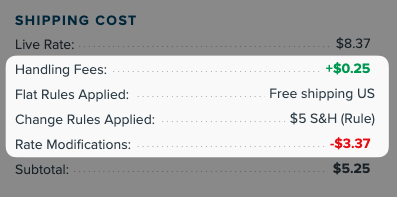
In the example above, the user has a carrier handling fee, a shipping and handling surcharge rule, and a free shipping rule. The free shipping rule fires first, then the carrier fee adds $.25 and surcharge rule adds another $5 for a total of $5.25. The rate modifications reflect the shipping rule changes only (+5$,-$8.37 for a net modification of -$3.37).
Step 2: Check the rule's scope
If a rule isn't firing, verify these three things in the rule itself before changing anything else:
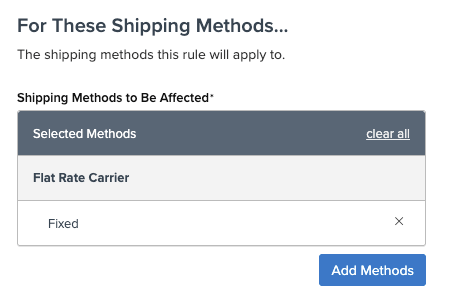
Method scope — does the rule include the carrier or method involved? If you've recently switched carriers, the rule may still be referencing the old carrier's methods. Open the rule by clicking its name in Shipping Rules, then scroll to the For These Shipping Methods section to confirm the correct methods are listed under Shipping Methods to Be Affected.
Shipping group condition — are the products in your test cart actually assigned to the shipping group the rule targets? Unassigned products or products in a different group will cause the rule to skip. Check that every product in the test cart has the expected shipping group assigned in your platform. Also check whether the condition is set to All or Any — if set to All, every selected group must be present in the cart; if set to Any, only one needs to match.
Zone condition — does your test address fall within the zone configured on the rule? If the rule targets a specific zone, confirm the destination is included in that zone's definition. All applicable zone rules will apply.
If any of these don't match your cart and destination, the rule won't fire regardless of any other settings.
Note: When a rule combines conditions of different types — for example, a shipping group and a zone — all conditions must be met (AND logic). When a rule has multiple conditions of the same type — for example, two weight filters — only one needs to match (OR logic).
Rules referencing multiple Shipping Groups can use either AND (all shipping groups) or OR (any shipping groups) logic.
If your rule isn't firing despite conditions appearing correct, check whether your condition types are conflicting. For a full explanation, see How Conditions Are Assessed in How Shipping Rules Work.
Step 3: Verify the rule's configured values
If the rule is firing but the result is wrong, open the rule and confirm that the rate, percentage, or other value it applies is what you intended. A rule that's correctly structured but contains the wrong value — for example, $30 instead of $25 — will fire and produce an incorrect result without any obvious sign that the configuration is wrong.
Step 4: Check that your condition data is accurate
Condition data — does the data your conditions rely on match what's configured in the rule? A condition based on a customer tag, customer group, or order attribute needs to be correct on both sides — both the rule in ShipperHQ, and in your ecommerce platform. If either side doesn't match, the rule won't fire.
If you've worked through all four steps and the issue isn't resolved, see the relevant section below for your specific symptom. If you've worked through the relevant section and the issue remains, contact ShipperHQ support with your rate tester transaction ID, a description of what you expected versus what happened, and your platform.
Rate Issues
Note: This section covers rate issues caused by shipping rules. If a carrier method is missing entirely and no rule explains it, see Carrier Method Visibility Issues.
Rate is higher or lower than expected
If your rate tester shows a rule firing but the resulting rate isn't what you expected, the scenarios below cover the most common causes.
Multiple Set rules are stacking
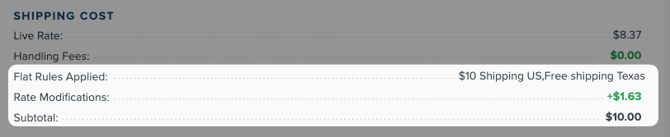
If two or more Set rules (Override Rate or Offer Free Shipping) have conditions that are both met by the same cart, they will stack by default — each one's value adds to the result rather than one winning.
Check the Rate Details panel in the rate tester. If Flat Rules Applied shows more than one Set rule firing on the same carrier method, stacking is the cause. Decide which outcome you want and configure accordingly:
| What you want | How to configure it |
|---|---|
| Both rules apply and stack | Default behavior — no changes needed |
| First rule wins, second doesn't run | Enable Stop Further Rule Processing on the first rule |
| Second rule replaces the first | Enable Overwrite Set Rate on the second rule's Advanced tab (requires Rule Processing Order to be enabled in Shipping Rule Settings) |
A surcharge or discount rule is firing unexpectedly
Start by expanding the affected carrier result in Test Your Rates and checking Rate Modifications in Rate Details — if a Surcharge or Discount rule appears there that you didn't expect to fire, review its conditions to determine why it's matching your cart.
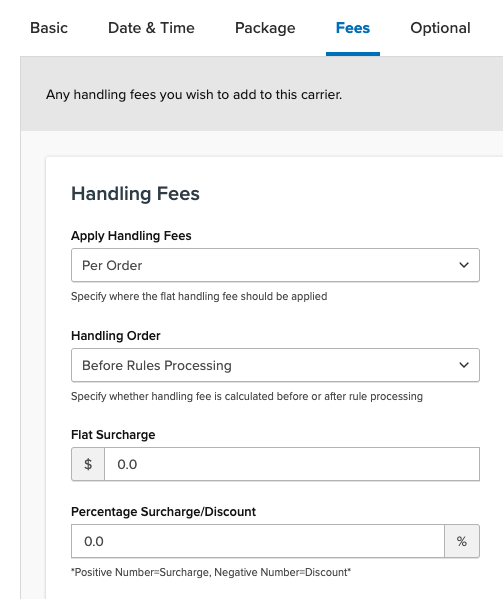
If your Surcharge rules appear correct, also check Handling Fees in Rate Details. Carrier-level handling fees apply to every rate that carrier returns, independently of any rules, and won't appear under Rate Modifications. To remove or adjust a carrier-level fee, go to Carriers › [carrier name] › Fees.
Free shipping isn't working as expected
If your free shipping rule appears correctly configured but isn't producing a $0 rate, the scenarios below cover the most common causes.
Digital or virtual products are affecting the price threshold
Digital and virtual products are not included in rate requests to ShipperHQ. If your cart contains one of these products and your free shipping rule uses a price condition, the subtotal ShipperHQ evaluates will be lower than the total the customer sees at checkout — and the threshold may not be met even when it appears to be.
For example, if your free shipping threshold is $100 and a customer adds a $75 physical item and a $30 digital download, ShipperHQ evaluates the cart as $75 — below the threshold — while the customer sees $105 at checkout.
To check whether this is the cause, review the products in the affected cart and confirm whether any are configured as digital or virtual in your platform.
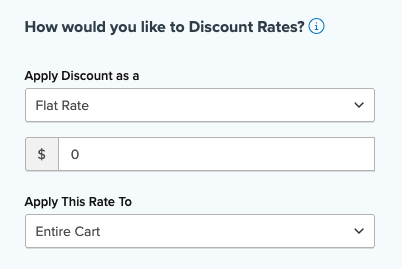
If you want to offer free shipping even for orders including a discount item, you can create a Discount rule with a flat rate of $0 and "Entire Cart" scope instead of the "Offer Free Shipping" rule. Because Discount rules evaluate the full cart total — including virtual products — the threshold will be met correctly. See below for instructions.
The order ships from multiple locations (such as different warehouses)
The Offer Free Shipping rule action does not apply to individual shipments in a multi-origin order. If your store uses multi-origin shipping, the rule will not fire regardless of the cart total or how the Apply To setting is configured.
To offer free shipping on orders that will ship from multiple locations, you can use a Discount rule set to 100% instead:
- Go to Shipping Rules and create a new rule with the Discount Rates action.
- Set the discount to a Flat Rate of $0 and set Apply This Rate To to Entire Cart.
- Add your price condition and save.
Carrier Method Visibility Issues
- The carrier isn't appearing in checkout at all
- A flat rate method isn't showing for some orders
- A parcel carrier disappears when a large order is placed
- A carrier method is appearing and shouldn't be
Note: This section covers carrier methods returned by your carriers — for example, FedEx Ground or UPS Next Day Air. If your free shipping option is missing, see Rate Issues.
The carrier isn't appearing in checkout at all
Before looking at rules, check whether the carrier appears in the Test Your Rates results. If it's absent from the results entirely — not just hidden — the problem is upstream of rule evaluation. Carrier-level settings such as maximum shipment weight, service area restrictions, and address type settings can prevent a carrier from returning rates regardless of rule configuration. Rules can only act on rates that a carrier has already returned.
If the carrier appears in Test Your Rates but the method is missing at checkout, continue to the steps below.
A flat rate method isn't showing for some orders
A flat rate method scoped to a specific shipping group will not appear at checkout if the cart also contains items outside that group. ShipperHQ can only display a method when it applies to all items in the cart — a method that covers only some items cannot be shown alongside those it doesn't cover.
Two options are available:
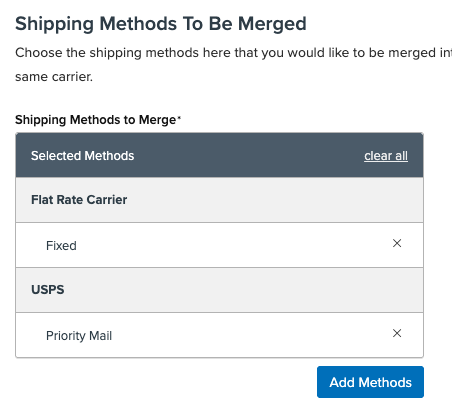
If you have Multi-Origin Shipping enabled, you can use Method Merging Rules to combine the flat rate method with a carrier method that covers all items in the cart. Go to Carriers › Method Merge Rules › New and configure the merge to combine your flat rate method with the applicable carrier method. This allows the flat rate to display alongside rates for the remaining items.
Alternatively, use Enhanced Checkout to split the cart into separate shipments by origin or shipping group. Each shipment displays its own applicable methods independently, so the flat rate method appears for items in its group while other methods appear for the rest. Note that Enhanced Checkout is available on select plans.
A parcel carrier disappears when a large order is placed
When a freight or LTL carrier is triggered — for example, when cart weight exceeds a minimum freight threshold — ShipperHQ automatically suppresses parcel carriers such as FedEx and UPS by default.
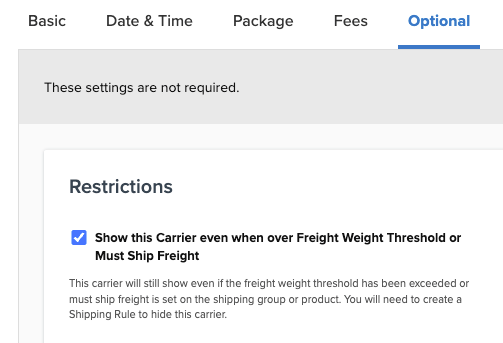
If you want a parcel carrier to continue returning rates alongside freight options, go to Carriers › [carrier name] › Optional and enable Show this Carrier even when over Freight Weight Threshold or Must Ship Freight. If you enable this setting, you may want to create a Hide rule to suppress the parcel carrier in cases where it isn't appropriate.
A carrier method is appearing and shouldn't be
If a carrier method is showing at checkout and you have a Hide rule configured to suppress it, the rule may not be firing for one of the following reasons.
The Hide rule's zone condition doesn't match the destination. If your Hide rule has a zone condition, confirm that the destination address is included in the zone specified on the rule. ShipperHQ evaluates all zones that include a destination — a rule fires only if its zone condition matches one of those zones. If the destination belongs to a different zone than the one on the rule, the rule won't fire even if both zones appear to cover the same geography.
If the rule is firing for destinations it shouldn't cover, check whether the zone includes those destinations unintentionally — for example, a broad zone that captures states or countries you meant to exclude.
For diagnostic steps, see A rule isn't applying to the expected destination, or is applying to an unexpected destination.
Check the shipping group condition mode too. "All" requires every selected group to be present; "Any" requires only one. See How Conditions Are Assessed in How Shipping Rules Work for details.
The carrier's default address type setting is affecting method visibility. If address type validation isn't configured, ShipperHQ uses the Default Destination Address Type set on the carrier for all rate requests. If that default doesn't match the actual address type, methods can appear or disappear unexpectedly. For example, a carrier set to Business by default won't return residential-specific methods like FedEx Home Delivery, even for a residential address.
To check this, go to Carriers › [carrier name] › Optional and review the Default Destination Address Type setting. Adjust it to match the majority of your customers' address types, or enable Address Validation to have ShipperHQ determine address type dynamically at checkout.
Destination and Zone Issues
There are a few root causes when a rule scoped to a specific zone — for example, a Hide rule blocking shipping to certain states, or a Surcharge rule for a specific region — isn't firing for a destination you expect it to cover, or is firing for a destination it shouldn't.
The rule is referencing the wrong zone
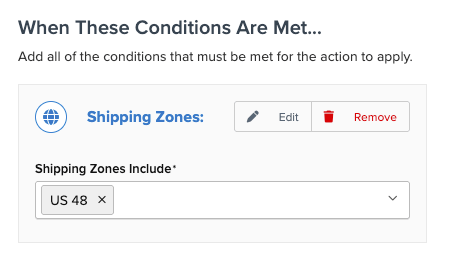
ShipperHQ evaluates all zones that include the destination address, not just the most specific one. A rule fires if its zone condition matches — and multiple rules can fire simultaneously if their zones all cover the same destination. For example, a Texas address could trigger separate rules targeting a "Texas" zone, a "US 48" zone, and a "United States" zone all at once.
If your rule isn't firing for a destination you expect it to cover, confirm the destination falls within the zone specified on the rule. Open the zone definition and check whether the destination is explicitly included by country, state, or postal code. If it isn't, either add the destination to the zone or update the rule to reference a zone that includes it.
If your rule is firing for a destination it shouldn't cover, check whether the zone includes that destination unintentionally — for example, a broad zone that includes states or countries you meant to exclude.
A postcode or zip code range isn't matching correctly
If a rule scoped to specific postcodes or zip code ranges isn't applying to addresses that should be included — or is applying to addresses that should be excluded — the cause is usually a mismatch between how the postcode is formatted in your zone definition and how it's being passed through at checkout.
Start by running a rate test with a postcode you know is in the zone. If the rule doesn't fire, check the zone definition for formatting issues such as extra spaces, incorrect range syntax, or missing leading zeros.
If the zone definition looks correct and the rule fires in the rate tester, but not for a specific customer address, compare how the postcode appears in your zone definition against how it's being entered at checkout. For US zip codes, ShipperHQ ignores the +4 extension, so 90210-1234 will match a zone containing 90210. For UK postcodes, matching is stricter — spacing and format matter. See Postcode Rules Not Working (UK) for UK-specific guidance.
If the issue persists after working through these steps, contact ShipperHQ support with your rate tester transaction ID and a description of what you expected versus what happened.
Additional Resources
- How to Test Your Rates in ShipperHQ
- How Shipping Rules Work
- How to create Shipping Rules
- How to configure Shipping Zones
- How to configure Shipping Groups
- How to Merge Different Shipping Rates Together
- How to Resolve Shipping Rate Discrepancies in ShipperHQ
- Postcode Rules Not Working (UK)
- Troubleshooting Rate Discrepancies Between Test Your Rates and the Storefront