
Table of Contents
- The Three Rule Types
- How Rules Are Evaluated
- Changing the Default Evaluation Order
- The "Stop Further Rule Processing" Setting
- How Conditions Are Assessed
- Shipping Rule Scenarios
- FAQ
When a customer reaches checkout, ShipperHQ doesn't evaluate all of your shipping rules at once. It processes them in a defined sequence — in passes, by rule type — using logic that's consistent and predictable once you understand it. This article explains that sequence and how it affects the rates and options your customers see.
If you've set up individual rules successfully but find that rates aren't behaving as expected in combination — or you're building something more complex and don't want to guess your way through it — this article will give you the mental model you need.
The Three Rule Types
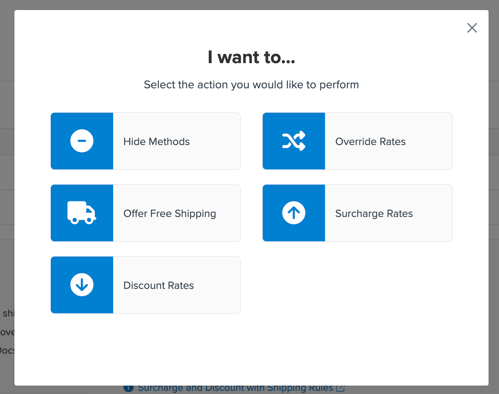
Shipping rules fall into three types, each serving a distinct purpose.
Set rules replace the carrier-calculated rate with a rate you define. In the dashboard, Set rule actions appear as Override Rates and Offer Free Shipping. Use these to override what a carrier returns — for example, offering a flat $5 rate for all ground shipments, or free shipping when the cart reaches a threshold.
Surcharge rules add to or subtract from the rate that's already been determined. In the dashboard, these appear as Surcharge Rates and Discount Rates. Use these to apply a fuel surcharge, a residential delivery fee, or a bulk item premium on top of the base rate.
Hide rules remove specific shipping methods from the checkout result. In the dashboard, this action is Hide Methods. Use these to suppress a method entirely when conditions apply — for example, hiding overnight shipping for items that require standard handling.
How Rules Are Evaluated
Shipping rules are evaluated in three sequential passes, one per rule type. The default order is:
- Surcharge rules — evaluated first, in their processing order (lower numbers first)
- Set rules — evaluated second, in their processing order (lower numbers first)
- Hide rules — evaluated last, after all rate calculations are complete
Each pass is fully independent. Surcharge rules run to completion before Set rules begin. Set rules run to completion before Hide rules begin.
Because each pass is independent, rules from one type cannot interrupt or override rules from another type mid-pass. A Set rule cannot prevent a Surcharge rule from firing, because Surcharge rules have already run by the time Set rules are evaluated. A Hide rule cannot affect whether a Set or Surcharge rule fires, because Hide rules run in a completely separate, final pass.
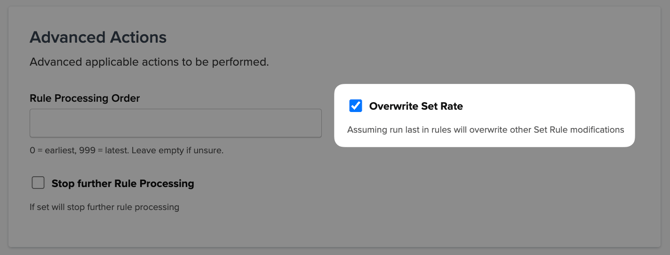
Within the Set rules pass, when multiple Set rules apply to the same shipment, the first one to run takes precedence by default — later Set rules do not replace it. To make a later Set rule override an earlier one, enable Overwrite Set Rate on that rule's Advanced tab (available when Rule Processing Order is enabled in Shipping Rule Settings).
Changing the Default Rule Evaluation Order
Two settings control rule evaluation order:
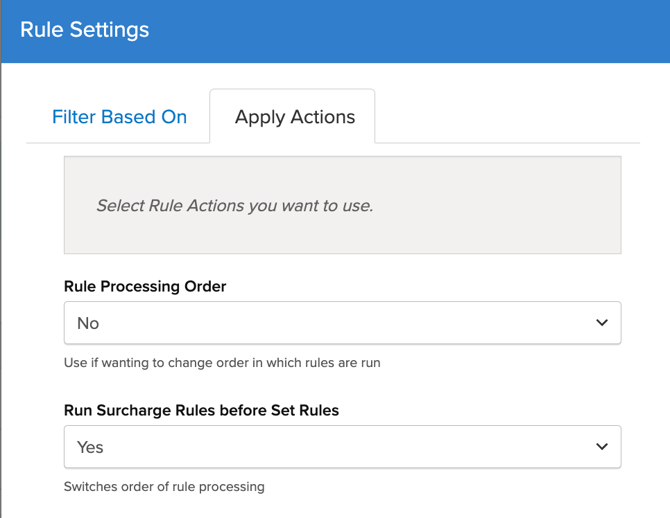
Rule Processing Order — an optional feature in Shipping Rules › ⚙️ Settings › Apply Actions, that defaults to No (off). When enabled, a processing order number field appears on each individual rule's Advanced tab. This controls the sequence of individual rules within each rule type group — lower numbers run first. It has no effect on which rule type group runs first; that's governed entirely by the toggle below.
Run Surcharge Rules before Set Rules — a setting in Shipping Rules › ⚙️ Settings › Apply Actions. This controls which rule type group runs first. It defaults to Yes, meaning Surcharge rules run before Set rules. Setting it to No reverses the order, so Set rules run first and Surcharge rules apply to that result.
The "Stop Further Rule Processing" Setting
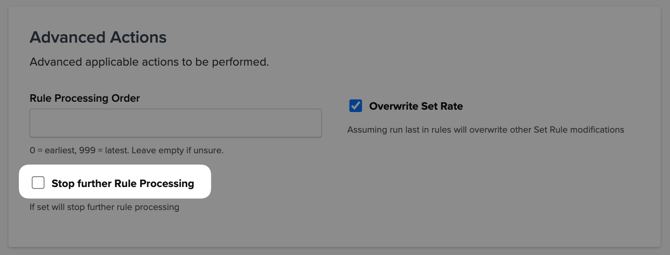
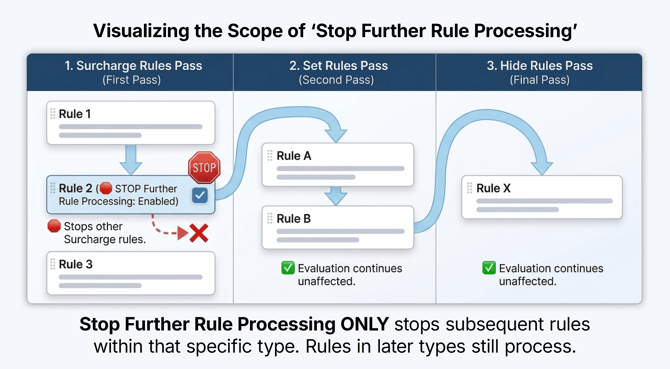
The Stop Further Rule Processing option on a shipping rule halts evaluation within that rule's type — not across all rule types.
- If a Surcharge rule with Stop Further Rule Processing fires, no additional Surcharge rules are evaluated. Set rules and Hide rules still run in their own passes, unaffected.
- If a Set rule with Stop Further Rule Processing fires, no additional Set rules are evaluated. Hide rules still run.
- If a Hide rule with Stop Further Rule Processing fires, no further Hide rules are evaluated.
Stop Further Rule Processing does not stop rules of a different type from running. There is no configuration that causes a Set rule to block a Hide rule, or vice versa — they run in separate, independent passes.
How Conditions Are Assessed
If a rule has no conditions applied, it will fire on every shipment. Any condition you add will narrow the scope of when the rule triggers. Before a rule fires, ShipperHQ checks whether the conditions defined on that rule are met.
Two logic patterns apply depending on how conditions are configured.
Across different condition types — AND logic: When a rule has conditions based on different factors (for example, both a weight filter and a shipping zone), all conditions must be true for the rule to fire. A rule with a weight condition of 10–50 lbs and a zone condition of the Continental US will only fire if both are met simultaneously.
Within the same condition type — OR logic: When a rule has multiple conditions of the same type (for example, two weight filters), only one needs to match. A rule with two weight filters — one for 0–10 lbs and another for 50–100 lbs — fires if either filter matches.
|
Condition setup |
Logic |
Rule fires when... |
|
Weight filter + Shipping Zone |
AND |
Cart meets weight threshold AND is in the zone |
|
Two weight filters |
OR |
Cart meets either weight threshold |
|
Shipping Group + Cart Price |
AND |
Matching group is in cart AND price threshold is met |
|
Two Shipping Groups (any) |
OR |
Either group is present in cart |
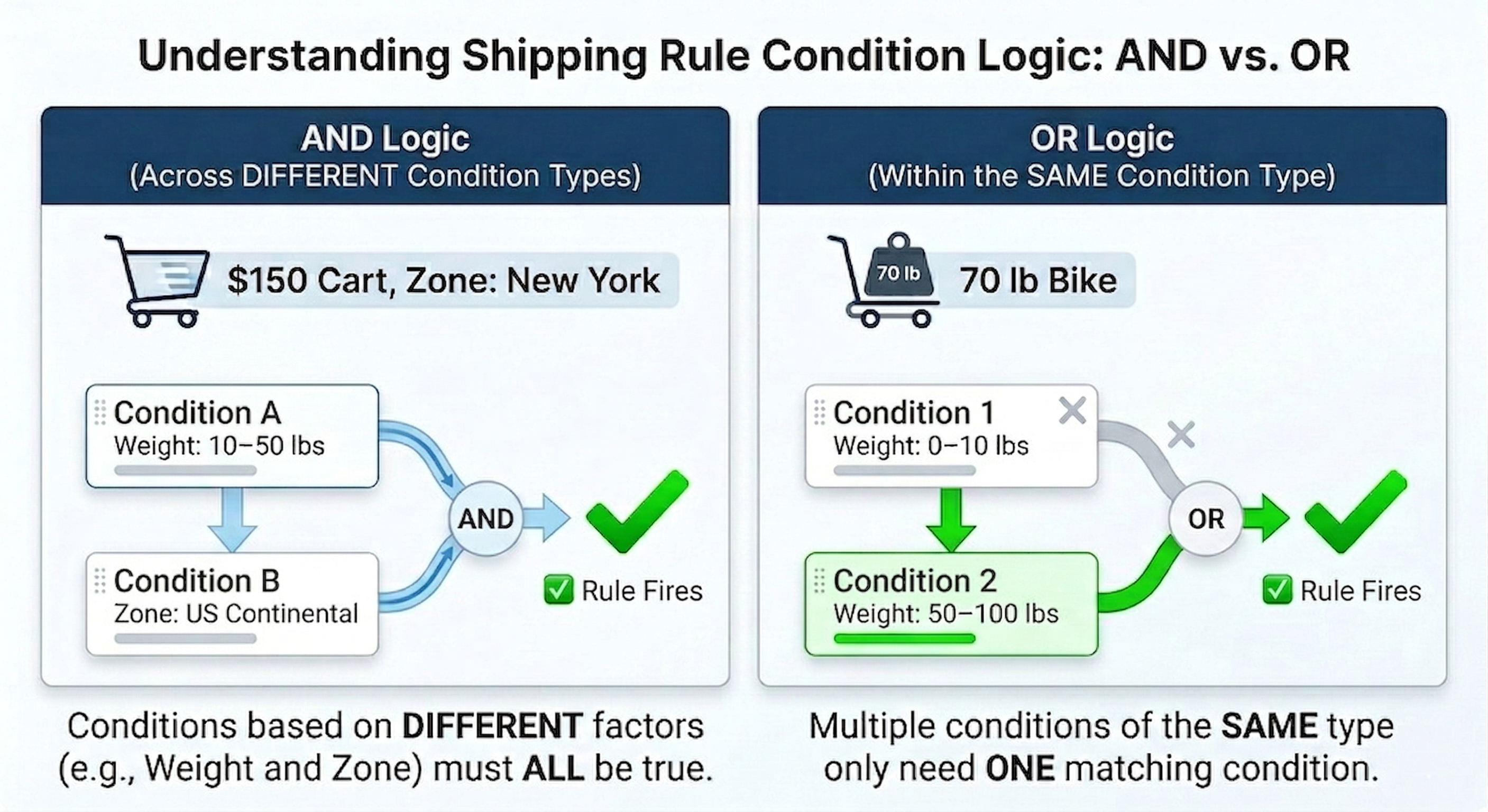
For example, say you sell bikes and you want a rule to fire for lightweight items (0–10 lbs) and also for heavier freight items (60–100 lbs), but not for mid-range weights. You'd add two weight filters to the same rule. A cart with a single 70 lb bike triggers the rule, because OR logic means either one is enough.
Shipping Zone conditions scope a rule to a specific destination. The rule fires only when the customer's shipping address falls within one of the selected zones. You can use this to apply different actions by region — a surcharge for remote areas, free shipping within a local delivery zone, or restricted methods for international destinations. Zones use AND logic when combined with other condition types: a rule with both a zone condition and a weight condition only fires when both are true simultaneously. See How to Configure Shipping Zones for setup details.
Shipping Group Condition Modes
Shipping Group conditions work slightly differently. When you add a shipping group condition, you will choose a mode that controls how the condition is evaluated:
- All selected Shipping Groups in the cart — every group you've selected must be present in the cart for the rule to fire. Use this when the rule should apply only to carts containing a specific combination of product types — for example, a rule that applies only when both a Hazmat item and an Oversized item are present together.
- Any selected Shipping Groups in the cart — at least one of the selected groups must be present. Use this when the rule should apply to any cart containing one or more of the specified product types.
- Shipping Groups that prevent the rule from applying — if any of the selected groups is present, the rule will not fire, even if all other conditions are met. Use this to protect specific product types from being affected by a rule — for example, excluding gift items from a surcharge that applies to everything else.
Customer Groups
Rules can also be conditioned on Customer Groups. If any of the selected customer groups matches the customer placing the order, that condition is met. Customer Groups must be enabled in Shipping Rules › ⚙️ Settings before they appear as a condition option. See How to Configure Customer Groups in ShipperHQ for platform availability and setup details.
Shipping Rule Scenarios
The following examples show how the evaluation sequence plays out in practice.
Example 1 — Surcharge Rule + Free Shipping Set Rule: Free Shipping Wins by Default
Setup: You sell sports equipment and have two rules:
- A Surcharge rule that adds $10 for any order containing a Hazmat Items shipping group (for items like certain aerosols or batteries)
- A Set rule that offers free shipping for orders over $200
What happens: A customer adds a $250 order that includes a hazmat item. The Surcharge rules pass runs first and adds $10, bringing the total shipping to $10. Then the Set rules pass runs and the free shipping rule fires — overriding the rate to $0.
Why this works: Under the default evaluation order, the Surcharge pass runs before the Set pass. But because the Set rule overrides the final rate entirely, the surcharge is overridden by the free shipping offer, which is the intended result. The passes ran in the correct sequence and the outcome was predictable from the configuration.
Alternative — keeping the surcharge despite free shipping: If you want hazmat orders to always carry the $10 surcharge, even when the free shipping threshold is met, reverse the evaluation order. Go to Rule Settings › Apply Actions and set Run Surcharge Rules before Set Rules to No. With Set rules running first, the free shipping rule sets the rate to $0 — then the Surcharge pass runs on top of that result and adds $10, producing a final rate of $10 regardless of the cart total.
Example 2 — Two Set Rules, One Processing Order: Only the First Fires
Setup: You have two Set rules targeting orders under 5 lbs:
- Rule A (Processing Order: 10) — Sets a flat rate of $8.99 for standard ground
- Rule B (Processing Order: 5) — Sets a flat rate of $4.99 for standard ground for orders shipped to the Continental US only, with Stop Further Rule Processing enabled
What happens: For a domestic order under 5 lbs, Rule B evaluates first (lower processing order number), fires, sets the rate to $4.99, and stops further Set rule processing. Rule A does not run for that order. The Hide rules pass still runs normally after both Set rules are resolved.
Why this works: Processing order runs lowest-first within the Set rules pass. Stop Further Rule Processing halts the Set rules pass only — Hide rules are unaffected and evaluate independently. The configuration correctly prioritizes the discounted domestic rate without interfering with any Hide rules that may apply. Without Stop Further Rule Processing on Rule B, both rules would evaluate for qualifying domestic orders — Rule B would set the rate to $4.99, and then Rule A would run and overwrite it with $8.99, producing the wrong result.
Note: If Rule B had Overwrite Set Rate enabled but Stop Further Rule Processing was not, both rules would evaluate — and Rule B's rate would replace Rule A's, producing $4.99. Without either setting, Rule A would run after Rule B and overwrite it with $8.99. The combination of processing order, Stop Further Rule Processing, and Overwrite Set Rate gives you precise control over which Set rate wins.
Example 3 — All Three Rule Types in One Cart
Setup: You sell home goods and have three rules:
- A Surcharge rule that adds $8 for any order containing an Oversized Items shipping group
- A Set rule that offers free shipping for orders over $150
- A Hide rule that suppresses the standard ground shipping method for any order containing an Oversized Items shipping group, replacing it with a freight-only option
What happens: A customer adds a $180 oversized item to their cart. The Surcharge pass runs first and adds $8. The Set rules pass runs next — the free shipping rule fires and overrides the rate to $0. Finally, the Hide rules pass runs and suppresses the standard ground method, leaving only the freight option visible at checkout.
Why this works: Hide rules run in a completely separate, final pass — after all rate calculations are done. That means the Hide rule doesn't interfere with the Surcharge or Set rules doing their work. In this case, the freight method is correctly surfaced and the standard ground method is correctly suppressed, regardless of what the rate calculations produced.
More Examples
For worked examples covering unexpected or problematic rule interactions — including cases where a Hide rule removes a method you've set to free, or where the wrong Set rule fires — see How to create Shipping Rules.
FAQ
Can a Set rule prevent a Hide rule from removing a method?
No. Hide rules run in a completely separate pass, after all Set and Surcharge rules have finished. There is no configuration that causes a Set rule to block a Hide rule.
If I use Stop Further Rule Processing on a Hide rule, do my Set rules still run?
Yes. Stop Further Rule Processing on a Hide rule stops further Hide rules only. Set and Surcharge rules are unaffected — they run in their own earlier passes.
Can I make Surcharge rules run after Set rules instead of before?
Yes. Go to Rule Settings › Apply Actions and set Run Surcharge Rules before Set Rules to No. This reverses the default order so Set rules run first.
Does Rule Processing Order apply across rule types?
No. Processing order values only determine sequence within a rule type. A Set rule with processing order 1 and a Surcharge rule with processing order 999 do not interact based on those values — they still run in separate passes in their respective type order.
Why are shipping groups evaluated independently rather than as a combined cart total?
Shipping groups are designed to isolate shipping logic for products with different handling requirements — for example, items that ship from different origins, carry unique restrictions, or use distinct carriers. Evaluating each group separately ensures that rules applied to one group don't unintentionally affect another.