
- Overview
- Use Cases
- Multiple Origins
- Split Shipping Groups
- Requirements
- Setting Up Method Merging Rules
- Shipping with the Same Carrier
- Shipping with Separate Carriers
- Merging with a 3PL Carrier
- Delivery Dates and Multi-Origin Merging
- Showing Split Rates
- Split Rates on Shopify
- Troubleshooting
Overview
When a cart contains products that ship from separate origins or by different carriers, most ecommerce platforms can only request and display one shipping option per order. Magento 2, Adobe Commerce, and Shopify Plus using ShipperHQ's Enhanced Checkout are the exception — these platforms can display separate rates for each origin at checkout. On every other platform, ShipperHQ needs to be configured to combine the separate rates it calculates for each shipment into a single method and rate, so the customer still sees one unified shipping option. Method Merging Rules control how that combination happens.
Multiple Origins
Imagine you have products coming from different places, each with its own carrier. For example:
- Product "Tent" ships from "Houston" using UPS
- Product "Bucket" ships from "Dallas" using FedEx
You can define a merge rule for these methods and create a new method name. When both products are in the cart, the new merge rule will show as one combined rate under your chosen name.
Split Shipping Groups
You may have two or more products from the same origin needing separate shipping methods. For example, "Umbrella" is in the "Regular" shipping group limited to UPS Ground, while "Salt" is in the "Rush" group using UPS Next Day Air.
💡 Rate Shopping: The Carrier Merge Rules page can set up rate shopping to compare rates of various methods and show the cheapest one at checkout. Check out our Rate Shopping guide for more details.
Requirements
Method Merging Rules need the Multi-Origin Shipping Advanced Feature. To activate it:
ShipperHQ Dashboard→ Advanced Features → Multi-Origin Shipping → set toggle to "Active"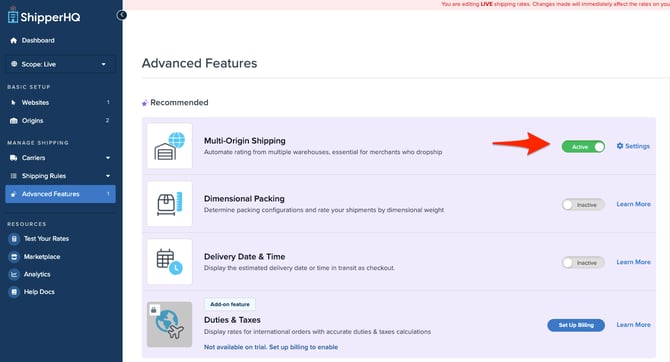
Setting Up Method Merging Rules
Let's explore some common scenarios and how to configure them.
Automatic Method Merging (fallback)
If Show Merged Rates is set to Yes and no Method Merging rules have been defined, ShipperHQ will automatically merge the cheapest method from each origin or group into a single shipping rate.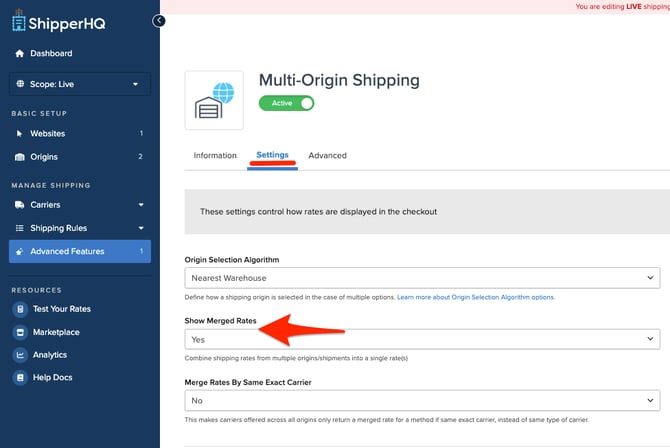
-
Displayed title: Shipping
-
Method code: AUTO_MERGED_METHOD
This fallback exists to prevent a blocked checkout while merge rules are still being configured.
If Show Merged Rates is not set to Yes, ShipperHQ still attempts to merge rates automatically rather than leave checkout blocked. When this occurs, the following message appears in the system log: "No existing merge response found, attempting automatic merged rates across each origin."
Shipping Insights continues to show the full merged rate breakdown — including the underlying carrier and method for each origin — even after ShipperHQ merges rates automatically, so no rate detail is hidden from view.
Shipping with the Same Carrier
Same Carrier, Different Origins
If products ship from different origins but use the same carrier type, ShipperHQ automatically merges these methods, so no merge rule is needed. For example, two separate UPS carrier configurations of the same type merge automatically even though they aren't the exact same carrier instance.
Same Carrier, Same Origins
For products from the same origin with different methods, create a merge rule using duplicate carriers.
Steps:
- Go to the Carriers tab and duplicate the existing UPS Carrier. Name it "UPS Expedited" for only your expedited method (e.g., 2nd Day).
- NOTE: Duplicating the carrier is necessary as you cannot merge methods from the same carrier.
- Keep your original UPS Carrier unchanged.
- Go to Shipping Groups and set one to Rate as a Separate Shipment.
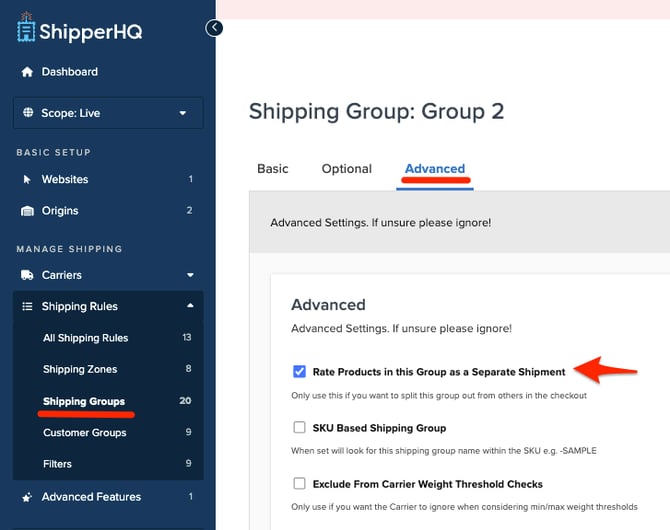
- Restrict that group to the new UPS 2nd Day method and save it.
- Go to Method Merging Rules in the left-hand nav under Carriers, and add a new rule.
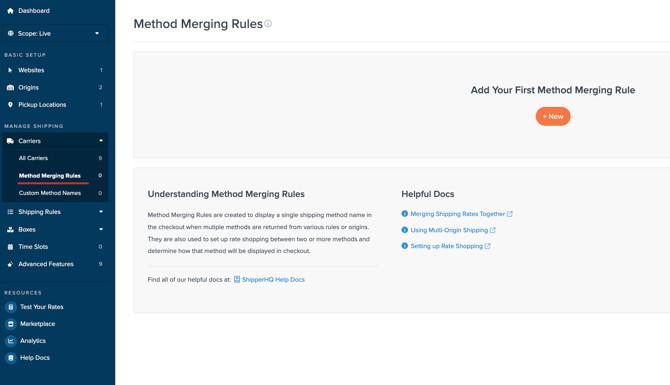
- Name the Merge Rule and set a Method Code.
- Choose two methods to merge: one from your original UPS Carrier and one from your duplicated UPS Carrier.
- Save the merge.
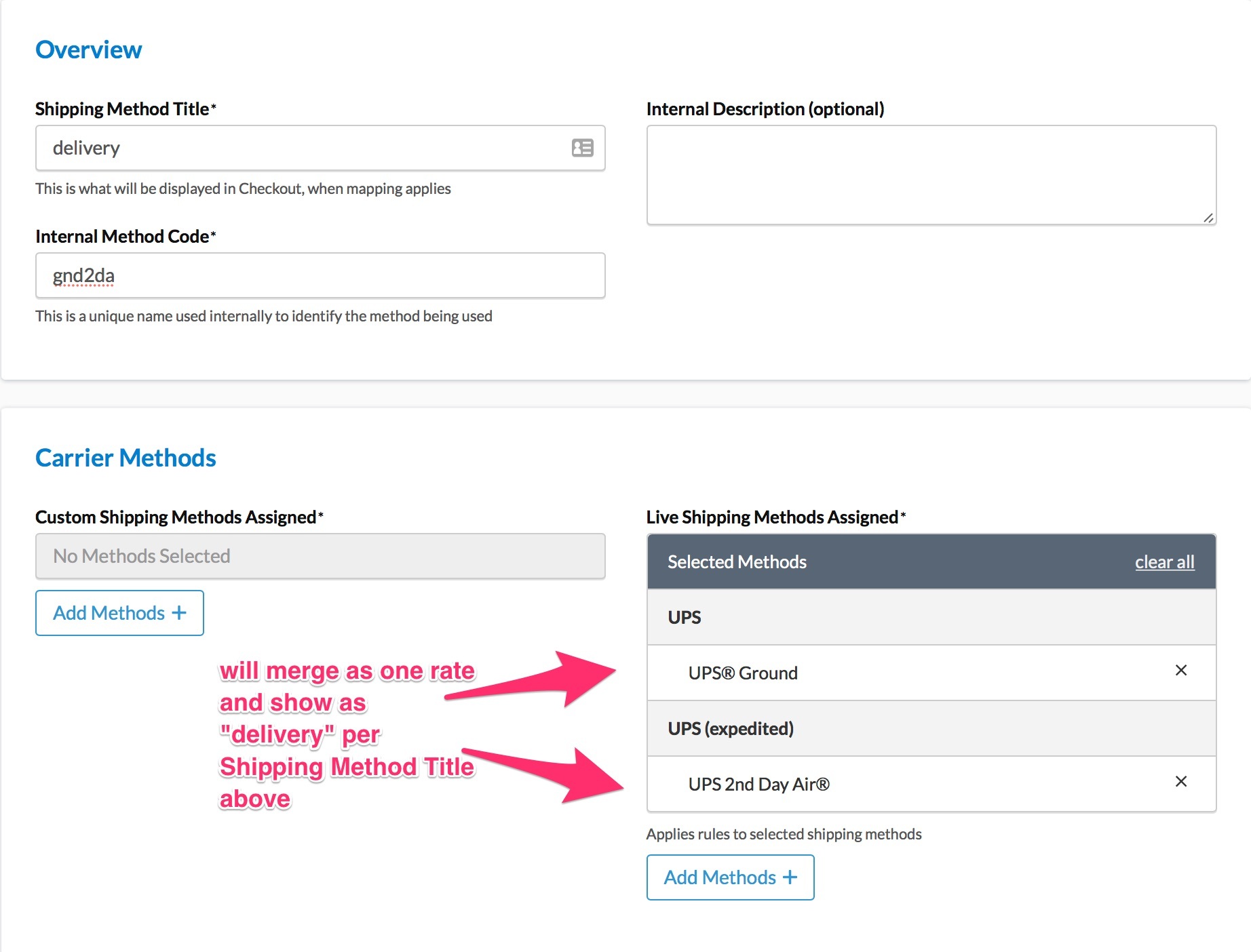
Add Carrier Rules to hide your duplicated 2nd Day method when the rush item isn't in the order. Consider adding Backup Carriers in your merging rules. Learn more about Backup Carriers.
Using an Always-Available Carrier as an Alternative
Instead of setting up explicit merge rules, you can use a carrier that's always available — such as local pickup or a customer-account carrier — as a shared shipping option across origins. Since this type of carrier returns the same rate regardless of shipment split, it can stand in for an explicit merge rule in cases where the split methods would otherwise need one.
Shipping with Separate Carriers
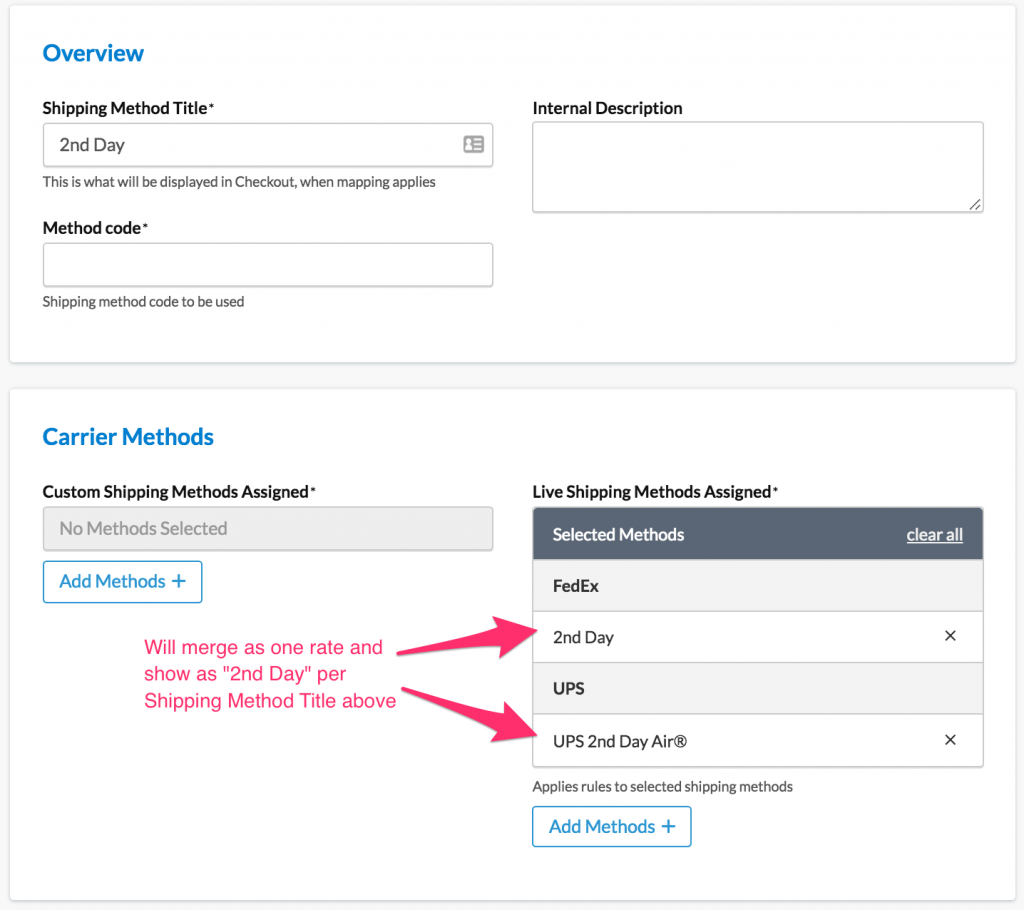
For different origins with different carriers or products with uncommon methods, you'll need merge rules.
Steps:
- Go to Method Merging Rules tab and add new.
- Name the Merge Rule and set a Method Code.
- Choose the methods to merge.
- NOTE: You can't merge methods from the same carrier.
- Save the merge.
Merging with a 3PL Carrier
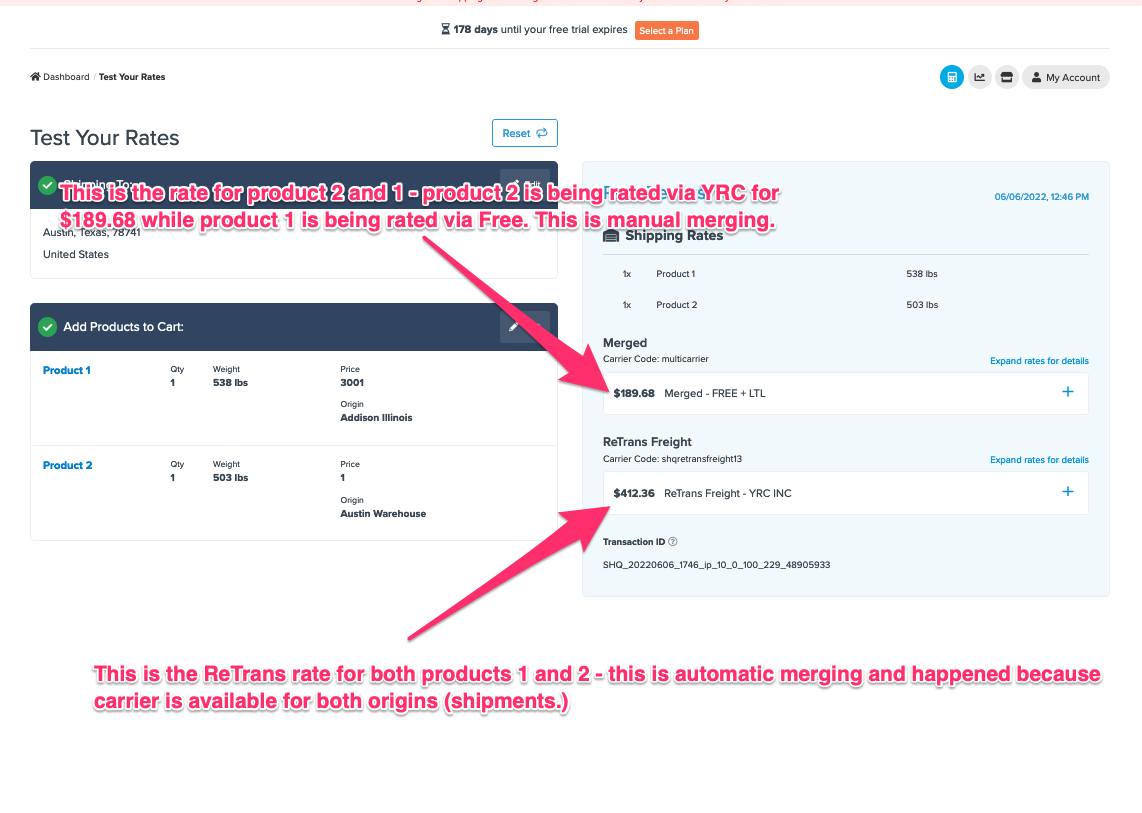
For a 3PL, note these points:
- If "Show cheapest rate" is checked, the system will merge this method with the other if both return rates.
- If not ticked, it is possible other 3PL carrier methods will return separately.
Delivery Dates and Multi-Origin Merging
How delivery dates appear at checkout depends on whether merging is automatic or uses defined merge rules.
Merging with Defined Merge Rules
Delivery dates are not displayed when methods are merged using defined merge rules between different carriers.
Automatic Method Merging
When both origins use the same carrier type and no merge rules are defined, ShipperHQ merges methods automatically. Delivery dates are displayed based on what's in the cart:
| Cart Contents | Delivery Date Shown |
|---|---|
| Long lead time item only | Long lead time |
| Short lead time item only | Short lead time |
| Both items from the same origin | Long lead time — shipment waits for both items |
| Both items triggering a multi-origin merge | Short lead time — earliest date across both shipments |
When a multi-origin merge occurs, ShipperHQ shows the earliest delivery date across the two shipments. Customers see when the first part of their order arrives, not when everything will be delivered. To show each shipment's delivery date separately, use split rates instead.
Showing Split Rates
On platforms like Magento and Zoey, you can show rate breakdowns by origin or product. Even when showing breakdowns, the cart estimator simplifies it with merged rates.
Split Rates on Shopify
Shopify handles Split Shipping differently. With multi-location inventory, Shopify might split orders into separate shipment ratings.
ShipperHQ rates each separately and sends results back to Shopify, which combines or displays them as split shipments.
Troubleshooting
If a split-shipping cart isn't rating, check the ShipperHQ Logger file first for whether a merged rate exists — this is the first thing to look for, not the last. If no merged rate exists and the cart has more than one shipment, checkout halts.
The ShipperHQ Logger file is only available on Magento 2 and Adobe Commerce.
If you encounter 'No merged rates.' error, review your settings. This indicates missing merge rules.
To test configuration:
- Add one product from Origin A and confirm the expected rates.
- Clear the cart and add one from Origin B to confirm expected rates.
- Verify that at least one shipping method from both Origin A and Origin B tests is included in a Method Merge Rule.
- Add products from Origins A and B and ensure merged rates display.