
Table of Contents
- Overview
- Getting Started with Packing Rules Setup
- Pack According to Box Rules (Best-fit)
- Optional - Default Rule for All Products
- Pack Separately
- Pack in Multiple Fixed Boxes
- Assigning Packing Rules to Products
Packing rules tell ShipperHQ how to box up orders. Configuring your packing rules based on how you actually pack your products helps you get more accurate rates during checkout.
You can set up different packing rules for different products or product groups. When setting up a rule, choose from three different types of rules: 1) Packing according to box rules using our best-fit algorithm, 2) Packing separately, and 3) Packing in multiple fixed boxes.
This guide will walk through step-by-step instructions for setting up each type of packing rule.
Overview of Packing Rules
When setting up packing rules, you can choose from three packing methods:
- Pack According to Box Rules (Best-Fit Algorithm) — Let ShipperHQ determine the best-fit box based on the order details and available boxes.
- Pack Separately — Have each item packed in its own separate box
- Pack in Multiple Fixed Boxes — Split a single SKU into multiple set packages.

Let's walk through general packing rules set-up and the details of setting up each method. For a broader explanation, see our guides on Dimensional Packing and Box Sizes.
Getting Started with Packing Rules Setup
If you are setting up a Pack According to Box Rules or Pack Separately rules, there are a couple of pre-requisites: You'll need to turn on Dimensional Packing and Add Boxes. Follow the steps outlined below.
Note: If you're creating a Pack in Multiple Fixed Boxes rule (i.e. splitting a single SKU into multiple set packages) you can skip this step and jump to Pack in Multiple Fixed Boxes.
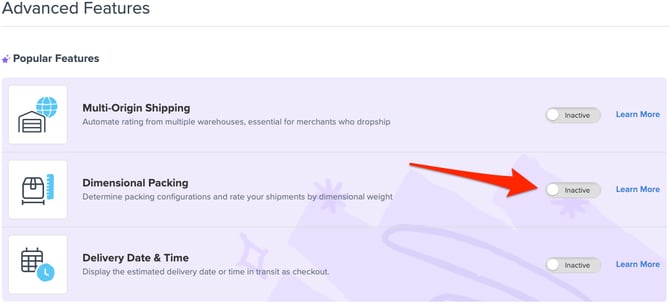
- Enable the Dimensional Packing feature from your Features page in ShipperHQ.
- Before creating a packing rule, expand the Boxes tab in the navigation and select "All Boxes" to ensure that you have set up your available Boxes in ShipperHQ.
- If you have not yet set up Boxes, refer to our article, How to Define Box Sizes in ShipperHQ. Follow the steps to create new Boxes before setting up your Packing Rules.
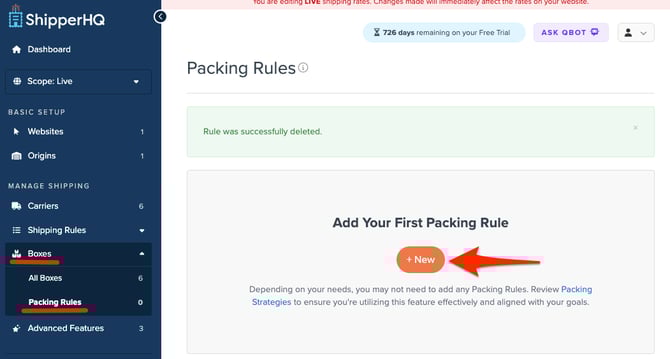
- Once Boxes are set up, navigate to Packing Rules under the Boxes tab. Create a new packing rule via +New.
1. Pack According to Box Rules (Best-fit)
Pack According to Box Rules uses ShipperHQ's Best-Fit algorithm to pack orders into boxes. It considers checkout information such as product dimensions, quantity, weight, available boxes, box settings, and carrier settings to determine how ShipperHQ should pack orders – key for calculating accurate shipping rates.
Learn more about the Best Fit algorithm and different scenarios.
Pack According to Box Rules - Basic Tab
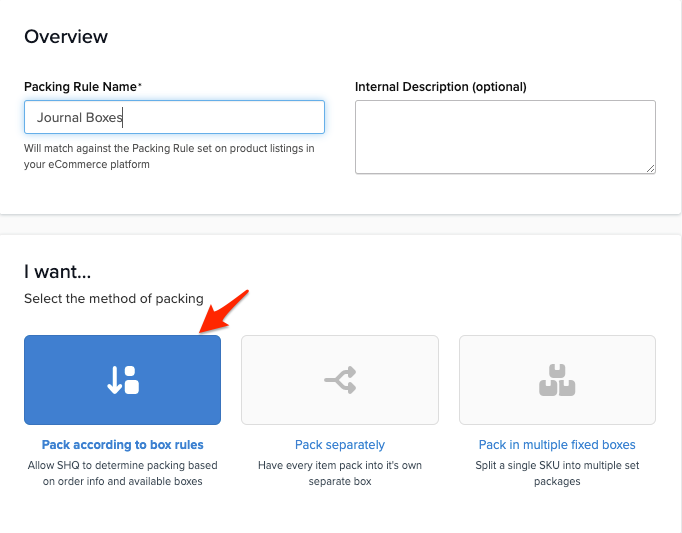
- In the Basic panel, name the rule (e.g., "Journal Boxes") and set the Method of Shipping to "Pack according to box rules."
- (OPTIONAL) Under Item Dimensions, set dimensions only if all products that will use this rule share the same dimensions. Otherwise, ShipperHQ will use the dimensions set on the product on your platform.
-
If dimensions are set on the item within your eCommerce platform, those will take priority over anything set here under Item Dimensions.
-
- In the Possible Shipping Boxes section, select the boxes that can be used for this packing rule. If none are listed, refer to our article, How to Define Box Sizes in ShipperHQ and follow the steps to create new Boxes. Once added, those boxes will appear in this dropdown.

- Continue to the Optional tab.
Pack According to Box Rules - Optional Tab
- In the Optional tab, you can:
- Select carriers that this packing rule should apply to. The dropdown will populate all carriers you have set up in ShipperHQ. If you need to add additional carriers, review the article How to Configure Carriers.
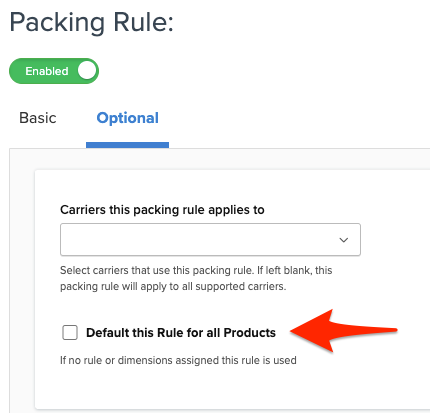
- Set this packing rule as the default rule for all products. If you check this box, this rule will be used in scenarios where no other packing rule is set. Specific product rules will override default rules.
- Save the rule
Final Step: Assign Your Packing Rule to a Product
-
Assign the Packing Rule Group to your product in your eCommerce platform. Detailed instructions are available for BigCommerce, Magento 2, Shopify, and WooCommerce.
See Dimensional Packing: Pack According to Box Rules for a detailed walkthrough.
2. Pack Separately
"Pack/Ship Separately" packs each item in its own package. Although this may increase shipping rates, it's useful for fragile or special packing items. This rule can be set for specific products or applied globally across all products.
How to Set Pack Separately Rules - Basic Tab
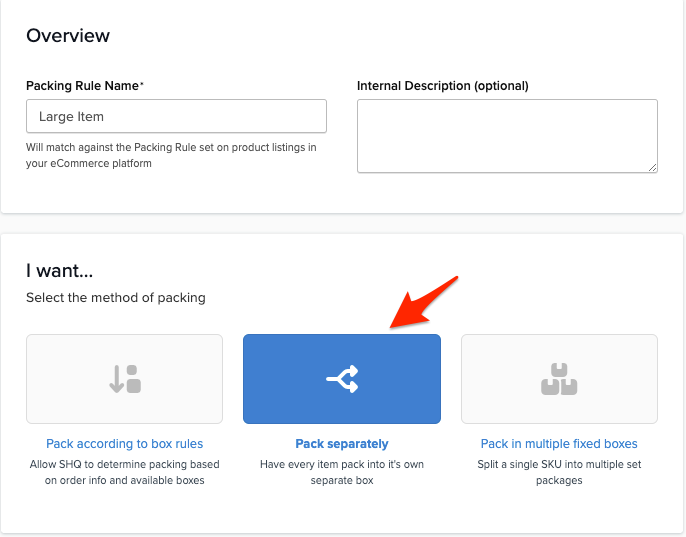
- In the Basic panel, name the rule (e.g., "Large Item") and set the Method of Shipping to "Pack separately."
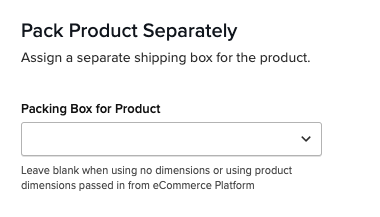
- In the "Pack Product Separately" panel, select a box in the "Packing Box for Product" dropdown. If no box is set, ShipperHQ creates a custom box. Learn more about how ShipperHQ packs in this scenario.
How to Set Pack Separately Rules - Optional Tab
- In the Optional tab, you can:
- Select carriers that this packing rule should apply to. The dropdown will populate all carriers you have set up in ShipperHQ. If you need to add additional carriers, review the article How to Configure Carriers.
- Set this packing rule as the default rule for all products. If you check this box, this rule will be used in scenarios where no other packing rule is set. Specific product rules will override default rules.
- Save the rule
Final Step: Assign Your Packing Rule to a Product
-
Assign the Packing Rule Group to your product in your eCommerce platform. Detailed instructions are available for BigCommerce, Magento 2, Shopify, and WooCommerce.
See How to Set Items to Pack Separately for more details.
3. Pack in Multiple Fixed Boxes
Use this when one SKU ships in multiple boxes — for example, a table that comes in two cartons.
ShipperHQ will ignore platform dimensions and use the rule settings instead.
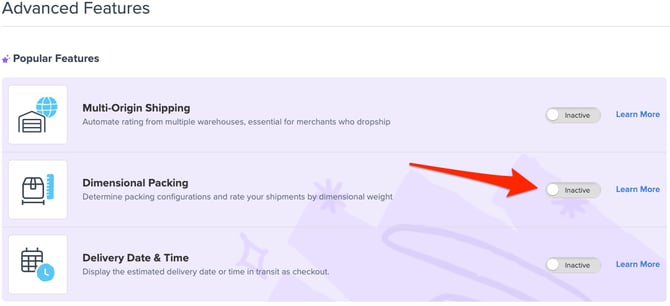
- Enable the Dimensional Packing feature from your Features page in ShipperHQ.
2. Expand the "Boxes" tab and select "Packing Rules." Create a new rule via the +New button.
How to Setup Pack in Multiple Fixed Boxes - Basic Tab
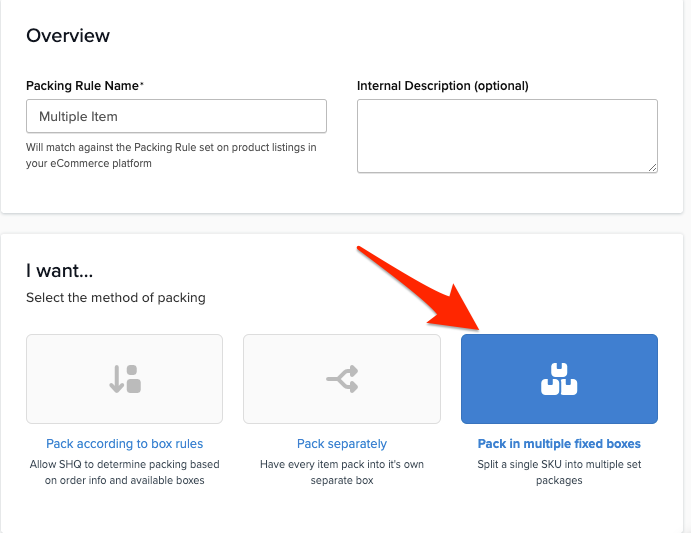
- In the Basic Tab, set the Method of Shipping to Pack in multiple fixed boxes.
2. In the Basic tab under Pack Via Multiple Boxes, hit Create a Box and configure dimensions, weight, and number of boxes.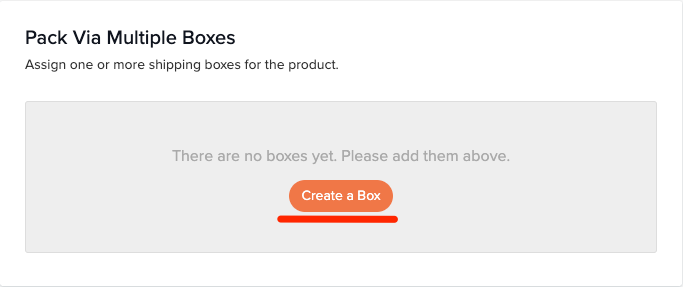
You can add multiple boxes with varying sizes and quantities
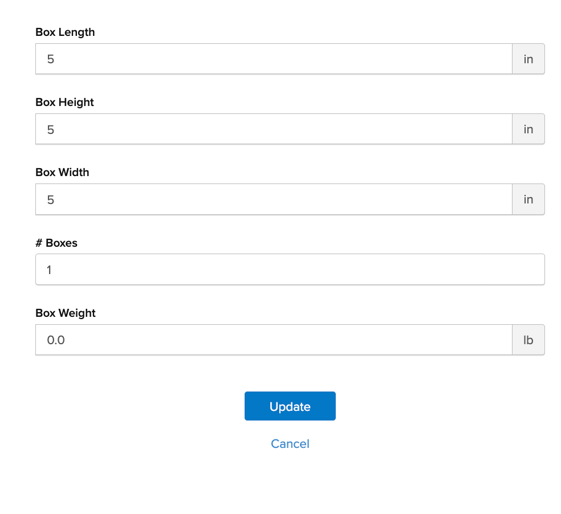
You can add multiple boxes with varying sizes and quantities.
How to Pack in Multiple Fixed Boxes - Optional Tab
- In the Optional tab, you can:
- Select carriers that this packing rule should apply to. The dropdown will populate all carriers you have set up in ShipperHQ. If you need to add additional carriers, review the article How to Configure Carriers.
- Set this packing rule as the default rule for all products. If you check this box, this rule will be used in scenarios where no other packing rule is set. Specific product rules will override default rules.
- Save the rule
Final Step: Assign Your Packing Rule to a Product
- Assign the Packing Rule Group to your product in your eCommerce platform. Detailed instructions are available for BigCommerce, Magento 2, Magento 1, Shopify, WooCommerce, and Zoey.
Read the article, Pack into Multiple Fixed Boxes for more detail.
Assigning Packing Rules to a Product
For every packing rule, completing the final step of assigning the packing rule to a product in your eCommerce platform is key. This is how the packing rule will be applied to a specific product and recognized during checkout.
Detailed instructions are available for BigCommerce, Magento 2, Shopify, and WooCommerce.
The only time you should skip this step is if you marked the packing rule as a default packing rule for all products in the Optional tab.