
Table of Contents
- Understanding Website-Based Rule Limitations
- Using Origins as a Workaround
- Configuring Origins for Website-Specific Rules
- Best Practices and Considerations
ShipperHQ does not have a direct rule condition for filtering by website. When you need to apply different shipping rules to different websites in a multi-website setup, you'll need to use origins as a way to differentiate between them.
This approach is particularly useful for merchants running multiple storefronts on platforms like Magento 2 or Adobe Commerce, where each website might need different shipping rates, carriers, or rules, even when the products ship from the same physical warehouse location.
Understanding Website-Based Rule Limitations
ShipperHQ's shipping rules can be configured based on many conditions like shipping zones, price, weight, product attributes, and origins. However, there is no rule condition that allows you to specify which website an order comes from.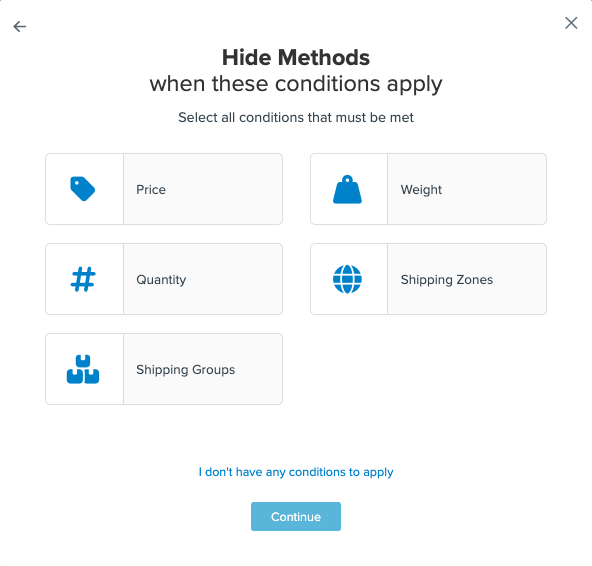
This limitation means you cannot create a rule that says "apply this surcharge only to orders from Website 2" or "hide this carrier for Website 1" using a direct website condition.
Using Origins as a Workaround
Origins provide an effective way to separate shipping logic by website. When you assign each website to its own origin, ShipperHQ can differentiate between orders from different websites based on which origin is being used.
Here's how the approach works:
Origins act as identifiers: Each website is assigned to a unique origin in ShipperHQ. When an order comes from Website 2, for example, ShipperHQ uses Origin 2 for rating.
Rules apply based on origin: You create shipping rules that apply when specific origins are selected. A rule configured to apply "when Origin 2 is used" will only affect orders from Website 2.
Physical location doesn't matter: The origins can have the same physical warehouse address. You're using them as logical identifiers for the websites, not as actual different shipping locations.
Configuring Origins for Website-Specific Rules
Here are steps how to set up Shipping Rules based on Origins.
Set Up Website-Specific Origins
Create or duplicate origins so that each website has its own dedicated origin. Go to Origins in the ShipperHQ dashboard and either create new origins or duplicate existing ones.
When configuring each origin, assign it to the appropriate website in the Assigned Websites field under Origin Overview.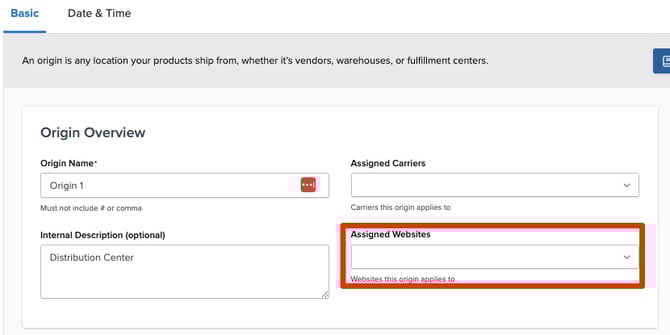
Even if products ship from the same physical warehouse, enter the warehouse address for each origin. The address can be identical across multiple origins—what matters is that each website has its own origin assignment.
For detailed steps on creating and configuring origins, see How to configure Origins.
Assign Products to Website-Specific Origins
Assign the origin to products for each website within your eCommerce platform. This ensures ShipperHQ knows which origin to use when calculating rates for orders from that website.
For example, if Website 2 uses Origin 2, all products available on Website 2 should be assigned to Origin 2 in your platform's product configuration.
For platform-specific instructions:
Enable Origin Conditions in Shipping Rules
Before you can create origin-based rules, enable Origins as an advanced rule condition. Go to Shipping Rules › Settings and set Origins to "Yes."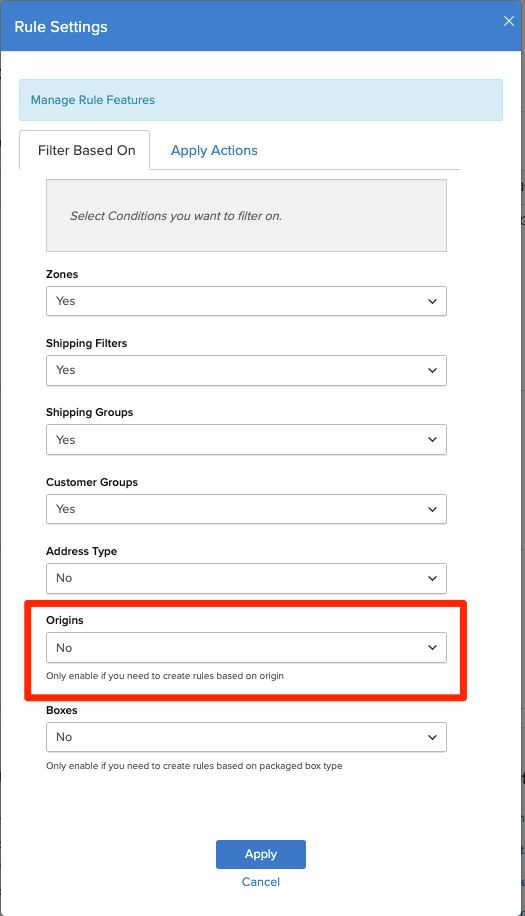
For more details, see Add or Remove Advanced Rule Settings.
Create Rules Based on Origin
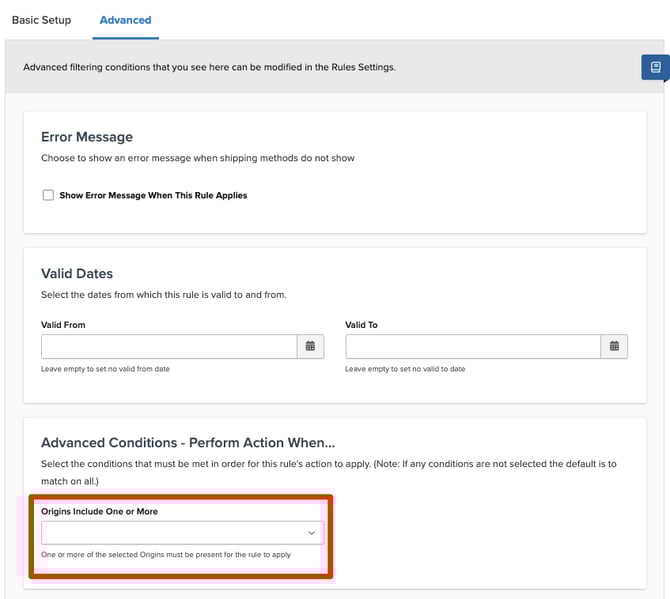
When creating or editing a shipping rule, use the Advanced tab to specify which origins the rule applies to. Select the origin (or origins) that correspond to the website where you want the rule to apply.
For example, to add a $5 surcharge for all orders from Website 2, create a surcharge rule and select Origin 2 in the Advanced tab. The rule will only apply when products from Origin 2 are in the cart.
For comprehensive guidance on creating shipping rules, see How to create Shipping Rules and How to Set Up Rules Based on Origins.
Best Practices and Considerations
Assign unique origins per website: Each website should have its own dedicated origin. Do not assign the same origin to multiple websites, as this would prevent ShipperHQ from distinguishing between them when applying rules.
Assign origins to all relevant products: Make sure products are assigned to the appropriate origin for each website in your platform. If products aren't assigned to an origin, ShipperHQ will use the default origin set for that website, which could cause rules to apply incorrectly.
Multiple origins per website are fine: If a single website ships from multiple physical warehouses, you can assign that website to multiple origins. Just ensure that each origin is not shared with other websites.
Test your configuration: Use the Rate Calculator in the ShipperHQ dashboard to verify that rules apply correctly for different websites by testing with products assigned to different origins.
Consider the Multi-Origin Shipping feature: If your setup involves actually shipping from multiple physical locations (not just using origins as website identifiers), you'll need the Multi-Origin Shipping advanced feature. See How to configure Multi-Origin Shipping for details.