
Troubleshooting UPS Negotiated Rates in ShipperHQ
Sometimes, certain UPS accounts set up in ShipperHQ may not return the negotiated rates you’ve agreed upon with UPS. To resolve this:
-
Check your Carrier Settings
-
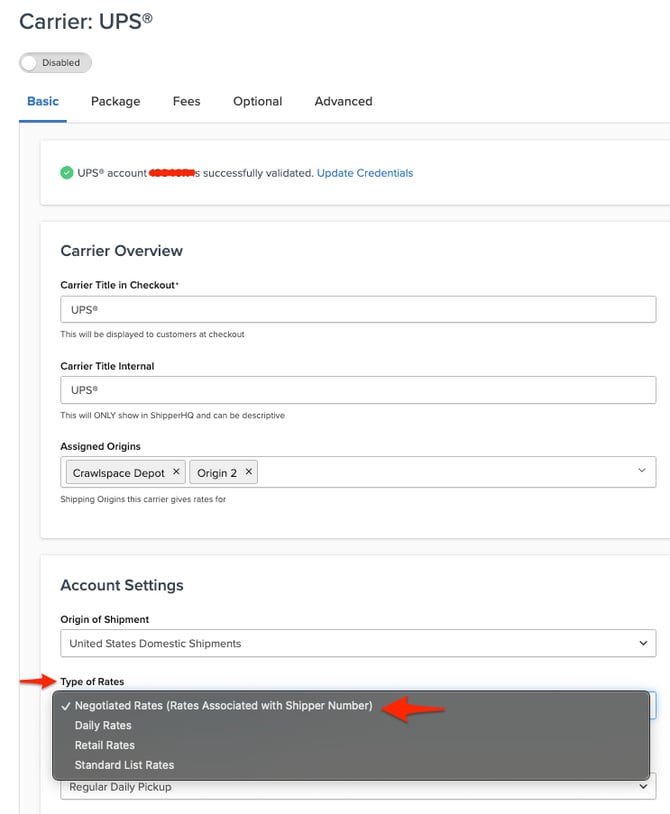
Ensure the UPS Rate Type is set to Negotiated Rates in your carrier configuration.
-
-
If Negotiated Rates Are Already Enabled
-
Provide us with the Transaction ID from either:
-
An example order, or
-
A Test Your Rates order.
-
-
Recreate the Expected Rate on the Carrier’s Platform
-
Send us a screenshot of the order as recreated on either:
-
The UPS website, or
-
Your order fulfillment software.
-
-
Please include all details you entered, such as:
-
Ship-from and ship-to addresses
-
Package weight
-
Package dimensions
-
Any other selectable options
-
The resulting rate shown by UPS
-
-
-
With both the Transaction ID and the screenshot, we’ll be able to pinpoint the cause of the discrepancy.
⚠️ Important Update
UPS has updated their APIs to use a new security protocol, OAuth 2.0. If you see "Update Required" or "Reauthentication Required" next to your UPS carrier in ShipperHQ, you need to reauthorize the connection to continue using negotiated UPS rates and services. This process takes only a few minutes.
UPS will soon retire the old authentication services. After that, you won't be able to return negotiated UPS rates until you reauthenticate your account in ShipperHQ. Contact us if you have questions or need assistance with this update.
Learn more about updating your credentials
Error: Not Qualified to Receive Negotiated Rates
Occasionally, you may see the error message: "User ID and Shipper Number combination is not qualified to receive negotiated rates". This means your UPS account isn't authenticated.
Solution
To authenticate your UPS account with the Carrier, follow these steps:
- Log into UPS.com using your API User ID and password.
- Click on your name at the top right of the screen.
- Select Payment Options.
- Your account number will be listed here with an edit button next to it.
- Click Edit and provide the most recent invoice information for the account to authenticate it.
Once validated, you will start seeing negotiated rates. Your UPS account manager can also assist you.
Testing
After updating your account, you can test to ensure negotiated rates return successfully through the Test Your Rates section. This section includes details of dimensions, if enabled (learn more), applicable shipping rules, and the chosen origin. Note that if you've used the Test Your Rates section before, you may need to change the request to avoid seeing cached shipping rates. 😊