
Table of Contents
If your products have a predictable cost-to-ship at lower quantities, you may want to offer a flat rate for those orders rather than letting carrier rates fluctuate. For example, a merchant selling fragile glassware might charge a flat $125 on UPS Ground for orders of one to 13 pieces — where packing and handling costs are consistent — while letting carrier rates apply above that threshold.
This article walks through how to combine a Shipping Group with a quantity condition and an Override Rates rule to achieve that result.
How It Works
ShipperHQ's Override Rates rule type replaces a live carrier rate with a flat amount whenever the rule's conditions are met. In this setup, two conditions work together:
- Shipping Group — scopes the rule to products you've tagged with a specific group, so it doesn't affect the rest of your catalog
- Quantity — limits the rule to orders within a defined item count range
When a cart contains products from the shipping group and the quantity falls within the range you define, ShipperHQ replaces the live carrier rate with your flat amount. Orders outside that quantity range return standard carrier rates.
Requirements
- At least one live rate carrier configured in your ShipperHQ account with the shipping method(s) you want to override
- Shipping Groups enabled on your ShipperHQ account
Setting Up the Shipping Group
Before creating the rule, you need a Shipping Group to represent the products that should receive the flat rate. If you already have an appropriate group, skip to Creating the Override Rule.
- Go to Shipping Groups in the ShipperHQ Dashboard and click +Add New.
- Enter a name for the group. Using all caps (e.g., FLAT-RATE-ITEMS) reduces typos when assigning products and makes the group easy to identify in rule conditions.
- Leave the Optional and Advanced panels at their defaults unless you have a specific reason to restrict the group to certain destinations or methods.
- Click Save.
Once the group is saved, assign it to the relevant products in your ecommerce platform. The assignment process varies by platform — see the guides below for your store:
- How to Assign ShipperHQ Product Attributes on BigCommerce
- How to configure Shipping Groups (includes platform-specific assignment instructions)
Creating the Override Rule
With the Shipping Group saved and products assigned, create the rule that ties the flat rate to that group and quantity range.
- Go to Shipping Rules in the ShipperHQ Dashboard and click +New.
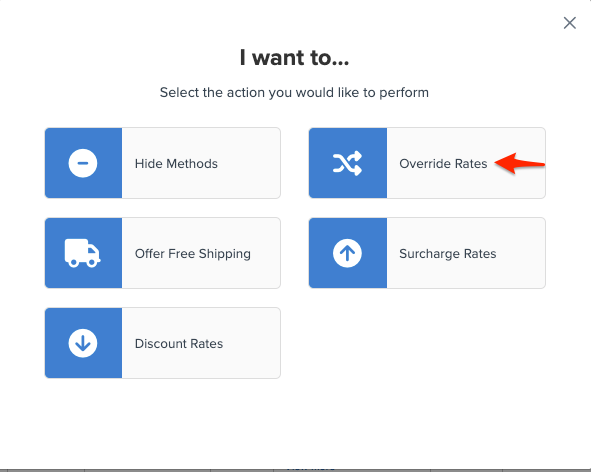
- Select Override Rates as the rule action.
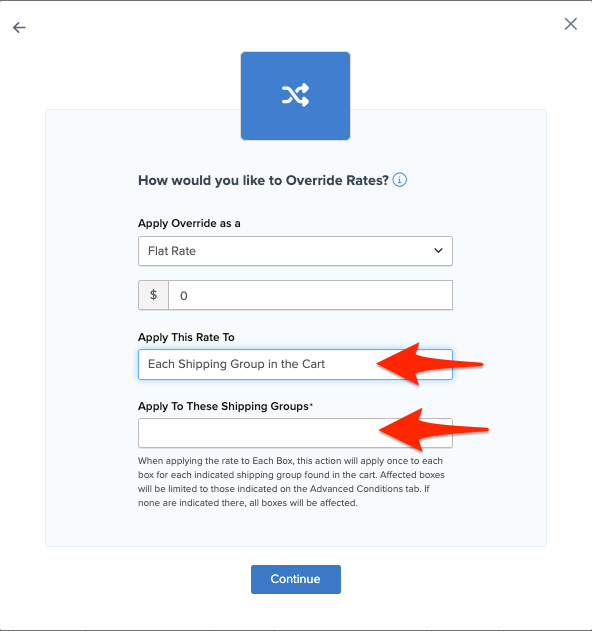
- Set the Flat Rate amount and confirm the override applies to Everything in Shipping Group. Use the dropdown to select the Shipping Group you created.
- Select the shipping method(s) to override — for example, UPS Ground. You can select multiple methods if needed.
- When prompted to add conditions, select Quantity. Set the condition to Between or equal to and enter your quantity range — for example, 1 and 13.
- Add a clear title for the rule — for example, $125 Flat Rate – FLAT-RATE-ITEMS – Qty 1–13 — so it's easy to identify when testing or editing later.
- Click Finish to save the rule.
Once saved, the rule is active immediately. Use the Test Your Rates feature to verify it's working as expected before going live.
FAQ
What happens when the quantity exceeds the upper limit?
When the cart quantity falls outside the range defined in your rule — in this example, above 13 items — the override rule does not apply and your carrier returns its standard live rate. If you want a different flat rate for higher quantities, create a second Override Rates rule with a different quantity range and flat amount, using the same Shipping Group condition.
Can I apply this rule to multiple shipping methods at once?
Yes. In step 4, you can select as many shipping methods as needed. Each selected method will have its rate replaced with the same flat amount when the conditions are met.
Does this rule affect products not assigned to the Shipping Group?
No. The Shipping Group condition scopes the rule to carts containing at least one product tagged with that group. Products not assigned to the group are unaffected and return standard carrier rates.
What if both group and non-group products are in the same cart?
The rule fires based on the "Everything in Shipping Group" apply-to setting, which targets the rate for the grouped products specifically. The behavior for mixed carts depends on how your other rules are configured. Use Test Your Rates to confirm mixed-cart scenarios behave as expected.
Can I duplicate this rule to create a tiered structure?
Yes. After saving, go back to the rule list, open the rule, and use Save & Duplicate at the bottom of the edit page. Update the quantity range and flat rate amount in the duplicate, and give it a distinct title. Repeat for each tier you need.
Additional Resources
- How to Override Live Carrier Rates with Flat Rates
- How to configure Shipping Groups
- How to Assign ShipperHQ Product Attributes on BigCommerce
- Apply a Surcharge for a Shipping Group When Its Item Quantity Is Over X
- Set a Fixed Rate or Surcharge for a Shipping Group
- Creating Shipping Rules
- Test Your Rates