
- Overview
- Creating a Filter
- Filter Applies To
- Min and Max Values
- Volume Filtering
- Adding Filters via CSV Import
- Attach Filters to Rules
- Next Steps
Overview
Use filters on shipping rules to affect shipping rates based on price, weight, or quantity thresholds. For example, you may want to offer free Ground Shipping for orders over $100. This requires a price filter. Filters can apply to the entire order, specific origins, specific shipping groups, or individual items within a shipping group.
Creating a Filter
A filter must be applied to a Shipping Rule to be effective.
- Select the "Filters" tab in the left-hand navigation
- Click +New
- In the Overview section, give the filter a name (e.g., Cart over $50)
- Choose how the filter will apply: Whole Cart, Everything in Shipping Group, Everything in Origin, or Each Item within Shipping Group. See below for details.
- Choose what the filter evaluates: price, weight, or quantity
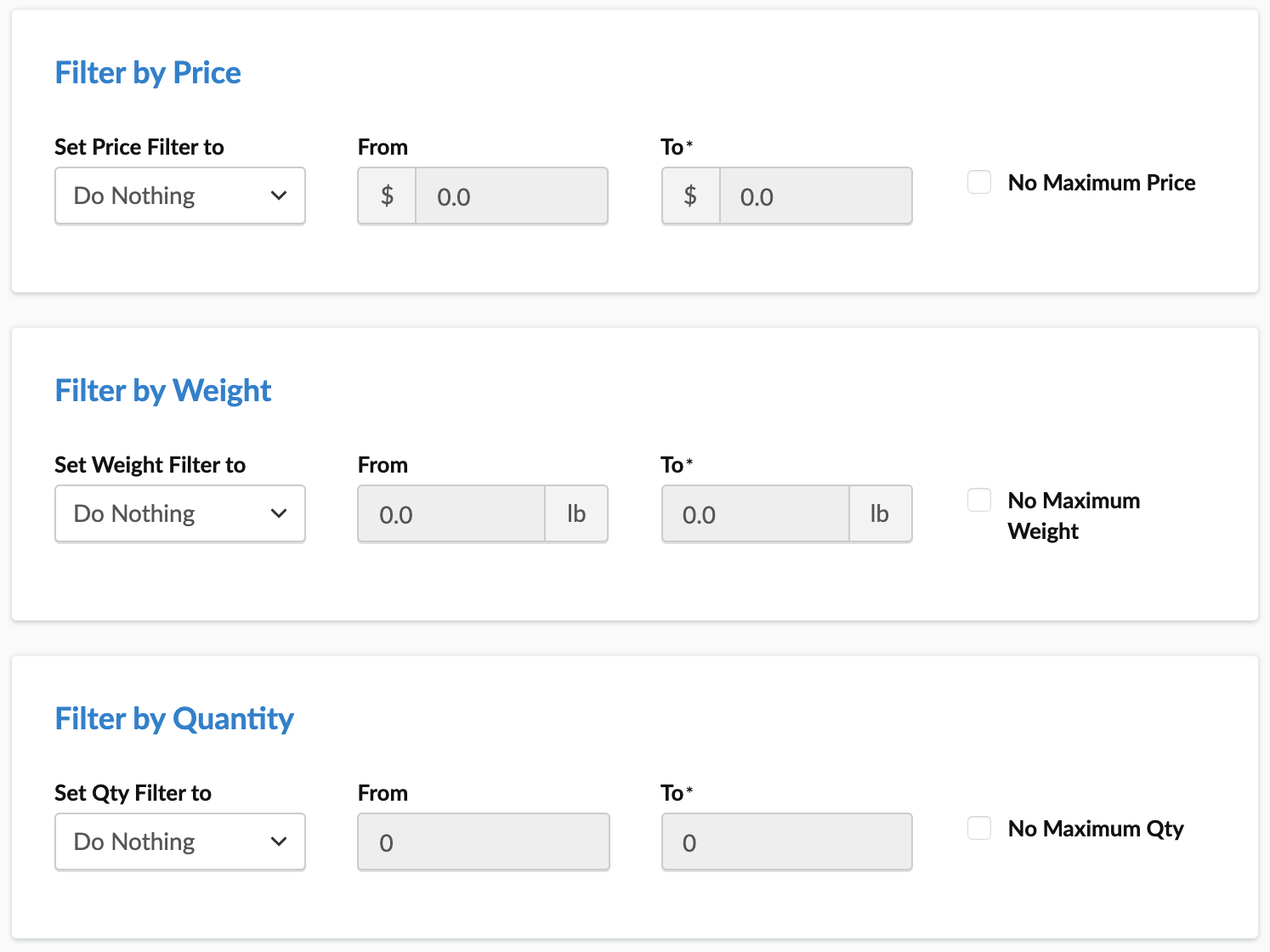
If you set conditions for more than one unit type (e.g., Price, Weight, Quantity) in the same filter, each condition will be treated as an AND, meaning all conditions must be met for the filter to apply. For example, a Price filter range from $0-$50 and a Weight filter range from 0-10 lb require both conditions to be met for the filter to apply.
- Click Save
Filter Applies To
Here is what each "Filter Applies To" option means:
- Whole Cart: The filter evaluates the entire cart's price, quantity, or weight.
- Everything in Shipping Group: The filter evaluates a specific Shipping Group's price, quantity, or weight.
- Everything at Origin: The filter evaluates only the price, quantity, or weight of products shipping from a specific origin.
- Each Item within Shipping Group: The filter evaluates the price or weight of each individual item within a Shipping Group. Note: Quantity is not typically used here.
Min and Max Values
Remember that Min is inclusive (e.g., a $5 minimum includes $5 and above) and Max is exclusive (e.g., a $10 maximum includes up to, but not including, $10). This allows you to set straightforward number ranges, such as 0-100 lbs and 100-200 lbs instead of 0-99.99 lbs and 100-199.99 lbs. 💡
Volume Filtering
Volume Filtering is disabled for new customers. A select number of users on Magento 2.x using the volume weight attribute (shipperhqvolumeweight) can access this feature.
ShipperHQ lets you create shipping rates based on volume and actual weight. You can choose to create rates based on both or use the higher of the two. Enter product volumes in your eCommerce platform's Volume field. This differs from ShipperHQ’s Dimensional Packing, which requires defining the product's specific volume.
Enabling Volume Filtering requires you to:
- Go to the Shipping Rules page in ShipperHQ
- Click the "Settings" button at the top right
- Under "Filter Based On," enable "Volume Based Filtering"
You'll see new Volume-related options under the Advanced tab on Filters and Carriers.
Enable "Use Higher of Actual Weight and Volume Weight" for custom rate carriers on the Advanced tab in a Custom Rate Carrier and save the carrier. Now, the higher value will serve as the weight in Shipping Rules for this Carrier. ⚠️
Adding Filters via CSV Import
You can add filters by importing a CSV file, which is helpful for multiple filters or existing CSV data. To ensure proper fields, create one filter and export it to see the necessary format. You can then adapt an existing document or create a new CSV. Here's an example of a Filter CSV:

Attach Filters to Rules
Once you've created a filter, you can attach it to any Shipping Rule needed in ShipperHQ. For example, add it to a Free Shipping over $50 rule.
Next Steps
Now that you've created your Shipping Groups, explore the following:
- Create Shipping Rules to set, surcharge, or hide methods and rates based on cart details.
- Use Dimensional Rating to manage packing options using product attributes.
- Offer LTL Rates to set up an LTL Carrier for heavy truck shipments.