
Overview
Master Packing Boxes are pre-defined boxes that always ship with a single, fixed quantity of products inside. Perfect for pre-packed goods, bulk cases, kits, and sets.
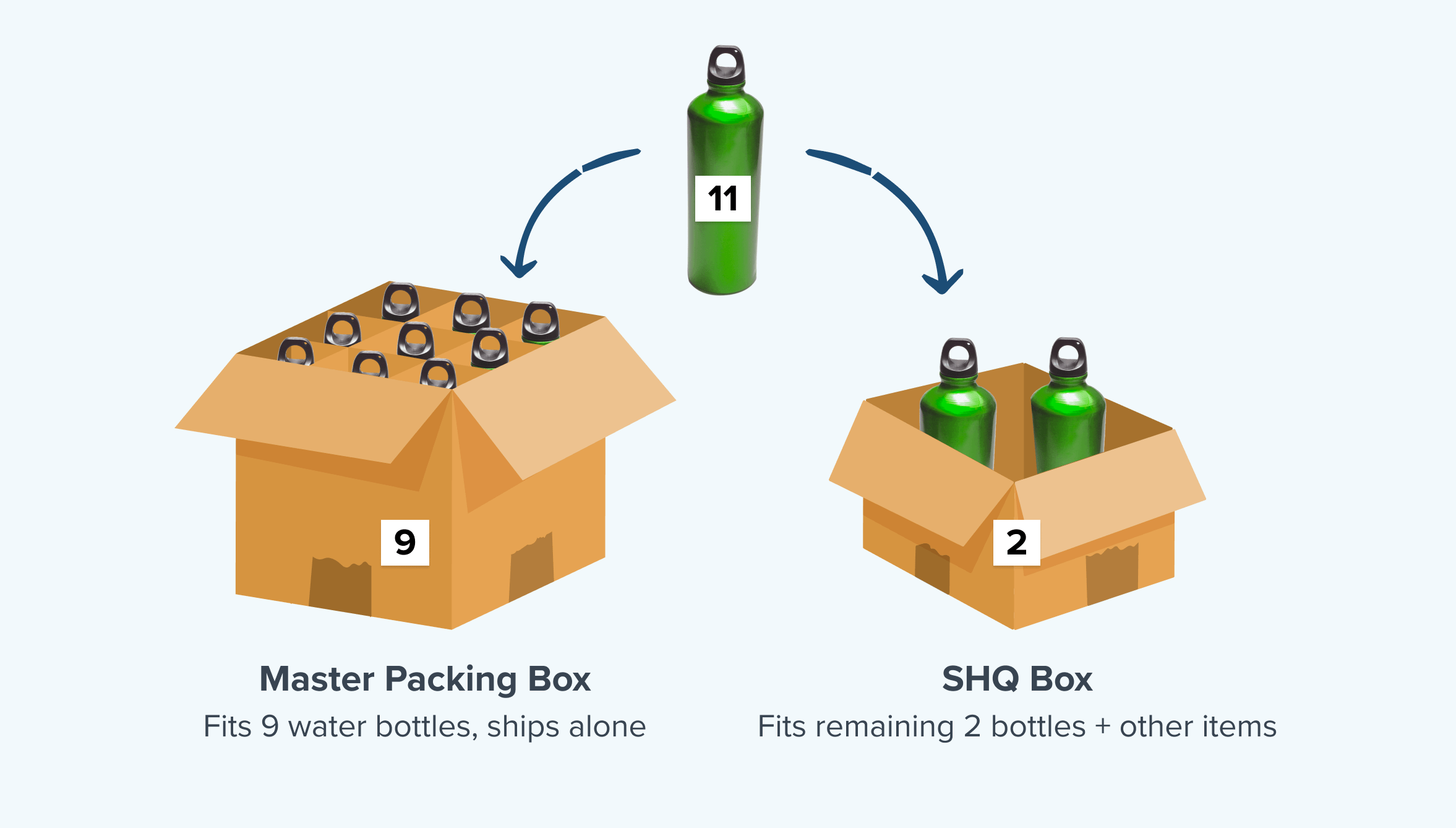
Example Scenario: A case of wine that always ships in a master box of 9 bottles.
If a master box of 9 bottles is set up, and a customer orders 11 bottles, the package would ship in the 9-bottle master box, with the remaining 2 bottles packed separately.
This article covers when to use master packing boxes, how to set them up in ShipperHQ, and platform-specific instructions for Magento, BigCommerce, and Shopify.
Table of Contents
- Overview
- When to Use a Master Packing Box
- Pre-Requisites for Magento Only
- Setting up Master Boxes in ShipperHQ
- Product Setup in Magento
- Product Setup in BigCommerce
- Product Setup in Shopify
- How It Works
- Additional Resources
When to Use a Master Packing Box
Master packing boxes are suitable when items need to be shipped in specific quantities. If your goal is to pack each item into its own box, consider setting a maximum quantity on a regular box or use a packing rule to pack separately.
Pre-Requisites for Magento Only
By default, the master box attribute (shipperhq_master_boxes) is not assigned to your Magento attribute sets. You need to add these to the attribute sets under the Dimensional Shipping Group. If you don't see this attribute, please contact us for an extension update. ⚠️
Setting up Master Boxes in ShipperHQ
Setting up a master box is straightforward:
- Go to "Boxes" in the ShipperHQ Dashboard.
- Add a New Box.
- In the Basic panel, name the box and set its dimensions and Max Quantity. Ensure the name matches the name of the box in your eCommerce platform.
- In the Optional panel, specify any required carriers. Leave Assign this Box to All Products unchecked.
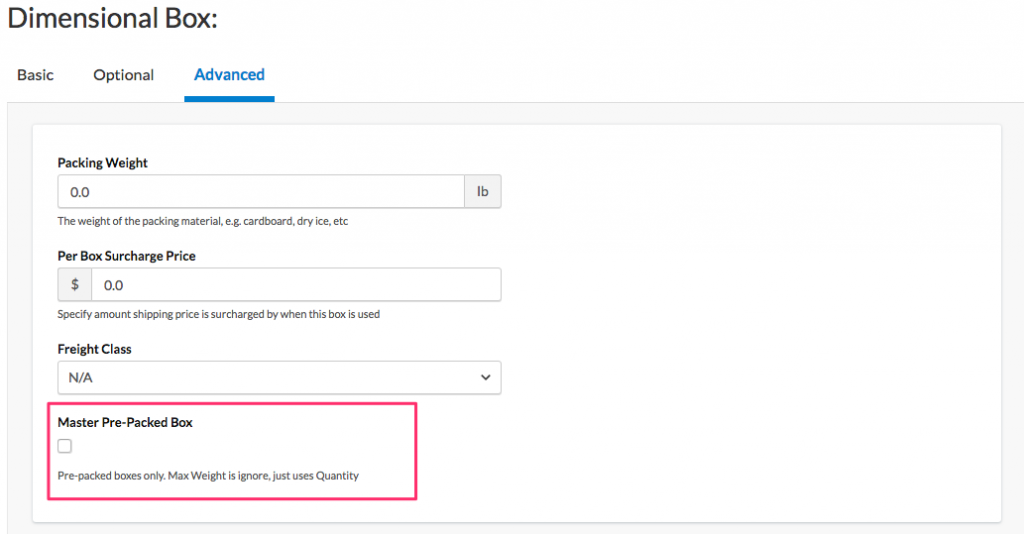
- In the Advanced panel, check Master Pre-Packed Box. Optionally, adjust weight or surcharges here.
- Save the Box.
Once set up in ShipperHQ, follow the platform-specific steps below to complete setup in Magento, BigCommerce, or Shopify. For BigCommerce, simply copy the box name from ShipperHQ into the "Dimensional Rules" field.
Product Setup in Magento
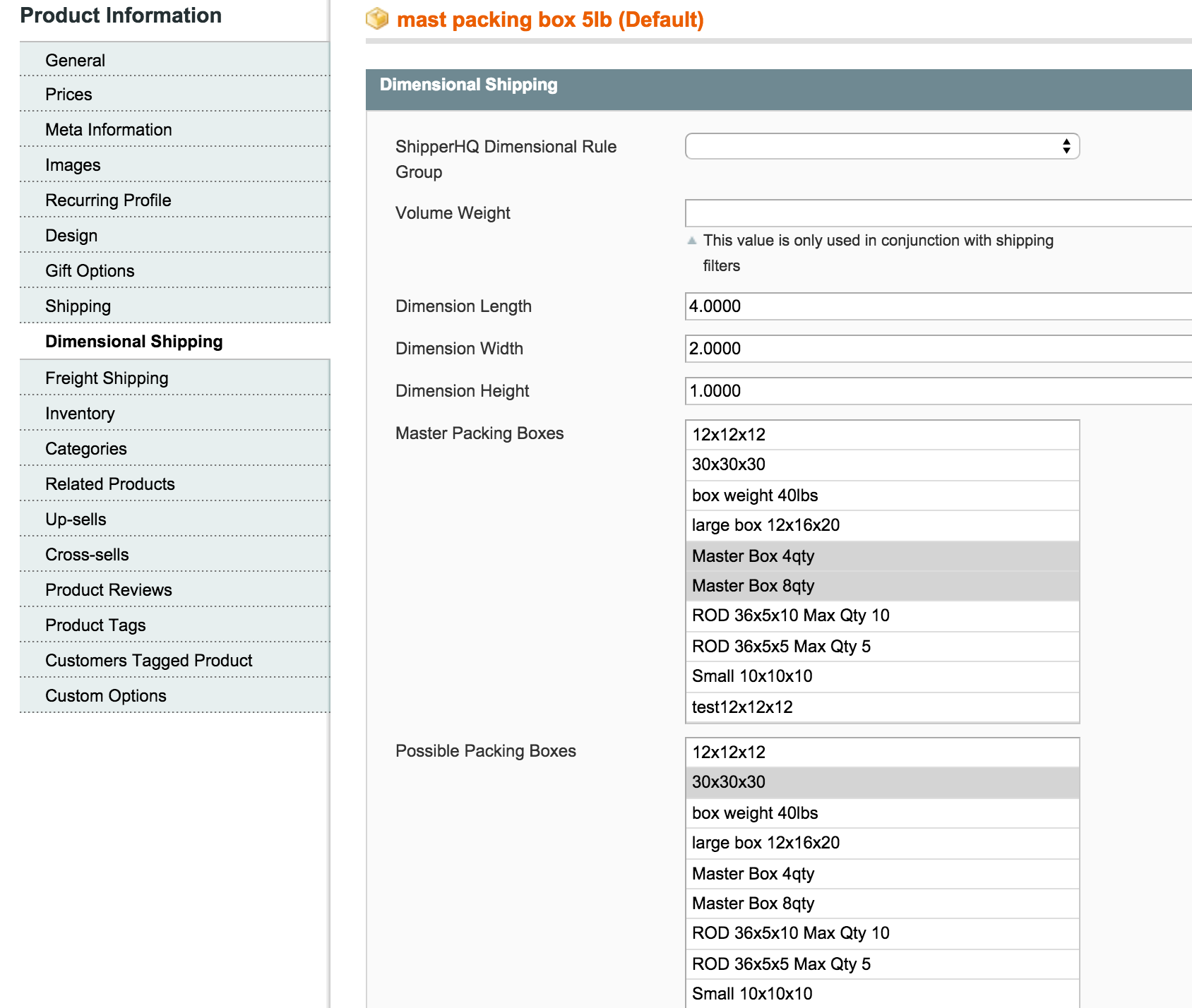
In Magento admin, under the Dimensional tab, you'll find selections for Possible and Master Boxes. For example, master boxes might be labeled "Master Box 4qty" or "Master Box 8qty."
Product Setup in BigCommerce
To assign products in BigCommerce to master packing boxes:
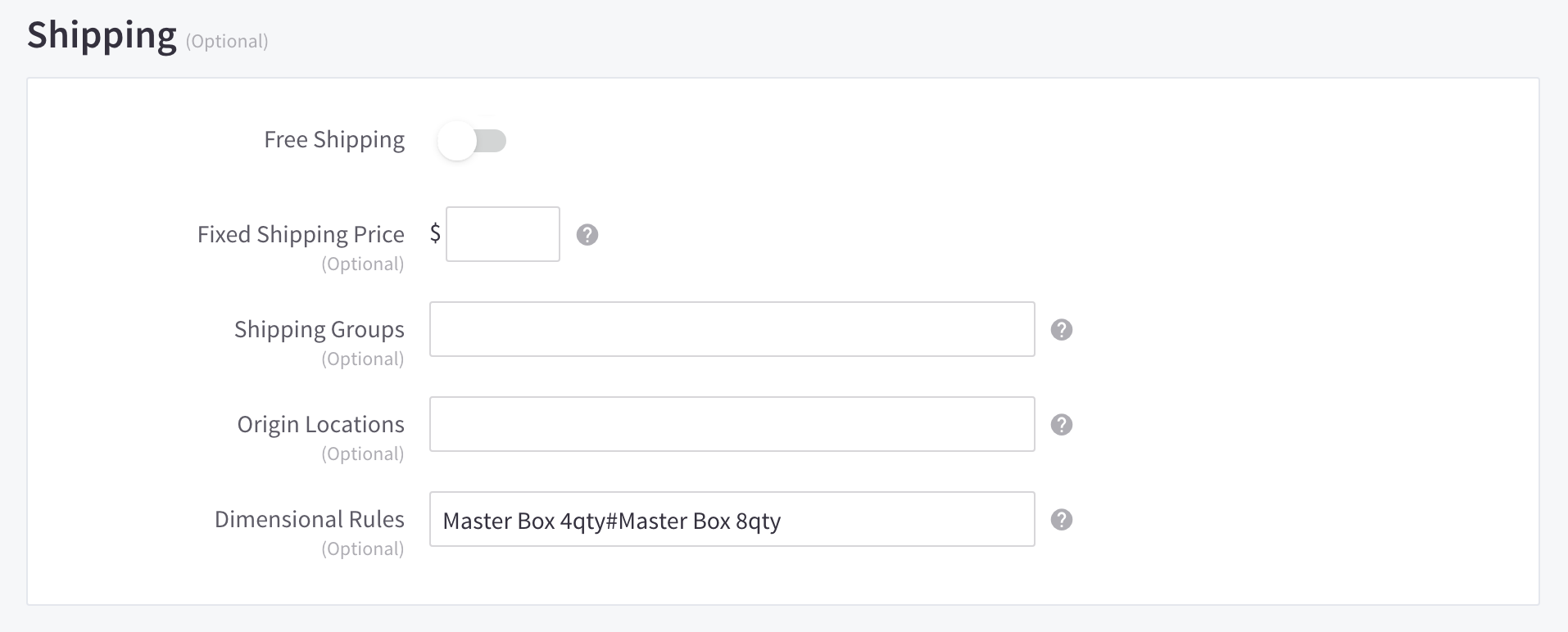
- On the product page, go to the “Shipping” tab.
- Enter the box name exactly as it appears in ShipperHQ in the Dimensional Shipping field.
If assigning multiple boxes or packing rules, separate names with "#" or ",".
Product Setup in Shopify
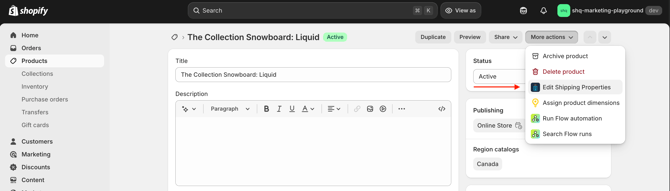
- In Shopify, open a product.
- Select 'More Actions' and then select 'Shipping Properties'
- Ensure product dimensions are added.
- Scroll to the Dimensional Group field. Copy the exact box name from ShipperHQ to the Dimensional Group field.

Ensure you copy/paste the exact name of the box when assigning product attributes in Shopify.
How It Works
The ShipperHQ algorithm first packs items into the master box for each SKU and then into the smallest possible boxes that fit multiple items.
Important Note: Master Boxes will not apply when a packing rule is active, whether as a possible box, under a default packing rule, or attached to a product.