
Overview
While ShipperHQ doesn’t automatically nest or stack products out of the box, you can replicate this behavior through box settings and packing rules.
This setup is useful for items like buckets, cups, or hats that can fit inside one another or stack efficiently within a single box.
Setup
Assign the packing rule to your desired product(s) on your e-commerce platform. Learn how to assign attributes to products on Magento, Shopify, BigCommerce, and WooCommerce.-
Remove Dimensions from Products:
Make sure the products you want to nest or stack do not have dimensions set in your eCommerce platform. If dimensions are present, ShipperHQ cannot nest them properly. -
Define Boxes in ShipperHQ:
-
Go to Boxes in your ShipperHQ dashboard.
-
Create a new box or edit an existing one.
-
Under the Optional tab, set Max Quantity Box Can Hold to the number of items that fit within a single box.
-
For example: If one box can hold 4 buckets, set the max quantity to 4. If another box can hold 8 buckets, create a separate box with a max quantity of 8.
-
-
Create a Packing Rule:
-
Go to Packing Rules → Add New Rule.
-
Select Pack According to Box Rules.
-
Assign the boxes you created in the previous step to this rule.
-
-
Assign the Packing Rule to Products:
Assign the packing rule to the applicable products in your eCommerce platform.
Refer to platform-specific guides for detailed steps:
Considerations
If you have existing boxes configured to Can Be Used to Pack All Products, ShipperHQ may select one of those boxes instead of the box assigned to your nesting packing rule.
To ensure ShipperHQ selects only the boxes assigned to your nesting packing rules, update any remaining Can Be Used to Pack All Products boxes to No and add them to the Default Packing Rule instead. This directs ShipperHQ to use only the boxes assigned to specific packing rules for their corresponding products, and to fall back to the Default Packing Rule for any products not assigned to a specific rule.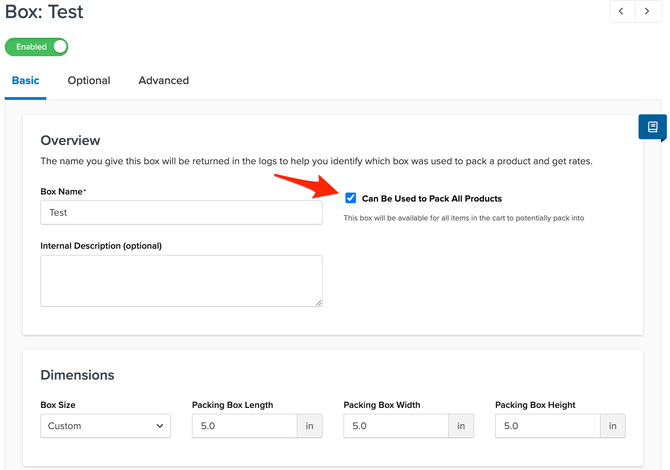
Result
Once configured, ShipperHQ will pack items based on the maximum quantity each box can hold. Smaller boxes will be used first, and larger boxes will apply when the item count exceeds the smaller box capacity.
This setup mimics nesting or stacking behavior—optimizing packaging, minimizing wasted space, and improving rate accuracy.