
Table of Contents
Rate Shopping, part of the Rate Shopping & Custom Method Names Advanced Feature, compares live rates across carriers and displays only the cheapest option at checkout, under a single method name you control.
If you offer live rates from more than one carrier, checkout can end up listing several similar-looking options side by side, like UPS Ground next to FedEx Home Delivery, both around the same price. Rate Shopping resolves this by comparing the methods you specify and returning only the cheaper one, merged under a title like "Standard Shipping" so shoppers see one clear choice instead of a lineup of near-duplicates.
💡 Looking to reorder your existing rate list by price instead of narrowing it to one option? See How to Display All Carriers in a Single List for sorting shipping methods by price without hiding any of them.
How It Works
Rate Shopping compares the shipping methods you choose within a Method Merging Rule and keeps only the cheapest one for checkout. Rate Shopping always runs after your Shipping Rules, so any discount or surcharge you've set on a method has already been factored in by the time Rate Shopping compares rates and picks a winner.
For example, suppose you're rate shopping between UPS Ground and USPS Priority Mail, and UPS Ground would normally be more expensive. If a Shipping Rule adds a surcharge to USPS Priority Mail that pushes its rate above UPS Ground's, UPS Ground would win the comparison instead, since Rate Shopping only sees rates after Shipping Rules have run.
💡 Rate Shopping and Multi-Origin Method Merging Rules share the same underlying merge-rule objects, so only one can apply to a given set of methods. This only matters if you're also using multi-origin shipping; see the FAQ below for how to choose between them.
Requirements
- The Rate Shopping & Custom Method Names Advanced Feature must be enabled (see below)
- At least two carriers must be configured on your ShipperHQ account
Setting Up Rate Shopping
Enable Rate Shopping
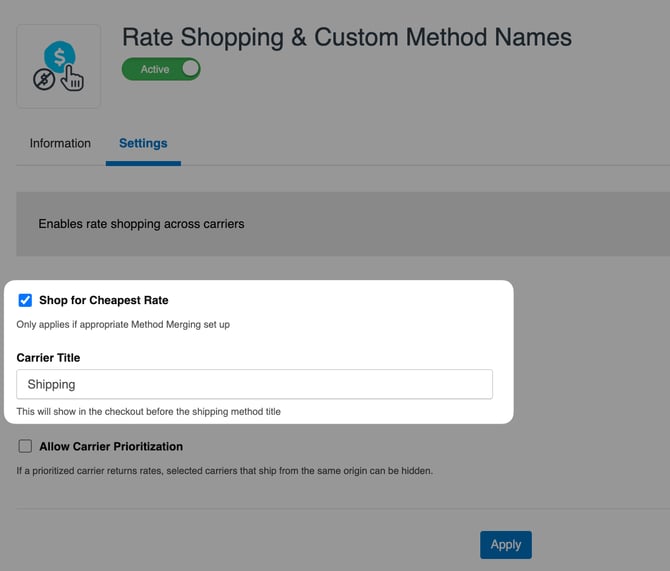
- Select Advanced Features from the left-hand navigation, then enable Rate Shopping & Custom Method Names.
- Go to the Settings tab of the feature and check Shop for Cheapest Rate.
- Set the Carrier Title to the name you want to show at checkout in place of the specific carrier name, for example, "Standard Shipping."
- Click Apply to save your changes.
Create a Method Merging Rule
With Rate Shopping enabled, create a Method Merging Rule to define which shipping methods to compare.
- Go to Carriers › Method Merging Rules and click + New.
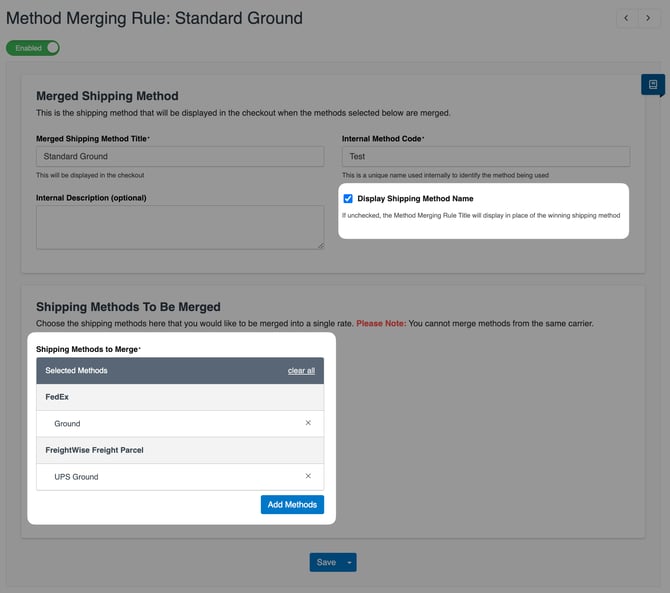
- Enter a Merged Shipping Method Title (required) — this is what shoppers see at checkout when the methods below are merged. Add an Internal Description if you'd like a note for your own reference.
- Enter an Internal Method Code to identify the rule internally; this isn't shown at checkout.
- Under Shipping Methods to Merge, click Add Methods and choose at least one method from at least two carriers, such as UPS Ground and FedEx Home Delivery. Methods can come from any combination of Custom and Live Rate Carriers, though methods on the same carrier can't be merged together: UPS Ground can't be merged with UPS 2nd Day Air, for instance.
- By default, the Merged Shipping Method Title displays at checkout regardless of which method wins. Check Display Shipping Method Name if you'd rather show the winning carrier and method name instead, for example, "UPS Ground" if UPS Ground wins.
- Click Save.
Create additional Method Merging Rules to rate shop between other sets of methods. Each rule's result displays at checkout under the carrier title you set in the Advanced Feature settings.
Testing Your Rate Shopping Merge Rule
Comparing rates with your Method Merging Rule on and off confirms Rate Shopping is returning the cheaper of the two methods you configured.
With Rate Shopping and your Method Merging Rule both enabled, open Test Your Rates in the ShipperHQ dashboard and enter a destination and cart that match the methods you're rate shopping. Take note of the merged rate that's returned.
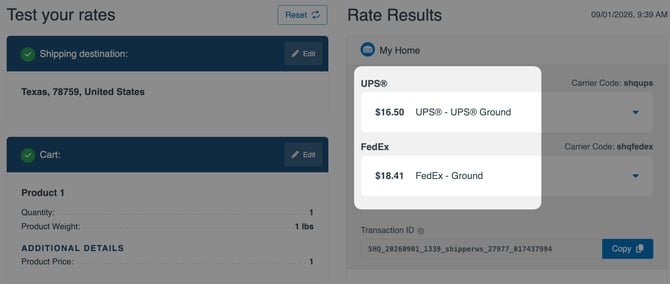
Then, go to Advanced Features › Rate Shopping & Custom Method Names and uncheck Shop for Cheapest Rate, or go to Carriers › Method Merging Rules and disable the rule. In a new Test Your Rates tab, re-enter the same destination and cart, adjusting a minor detail such as adding 0.001 to the cart weight so the request isn't served from cache.
With Rate Shopping disabled, both original methods should appear separately at checkout; with it enabled, only the cheaper one should return under your merged title.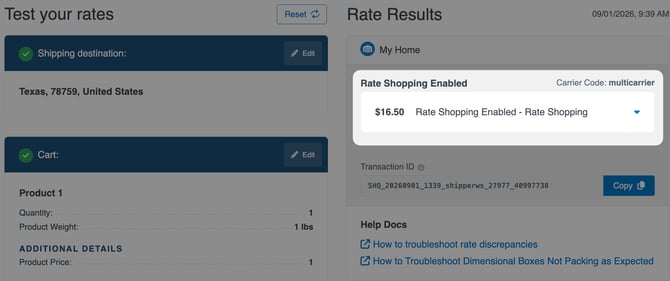
See How to Test Your Rates in ShipperHQ for more on entering address and cart details and interpreting results.
FAQ
Can I show the real carrier name instead of a generic label?
By default, the Merged Shipping Method Title you set on the Method Merging Rule displays at checkout, regardless of which carrier's rate won the comparison. Check Display Shipping Method Name if you'd rather show the winning carrier and method name instead, for example "UPS Ground" if UPS Ground wins.
Does Rate Shopping run before or after my Shipping Rules?
After. Rate Shopping compares rates once your Shipping Rules have already been applied, so a discount or surcharge you've set on a method has already been factored in by the time Rate Shopping compares rates and picks a winner.
Can I use Rate Shopping together with Multi-Origin Method Merging Rules?
Yes, as long as they're applied to different sets of methods. Rate Shopping and Multi-Origin Method Merging Rules both rely on the same underlying merge-rule objects, so a given set of methods can only be assigned to one or the other, not both. For example, if you ship from two warehouses and want to combine each warehouse's UPS Ground rate into one checkout option, that's a job for Method Merging Rules, not Rate Shopping.
Can I make checkout automatically select the cheapest shipping rate?
Not directly. Once ShipperHQ returns a set of eligible shipping rates, whether one of them is pre-selected at checkout is controlled by your eCommerce platform, not ShipperHQ. Rate Shopping offers a more direct route to the same goal: instead of relying on the platform to pre-select the cheapest option among several, it narrows the eligible rates down to just one before checkout ever sees them.