
Table of Contents
- How It Works
- Requirements
- Creating the OVERSIZE Shipping Group
- Assigning Products to the OVERSIZE Shipping Group
- Creating the Surcharge Rule
- Testing Your Rule
- Additional Resources
In this guide, you'll learn how to apply a 20% surcharge to shipping rates whenever products tagged as "OVERSIZE" are present at checkout.
How It Works
ShipperHQ uses Shipping Groups to identify Products from your catalog, and Shipping Rules to modify rates when those groups are in the cart.
Examples of products that commonly need oversize surcharges include large furniture pieces like sectional sofas and dining tables, exercise equipment like treadmills and weight benches, large appliances like refrigerators and washing machines, and outdoor items like patio sets and lawn mowers.
Requirements
- At least one active carrier configured in ShipperHQ
- Ability to assign product attributes in your ecommerce platform
Creating the OVERSIZE Shipping Group
A Shipping Group organizes products with similar shipping requirements. You'll create an OVERSIZE group to identify which products should trigger the surcharge.
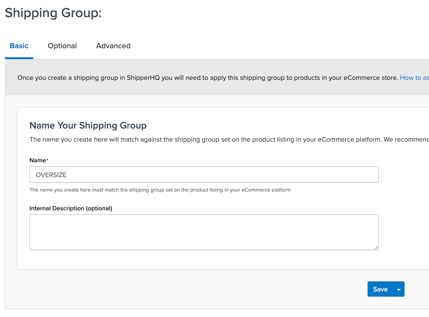
Go to Shipping Groups > +Add New in your ShipperHQ dashboard. Enter "OVERSIZE" as the name in the Basic panel. Using all caps makes the group name stand out and reduces the chance of typos when assigning products. Leave the Optional and Advanced panels with their default settings unless you need to restrict this group to specific destinations or shipping methods. Click Save to create the shipping group.
Assigning Products to the OVERSIZE Shipping Group
Once the shipping group is created, assign it to the products that need the surcharge. The process varies by platform:
Creating the Surcharge Rule
With your shipping group configured and products assigned, you'll create a shipping rule that applies a 20% surcharge when OVERSIZE items are in the cart.
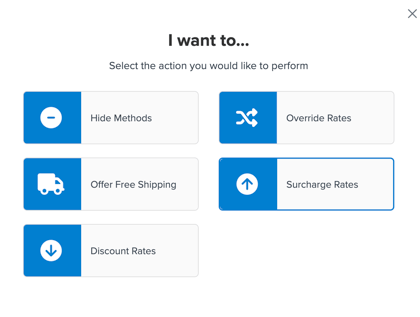
Go to Shipping Rules in the left-hand navigation menu and click +New to create a new rule. Select Surcharge Rates as the action you want the rule to perform.
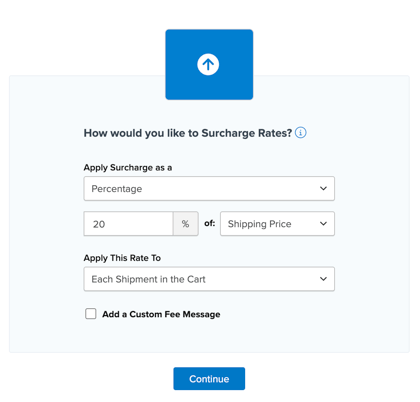
Enter "20" in the By a Percentage field to apply a 20% surcharge. Under And Apply This Rate To, select Each Shipment in the Cart.
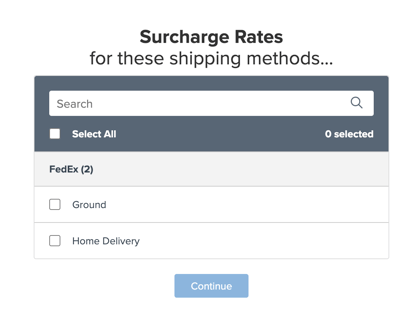
Under For These Shipping Methods, select the shipping methods where the surcharge should apply.
Click Continue to proceed to the conditions section. Under Perform The Action When, select Shipping Groups as the condition type. In the Shipping Groups Includes One or More dropdown, select your OVERSIZE shipping group. Make sure Any Shipping Groups are in the cart is selected, which means the rule will trigger if at least one OVERSIZE item is present.
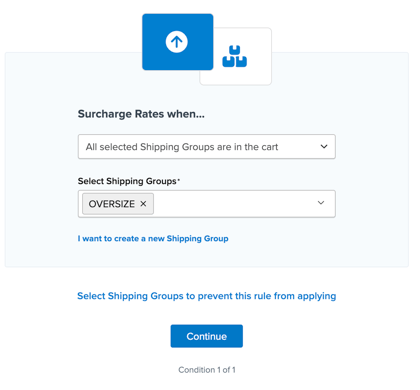
After pressing 'Continue' you'll be prompted to submit a name. We recommend something descriptive like "20 Percent Surcharge for Oversize Items." Click Finish to save and activate the rule.
Testing Your Rule
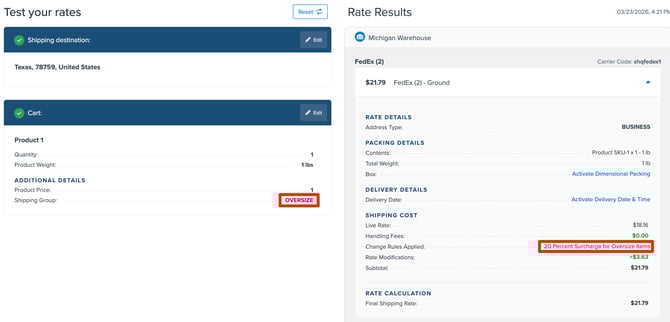
After creating your rule, use ShipperHQ's Test Your Rates feature to confirm it works as expected. Go to Test Your Rates in the ShipperHQ dashboard, build a simple cart that uses the "OVERSIZE" shipping group, and verify the rule applies to the shipping rates.
Additional Resources