
Overview
ShipperHQ's FedEx integration does not include a built-in Signature Required option. The recommended approach is to add a second FedEx carrier dedicated to signature-required methods, rename that method at checkout using Custom Method Names, and use Shipping Rules to control which option appears based on what's in the cart.
This article walks through each step of that setup. If you only need to add a flat fee for signature confirmation without controlling which method displays, see Adding a Signature Required Surcharge for USPS & FedEx instead.
Table of Contents
- How It Works
- Adding a Second FedEx Carrier
- Renaming the Method
- Adding a Signature Required Surcharge
- Controlling Which Method Displays
- Additional Resources
How It Works
ShipperHQ's FedEx integration does not include a built-in Signature Required option. To offer signature-required shipping at checkout, you add a second FedEx carrier dedicated to signature-required rates, then use Shipping Rules to control when each carrier's methods appear.
This approach gives you two separate FedEx carriers in ShipperHQ:
- Your existing FedEx carrier — displays standard methods for regular orders
- A new FedEx carrier — displays signature-required methods when qualifying items (such as perishables) are in the cart
If you only need to add a Signature Required surcharge to an existing FedEx method without controlling which method displays, see Adding a Signature Required Surcharge for USPS & FedEx instead.
Adding a Second FedEx Carrier
The second FedEx carrier uses the same account credentials as your primary carrier but is configured to serve only signature-required orders.
- Go to Carriers in the left-hand navigation and click + New.
- Select See All Live Rate Carriers, then search for and select FedEx.
- Enter your FedEx account credentials — the same credentials used for your existing FedEx carrier.
- Click Validate to confirm the connection, then click Configure This Carrier.
- Under the Basic tab, in Available Methods, enable the method(s) you want to offer as signature-required options (for example, FedEx 2Day).
- Give the carrier a recognizable internal name such as FedEx – Signature Required so it is easy to identify in your rule configuration.
- Save the carrier.
Renaming the Method
Use Custom Method Names to update the method name displayed at checkout to indicate that signature is required — for example, changing "FedEx 2Day" to "FedEx 2Day – Signature Required."
Custom Method Names requires the Rate Shopping & Custom Method Names advanced feature. To enable it, go to Advanced Features and toggle on Rate Shopping & Custom Method Names.
Once enabled:
- Go to Carriers › Custom Method Names in the left-hand navigation and click Add New.
- In the Carrier Shipping Method dropdown, select the method on your new signature-required FedEx carrier (for example, FedEx 2Day on FedEx – Signature Required).
- In the New Shipping Method Name field, enter the updated name, such as FedEx 2Day – Signature Required.
- Save the method mapping.
See How to Set Up Custom Method Names for full configuration details.
Adding a Signature Required Surcharge
If FedEx charges a fee for signature confirmation, use a Surcharge Rule to add that fee to the signature-required method.
- Go to Shipping Rules and click + New.
- Select Surcharge Rates as the action, then choose whether to apply a flat fee or a percentage.
- Select the signature-required method on your new FedEx carrier as the shipping method this rule applies to.
- Add any conditions if the surcharge should only apply in specific circumstances.
- Save the rule.
See Adding a Signature Required Surcharge for USPS & FedEx for additional guidance on surcharge rules.
Controlling Which Method Displays
If your goal is to show either the standard method or the signature-required method — but never both at the same time — create two Hide Rules using a Shipping Group to differentiate qualifying orders.
This example uses a Group 1 shipping group to identify items that require signature on delivery. Adjust the shipping group name and method names to match your own configuration.
Before creating the rules, make sure you have:
- A Shipping Group (for example, Group 1) created in ShipperHQ and assigned to the relevant products in your ecommerce platform. See How to Configure Shipping Groups for setup steps.
- Both FedEx carriers configured with their respective 2Day methods enabled.
Rule 1: Hide the Signature Required Method for Standard Orders
When no Perishable items are in the cart, hide the signature-required method so only the standard method is shown.
- Go to Shipping Rules and click + New.
- Select Hide Methods as the action.
- Select the signature-required method on your FedEx – Signature Required carrier.
- Set a prevent condition for Shipping Groups and select Group 1 shipping group.
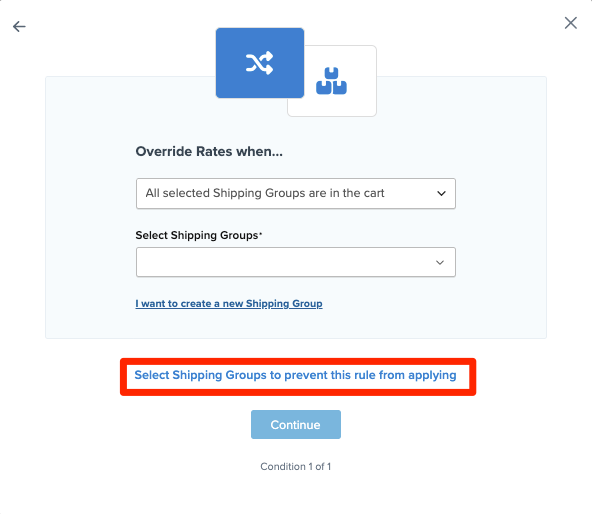
- Name & Save the rule.
See Hide Shipping Methods Unless Shipping Group is in Cart for a detailed walkthrough of this rule type.
Rule 2: Hide the Standard Method for Perishable Orders
When Perishable items are in the cart, hide the standard method so only the signature-required method is shown.
- Go to Shipping Rules and click + New.
- Select Hide Methods as the action.
- Select the standard 2Day method on your primary FedEx carrier.
- Select Shipping Groups as a condition and select Group 1.
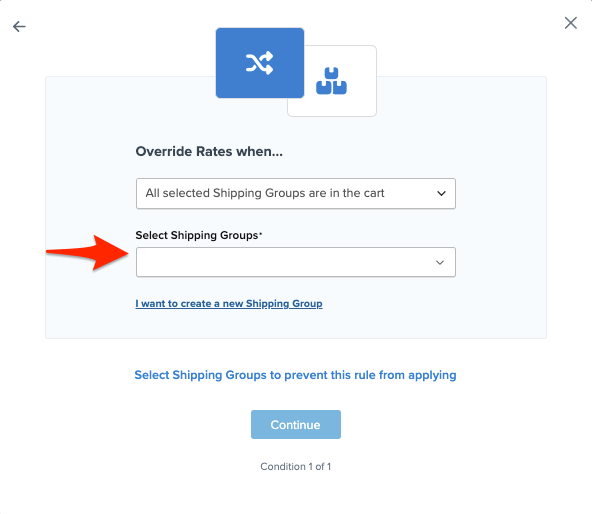
- Name & Save the rule.
After saving both rules, use Test Your Rates in the ShipperHQ dashboard to confirm each rule behaves as expected — with and without a Perishable item in the cart.