
Table of Contents
- Overview
- How many requests is my account making?
- Which log entries indicate an API request?
- How to reduce unnecessary API requests?
Overview
ShipperHQ tracks the number of API requests made by an account to ensure accounts stay within their plan limits. When an account consistently exceeds these limits, we do not limit or block API access, but we do reach out to discuss a resolution.
This article explains how to track the number of requests you’re sending and how to minimize unnecessary ones.
How many requests is my account making?
We provide tools to help you understand how many requests your account makes to the API:
- The Analytics page in the ShipperHQ Dashboard offers a breakdown of requests per account, allowing you to track your API usage over time.
- The ShipperHQ Logger included with the ShipperHQ Magento 2 extension logs each API request and provides additional information. Use it to see request activity during the order process.
Which log entries indicate an API request?
We request new estimates when shipment details like destination address or cart contents change. Requests made to the ShipperHQ API generate a Transaction ID, which you can see in Magento logs. Log requests include:
- Rate request and result - These logs have a unique Transaction ID representing a request to the ShipperHQ API, counting towards the account's request limit. Notable exceptions include:
- Found Cached Rates in Magento Cache - This message appears when a previously cached rate is reused, with no new API request sent.
- Ignoring rate request - Occurs per core Magento checkout behavior if the zipcode is empty.
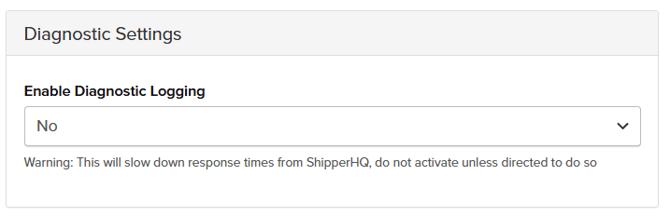
⚠️ Remember to turn off the logger under Global Settings. Leaving it on can significantly slow down shipping rate calculations.
How to reduce unnecessary API requests?
Magento 2
In Magento 2, prevent unnecessary requests to the ShipperHQ API by ensuring a Zipcode is entered before requests are made. Enable the setting "Require Meaningful Address To Request Rates" (default enabled).
To do this, navigate to:Stores > Configuration > Sales > Shipping/Delivery Methods under ShipperHQ > Advanced Settings.
Change "Require Meaningful Address To Request Rates" from "No" to "Yes" and save the configuration to apply the change.
WooCommerce
In WooCommerce, enforce users to complete Required Fields in checkout before making requests to the ShipperHQ API by enabling "Require Meaningful Address To Request Rates."
Navigate to:Settings > Shipping > ShipperHQ
Scroll down to "Require Meaningful Address To Request Rates," select the checkbox, and save to apply changes.
This feature helps both platforms significantly reduce redundant API calls in checkout.
Other Platforms
For BigCommerce, Shopify, WooCommerce, & Salesforce Commerce Cloud, the platform controls request sending, and there's no mechanism to prevent requests unless a zip/postal code is entered.
If issues arise with customizations, contact your store's developer. For core checkout issues, reach out to the platform's support team, except for WooCommerce, where you should contact the developer working on your website.