
Overview
This guide helps you create a flat rate carrier option that offers customers a fixed shipping rate, regardless of item weight or cart quantity.
Steps
- In ShipperHQ, to add a new Custom Rate Carrier go the "Carriers" section on the lefthand navigation menu.
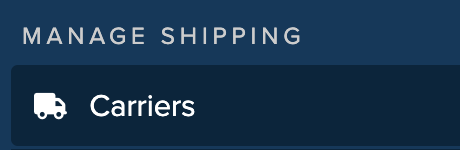
- Click on the orange "New" icon.

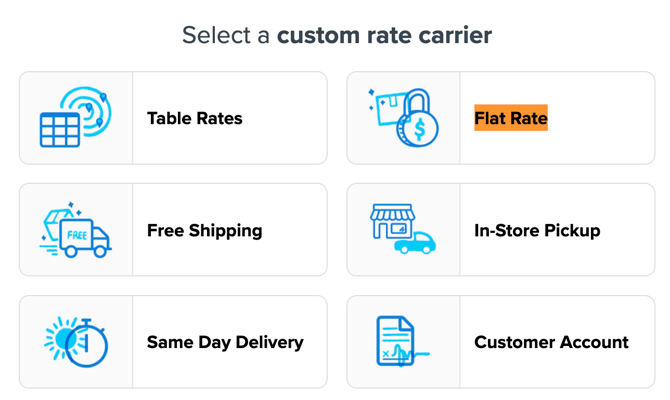
- Select "Create a custom carrier".

- Select "Flat Rate".
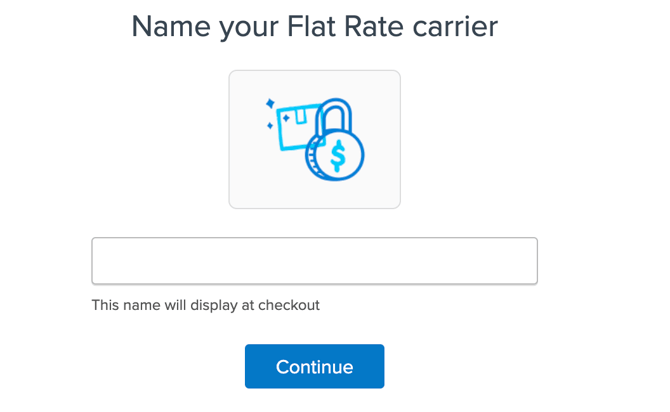
- Name your carrier. You can change this anytime.
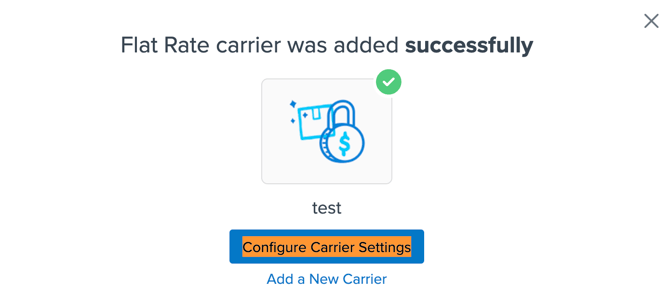
- If there are additional changes you would like to make select, "Configure Carrier settings". If not you can close out of the screen by selecting the X in the top-right corner.
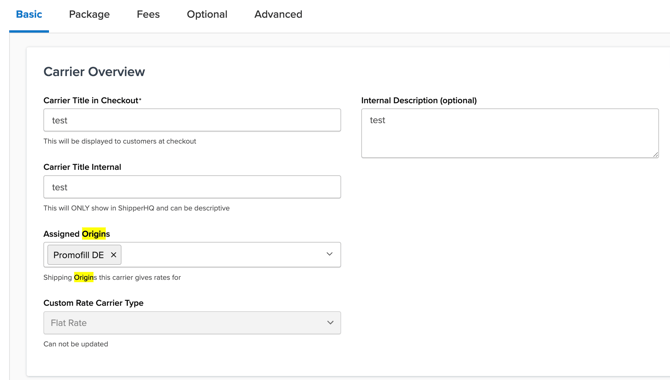
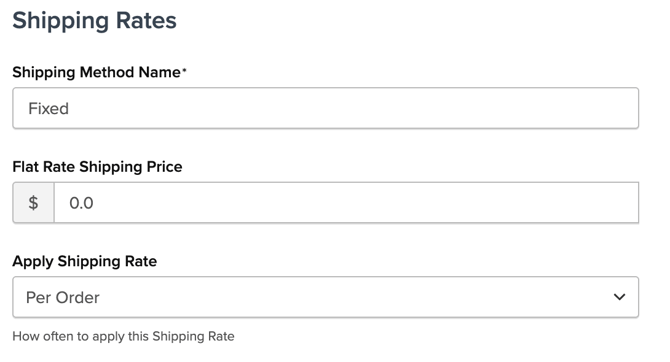
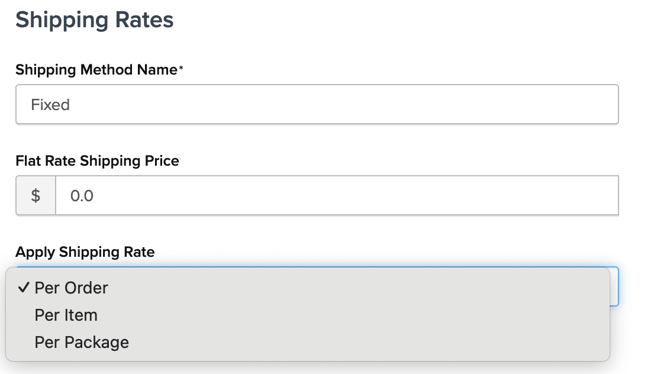
- On the Basic panel, select an "Assigned Origin". This is also where you can set the rate for your Flat Rate carrier, as well as configure if you want the rate to be applied per order, item, or package.
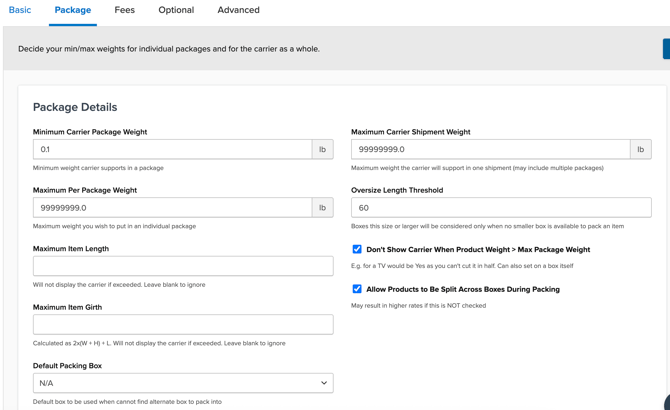
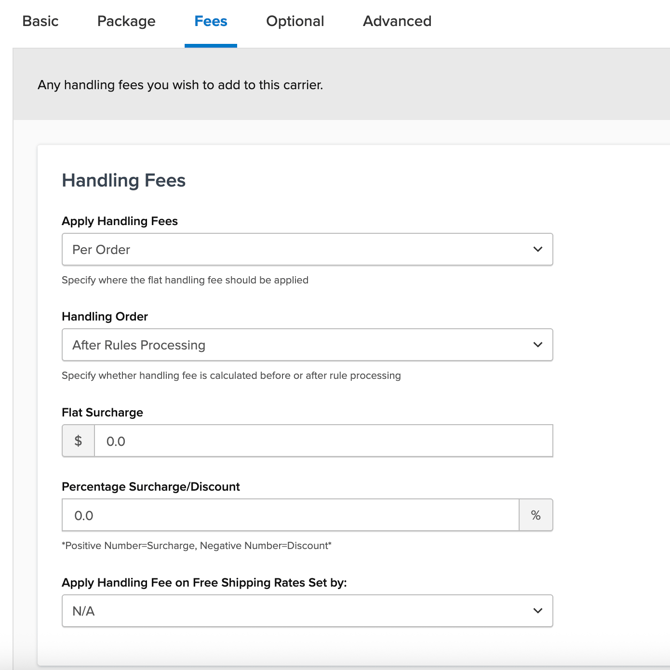
- Define package restrictions or fees in the Package and Fees tabs.
Additional Options
Restricting by Distance
It's possible to only offer a Flat Rate option for addresses within a certain distance (point to point distance). Under the Optional tab of your Flat Rate carrier, check the "Restrict Carrier to Specified Radius" checkbox and set a Maximum Distance for Delivery. With this option set up, this Flat Rate carrier will only be shown if the customer's delivery address is within the defined radius from the Origin. Otherwise, the Flat Rate carrier will not be returned.
Rates by Weight, price, or Quantity
If you want to adjust flat rates based on weight, price, or quantity, refer to the Custom Defined Carrier article for creating a Custom Carrier.
Live Rates
For live rates with carriers like FedEx, UPS, or USPS, follow their respective guides to set up live rate carriers.
Next Steps
Now that your Flat Rate Carrier is set up, consider the following:
- Create Shipping Rules - set, surcharge, or hide your flat rate method based on cart conditions.
- Add a Live Rate Carrier - offer expedited methods with live calculations through UPS, FedEx, USPS, and more.