
Table of Contents
Introduction
To charge a flat rate per item for specific products — rather than a single rate for the whole order — use an Override Shipping Rule scoped to a Shipping Group. ShipperHQ multiplies the flat rate by the number of items in the group in the cart, so a customer ordering three units pays three times the per-item rate.
This is useful for products like furniture accessories, replacement parts, or any item where shipping cost scales with quantity.
Requirements
- At least one carrier configured in your ShipperHQ account with the shipping method you want to override
- A Shipping Group to assign to the relevant products — this example uses Group 1. See How to configure Shipping Groups if you need to create one first.
Setting Up the Rule
Go to Shipping Rules in the left navigation and click Create Rule.
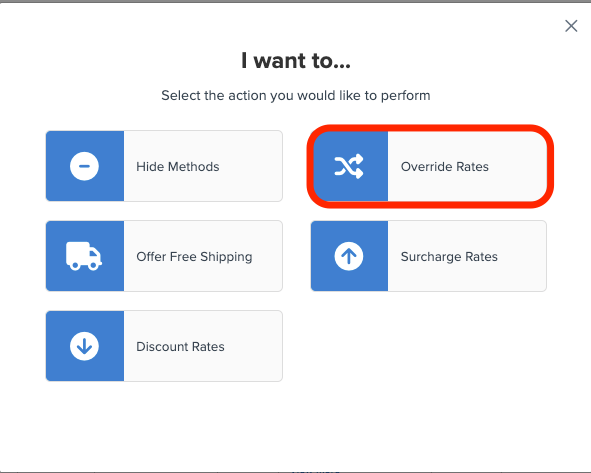
- Select Override Rates as the rule type, then click Continue.
- Enter the flat rate amount (for example,
5.00for $5.00 per unit). In the Apply This Rate to dropdown, select Each Item Within a Shipping Group, then select Group 1. Click Apply.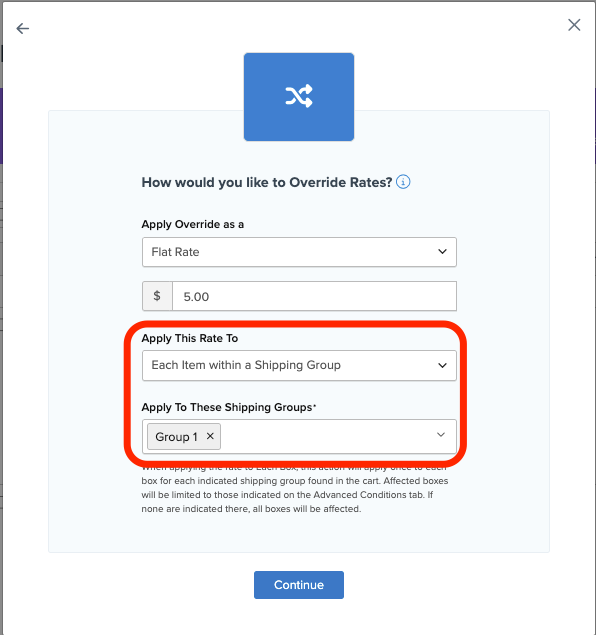
- Select the shipping method(s) to override — for example, UPS Ground — then click Continue.
- Select Shipping Groups as the condition type, then click Continue.
- Set the first dropdown to Any Selected Shipping Groups are in the Cart and select Group 1 in the next field. Click Continue.
- Review the summary and save.
Assigning Products to the Shipping Group
The rule only fires for products assigned to Group 1 in your product catalog. Assign the group to the relevant products after saving the rule.
The steps vary by platform — see How to configure Shipping Groups for details.
Additional Resources
- How to configure Shipping Groups
- How to create Shipping Rules
- Set a Fixed Rate or Surcharge for a Shipping Group — use this instead for a single flat rate per order rather than per item
- Set Rate as Fixed Shipping Fee Set on the Product — an alternative if each product has its own per-item rate
- My rule is not applying, what do I do?