
Overview
Ship-to-Store lets you show live, carrier-calculated shipping rates when shipping products to stores or third-party pickup locations. Perfect for regulated, high-value, or bulky goods.
Unlike our In-Store Pickup feature, which supports flat rates and free shipping, Ship-to-Store supports live carrier rates and complex table rates, so merchants can quote accurate shipping costs at checkout.
Table of Contents
- Overview
- Requirements
- Enable Ship to Store Advanced Feature
- Add Ship to Store Carrier
- Configure Ship to Store Carrier
- Test Your Rates
- Post Order
Requirements
- Ship to Store is available to Advanced and Enterprise plans on all supported ecommerce platforms.
- An installed and enabled carrier that provides calculated rates (Table rate, small package or LTL Freight carrier)
- Defined Pickup locations
- Pickup Locations will become available once you enable the Ship to Store carrier, or if you have the In-Store pickup Advanced Feature already enabled.
Enable the Ship to Store Advanced Feature
- Navigate to Advanced Features in the ShipperHQ Dashboard
- Scroll to Find Ship to Store in the Advanced Feature list
- Click the toggle to enable the feature.
Add a Ship to Store Carrier
- Go to Carriers in the left navigation
- Select +New on the Carriers page
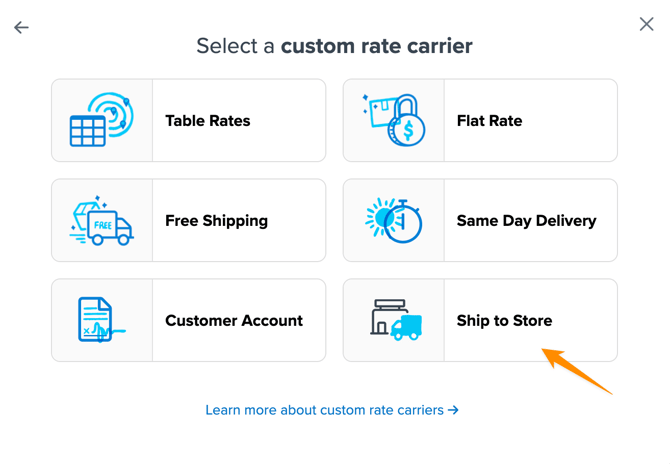
- Choose Custom Carrier as the Carrier Type
- Choose Ship to Store Carrier
- Give your Carrier a name
- Click Continue
Configure Your Ship to Store Carrier
Once the Ship to Store Carrier has been added, you can define which carrier will provide calculated shipping rates, the pickup locations this Ship to Store carrier will ship to, and the display logic for when this carrier is offered at checkout.
Assigning a Rating Carrier
You’ll need to select an existing carrier that will calculate shipping costs from your origin to available pickup locations; this can be a live rate carrier, a custom table rate carrier, or an LTL carrier. Learn more about carrier rates.
From the drop-down, select your Rating Carrier.
After you assign a carrier, and depending on your needs, you can choose to offer a standard shipping method and an expedited method at checkout. Select the associated method from the drop-downs and adjust the display name if desired.
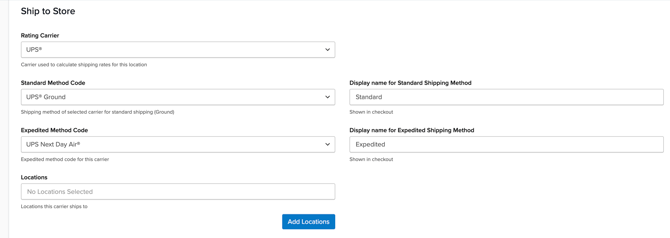
Please note: if you choose to offer both a standard method and expedited method for your ship-to-store carrier, two ship-to-store options will appear for each displayed pickup location at checkout.
Assign Locations
Next, assign Pickup Locations for your Ship to Store carrier. If you haven’t already created Pickup Locations, navigate to Pickup Locations in the side nav. You can individually create pickup locations or bulk create via CSV upload.
Once pickup locations are available, you can assign them to the Ship to Store carrier within Carrier Settings by pressing the ‘Add Locations’ button and selecting all applicable locations from the Locations modal. Once complete, select Apply.
Display Options
Customize how your Ship to Store carrier appears at checkout. You can choose to set “always display this Ship to Store carrier at checkout”, or set it to only appear when the customer’s shipping address is within a specific distance range. By default, ShipperHQ shows up to 3 pickup locations, but this can be adjusted to display between 1 and 5 locations.
.png?width=670&height=342&name=image%20(28).png)
Test Your Rates
Verify that your carriers and rules are working and see how they will display in your checkout right from the ShipperHQ dashboard.
First, ensure your Ship to Store carrier is enabled, then navigate to Test Your Rates Calculator in the side navigation. Enter your destination and cart conditions, and review results.
Post Order
Once selected at checkout, Ship to Store orders' shipping addresses will automatically be updated to show the selected pickup location address within the order management view of your e-commerce platform.
Note: this functionality is currently only supported in Shopify