
Table of Contents
- Billing and Subscription Settings
- Managing Users and Account Access
- Upgrading, Downgrading, or Cancelling Your Subscription
- Cancelling or Pausing on Shopify
As your business grows, so do your billing and account needs. You might switch plans as your shipping needs change, update a payment method after a card expires, or add a teammate who's taking over billing. This article covers managing your plan, billing, and account access in one place.
Billing and Subscription Settings
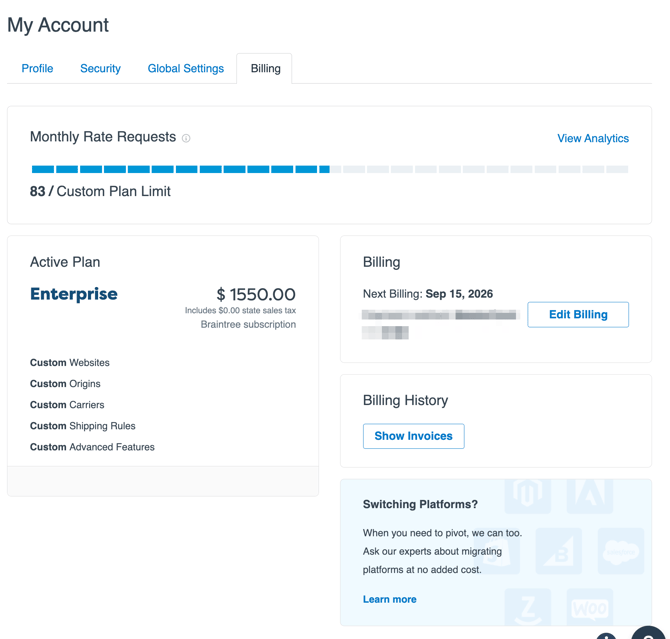
You can see your billing and subscription settings by going to My Account › Billing. Here you'll see:
- Plan level (Standard, Advanced, or Enterprise)
- Subscription type (monthly or annual)
- Subscription fee
- Next billing date
- Billing history
- Monthly rate requests
During your free trial, you'll have access to Standard plan features.
Setting Up Billing
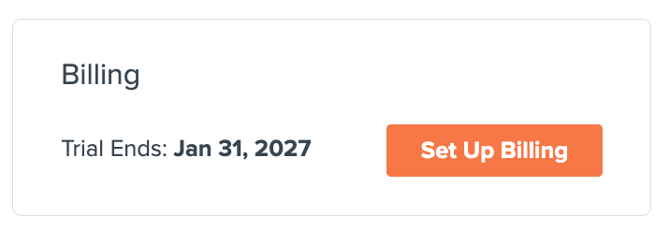
When you're ready to move forward with ShipperHQ after your trial, you'll need to set up billing. You can set up a monthly plan, or a discounted annual plan.
From the Billing page, click Set Up Billing to see a summary of your plan, payments, and dates. Fill in your billing address and click Continue.
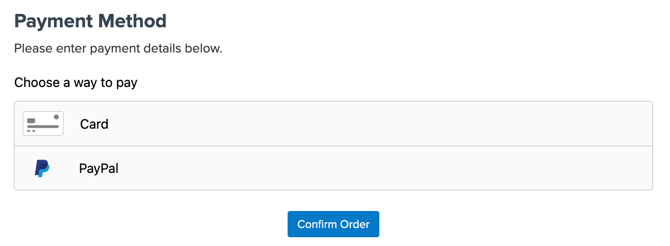
On the following page, you can fill in your billing card details, or set up billing through PayPal. (Please note that ShipperHQ cannot accept Amex from merchants based in the UK.)
Once billing is set up, ShipperHQ charges your saved payment method automatically each billing cycle.
Updating Billing Details
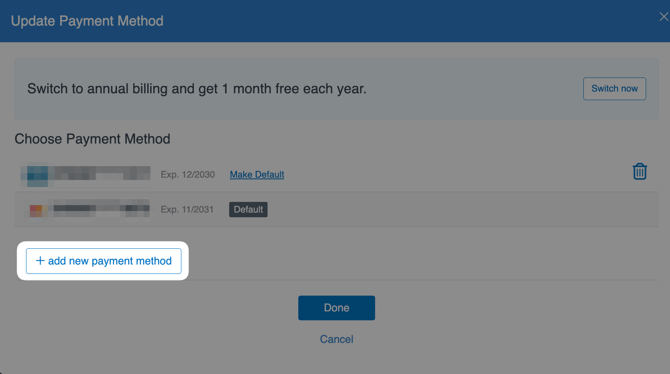
If your payment method changes, you can update it by adding a new one, setting the new one as default, and removing the old payment method.
- From the Billing page, click Change Billing Details.
- Click + Add New Payment Method to enter a new card, then use Make Default to set it as your primary method.
- Remove the old payment methods. (You will not be able to do this until another method is set as default.)
Locating Your Invoice
Every invoice ShipperHQ generates is available to view or download from your Billing page.
Under Billing History, click Show Invoices. Your current invoice displays by default; use the dropdown menu to select a previous billing period. Click Download to export the invoice as a PDF.
If you have questions about an invoice or billing terms, contact the ShipperHQ Billing Team at billing@shipperhq.com.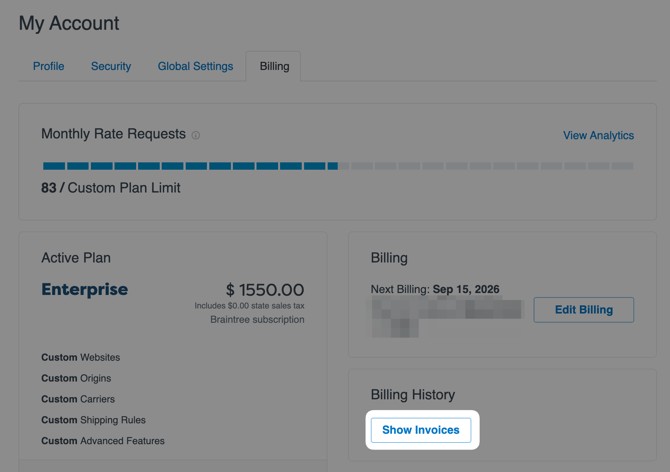
Managing Users and Account Access
ShipperHQ accounts work off a single login email, so how you add team members or update who can access your account depends on which platform you're using.
Shopify and BigCommerce
In Shopify and BigCommerce, access to ShipperHQ is managed directly in your platform's dashboard. Your site administrator can add team members and set permissions there. Once added, team members can access the ShipperHQ dashboard directly from Shopify or BigCommerce.
Other Platforms
In other supported platforms, ShipperHQ installs as a module, and all users share the same account email. You can reset the password at the ShipperHQ Login page.
If you need further help accessing your account, contact ShipperHQ Support by email at support@shipperhq.com or through the support form on our site.
Requesting an Account Email Change
Changing the email address on your ShipperHQ account requires a request to the ShipperHQ Support team. Email support@shipperhq.com with:
- Your company name
- Your current account email address
- The new email address you'd like to use
If you also want to update your billing email, mention that in the same request.
If you use Shopify or BigCommerce, your account email for those platforms is managed within the platform itself and can't be changed through ShipperHQ. You can still manage user access for your platform account (adding, editing, or removing team members) through your platform's own dashboard.
Upgrading, Downgrading, or Cancelling Your Subscription
Upgrading or Downgrading Your Plan
You can switch plans as your shipping needs change, whether you need more advanced features or want to scale back.
If you're on an Enterprise plan, please email sales@shipperhq.com to discuss a plan tailored to your needs.
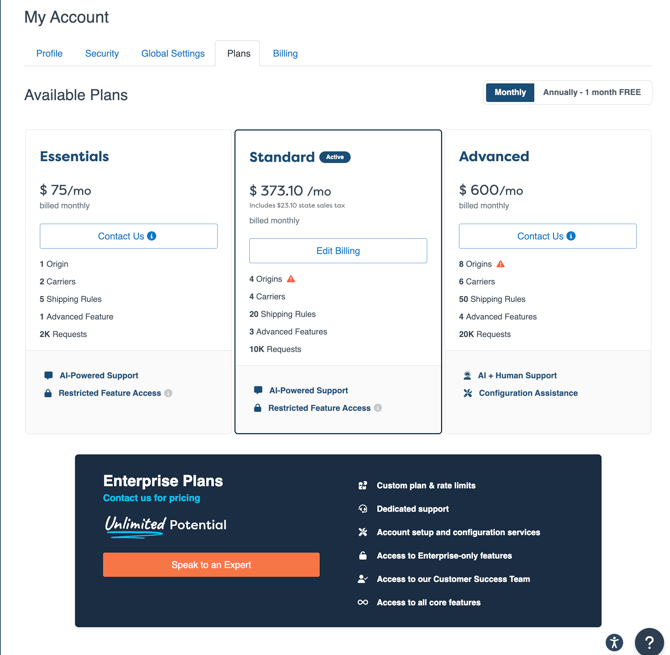
From the Billing page, click View all plans, or go to the Plans tab, to compare plan options. Email customersuccess@shipperhq.com if you're interested in switching plans.
If you don't see plans below your current one, you're likely using features, carriers, or shipping rules that aren't available on those plans. Disabling those features makes the lower plans visible again.
Cancelling Your Subscription
If you're closing your business or no longer need ShipperHQ, our Customer Success team can process your cancellation.
To cancel your subscription, email customersuccess@shipperhq.com at least three days before your next billing date to avoid being charged for the next cycle. A member of the Customer Success team confirms your cancellation within one business day. You can reactivate your account at any time if you decide to return.
If you use Shopify, see Cancelling or Pausing on Shopify below; billing for your subscription may work differently depending on how you're set up.
Cancelling or Pausing on Shopify
How you cancel or pause ShipperHQ on Shopify depends on how your subscription is billed.
If you're on an Enterprise, custom, or annual billing plan with ShipperHQ, contact the ShipperHQ team directly to amend or cancel your account. If you're billed for ShipperHQ through Shopify, you don't need to contact ShipperHQ separately; uninstall the ShipperHQ app from your Shopify store to cancel your subscription and stop billing.
If you're pausing your Shopify store rather than closing it, whether ShipperHQ continues billing depends on the pause option you choose:
- Pause and build — You still have access to ShipperHQ and continue to be charged through Shopify billing while you develop your store.
- Pause plan — Shopify does not charge you for ShipperHQ or other third-party apps while your store is fully paused.
See Shopify's documentation on pausing or closing your store for more details.