
Table of Contents
- How It Works
- Requirements
- Setting Up Your Carriers
- Setting Up a Pre-Order Shipping Group
- Creating the Shipping Rules
- FAQ
- Additional Resources
When a customer adds a pre-order item to their cart, showing delivery dates can create confusion — the item isn't shipping yet, so any date displayed will be inaccurate. This applies to the entire order: if a pre-order item is present alongside in-stock products, no delivery dates will be displayed for any item in that cart.
This guide explains how to use duplicate carrier configurations, a Shipping Group, and two Hide Rules to suppress delivery dates whenever a pre-order item is in the cart, while continuing to show delivery dates for orders that contain only in-stock items.
How It Works
Delivery Date and Time settings are configured at the carrier level. Once enabled on a carrier, that carrier will return delivery dates for every order it rates — there's no built-in way to suppress dates for specific items within a single carrier.
To work around this, you create two versions of the same carrier: one with delivery dates enabled, and one without. Two Shipping Rules then control which version appears at checkout based on whether a pre-order item is in the cart.
- When a pre-order item is in the cart — even alongside in-stock items — no delivery dates are displayed for any item in that order.
- When only in-stock items are in the cart, delivery dates display as normal.
The customer always sees rates. Only the delivery date display changes.
Requirements
- The Delivery Date & Time advanced feature must be enabled on your ShipperHQ account
Setting Up Your Carriers
To control delivery date display, create two versions of your carrier — configured identically except for the Delivery Date & Time setting.
Carrier 1: With Delivery Dates
This is your existing carrier, or a duplicate configured to show delivery dates.
- Go to Carriers and open the carrier you use for standard orders.
- Go to the Date & Time tab and confirm that Include Delivery Date Information is set to Delivery Date, Time in Transit, or Show Calendar — whichever you use.
- Rename this carrier to make it easy to identify — for example, UPS – With Delivery Dates.
- Save the carrier.
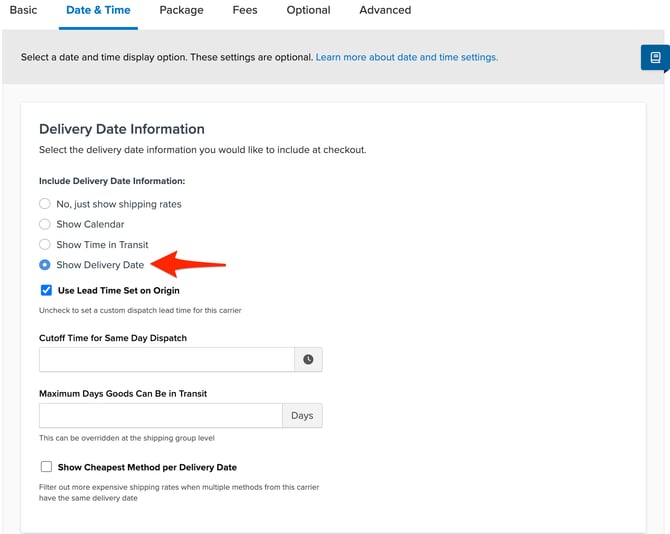
Carrier 2: Without Delivery Dates
- Go to Carriers and click +New to add a carrier, or duplicate your existing carrier if that option is available.
- Configure it identically to Carrier 1 — same services, rates, and settings.
- Go to the Date & Time tab and set Include Delivery Date Information to Rates Only.
- Rename this carrier — for example, UPS – Without Delivery Dates.
- Save the carrier.
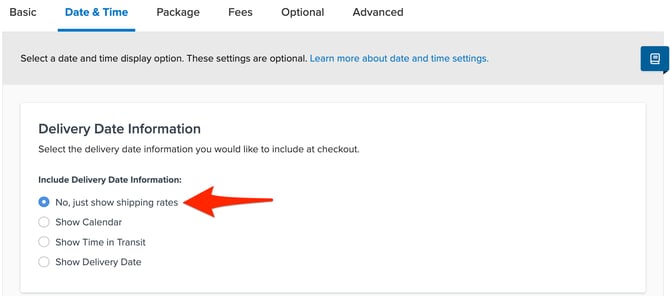
Setting Up a Pre-Order Shipping Group
A Shipping Group lets you tag pre-order products so your Shipping Rules can detect when one is in the cart.
- Go to Shipping Groups and click +New.
- Name the group — for example, Pre-Order Items.
- Leave all other settings at their defaults unless you have specific requirements.
- Save the Shipping Group.
- In your ecommerce platform, assign this Shipping Group to each product you sell as a pre-order. The exact steps depend on your platform — see How to configure Shipping Groups for details.
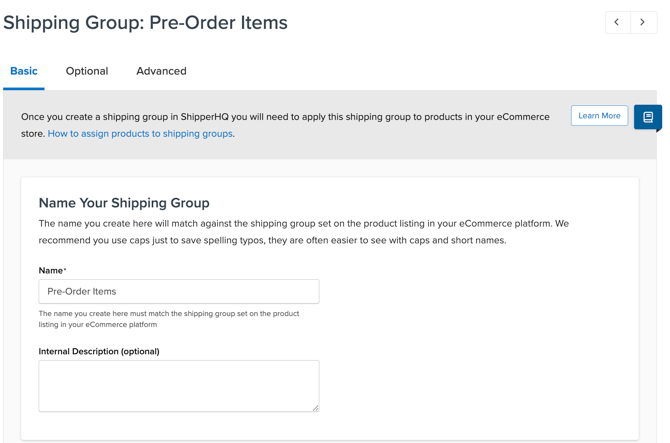
Creating the Shipping Rules
With your carriers and Shipping Group in place, create two Hide Rules to control which carrier appears at checkout.
Rule 1: Hide the Delivery Date Carrier When a Pre-Order Item Is in the Cart
When a pre-order item is present, this rule hides the carrier that shows delivery dates, so only the rates-only carrier returns.
- Go to Shipping Rules and click +New.
- Under Action to Perform, select Hide Methods.
- Under Shipping Methods, select all methods from UPS – With Delivery Dates (or your equivalently named carrier).
- Go to the Conditions tab and select Shipping Groups as the condition.
- Set the condition to Any Shipping Groups in the cart.
- Select Pre-Order Items from the Shipping Groups list.
- Save the rule.
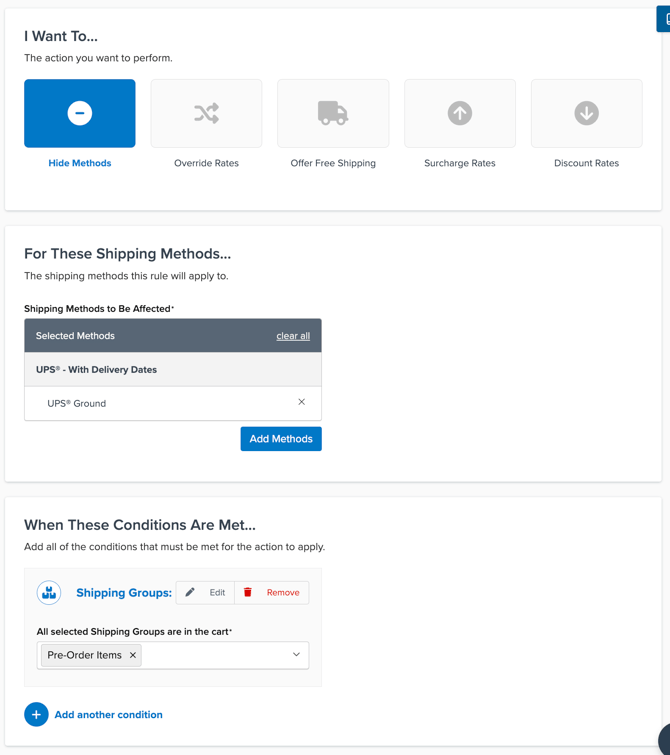
Rule 2: Hide the Rates-Only Carrier When No Pre-Order Items Are in the Cart
When no pre-order items are present, this rule hides the rates-only carrier, so only the carrier with delivery dates returns.
- Go to Shipping Rules and click +New.
- Under Action to Perform, select Hide Methods.
- Under Shipping Methods, select all methods from UPS – Without Delivery Dates (or your equivalently named carrier).
- Go to the Conditions tab and select Shipping Groups as the condition.
- Click the Shipping Groups that prevent rule from applying link
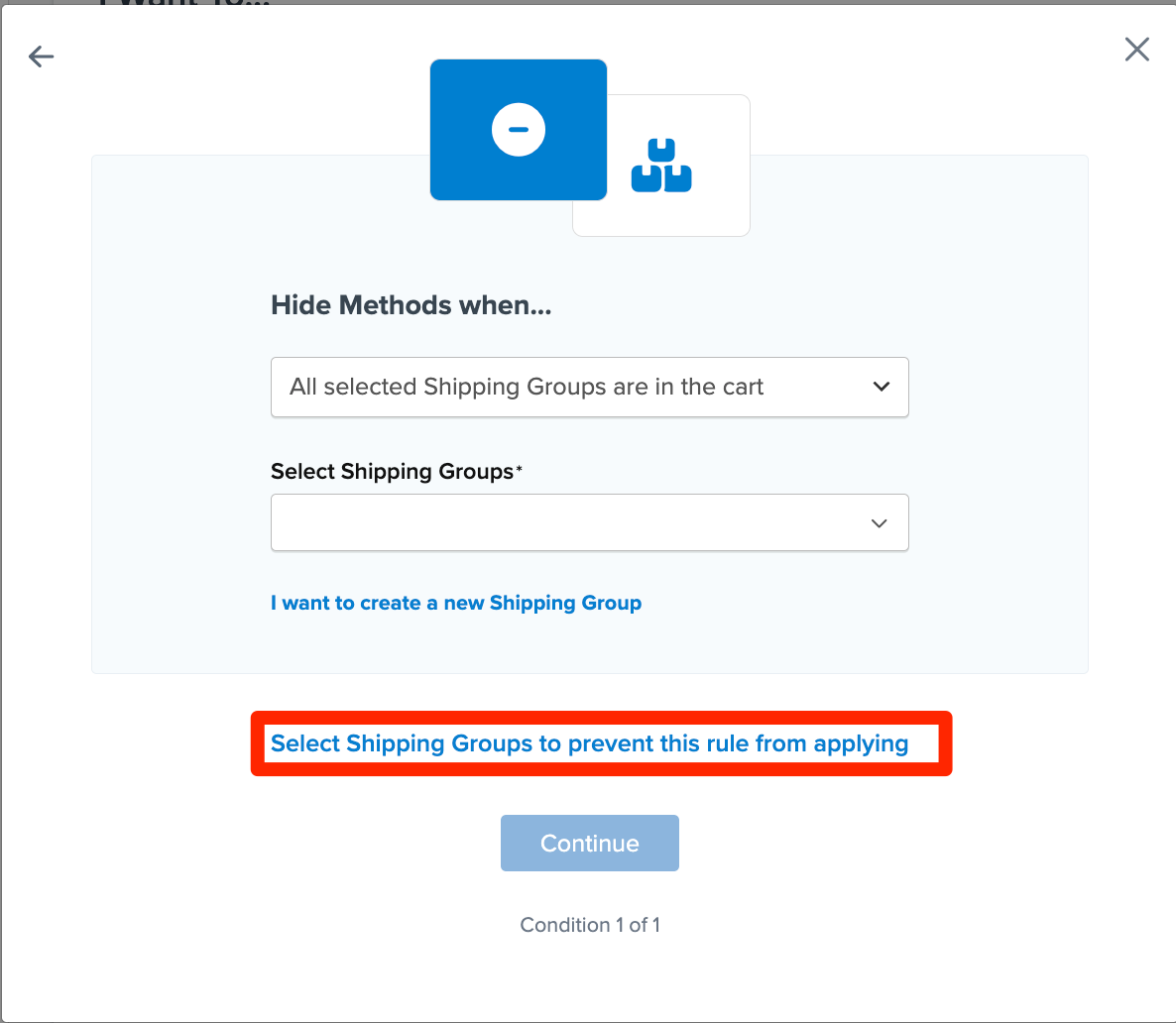
- Select Pre-Order Items from the Shipping Groups list.
- Save the rule.
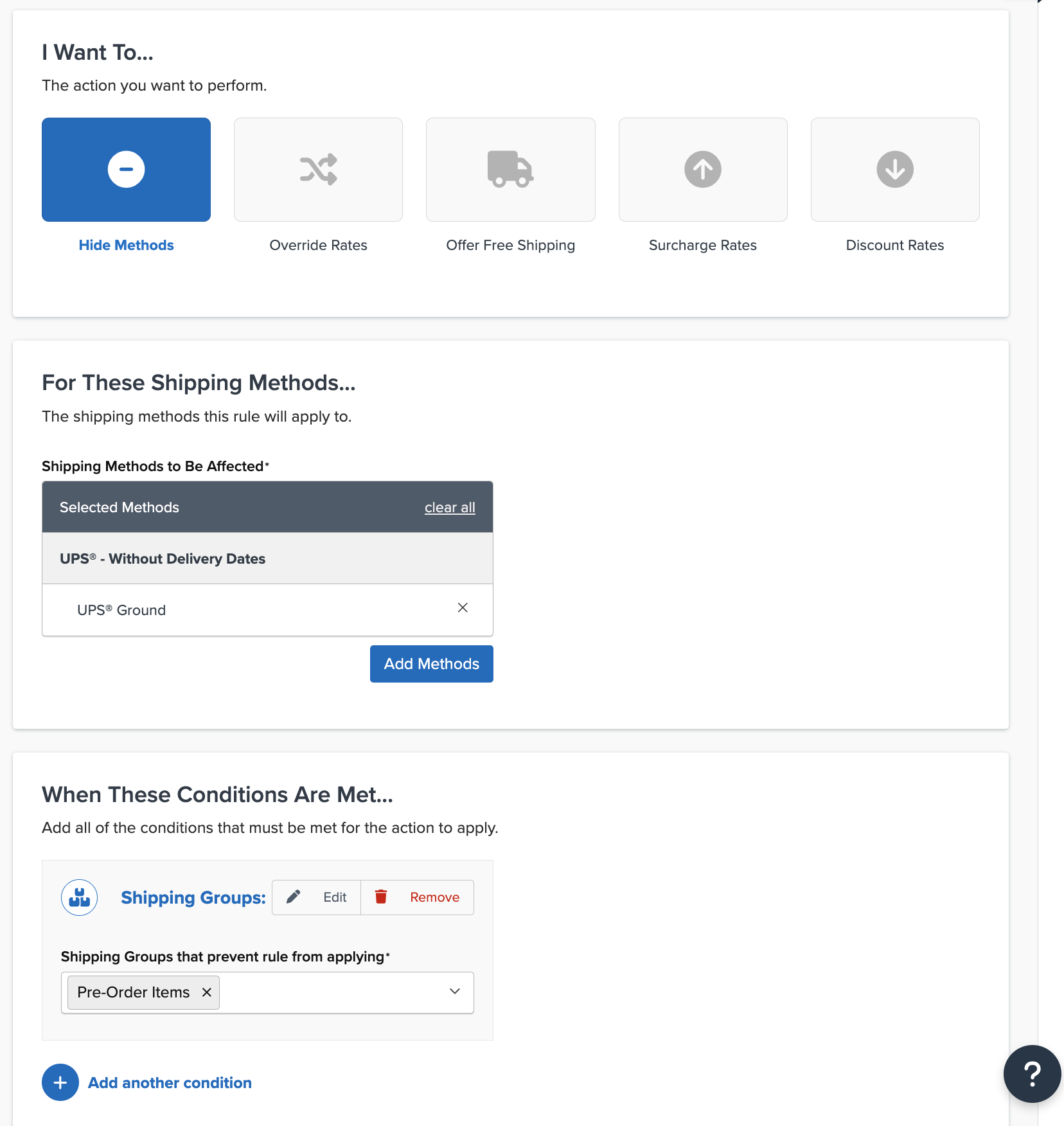
With both rules active, the correct carrier will return at checkout based on cart contents.
FAQ
Can I use this approach with multiple carriers, such as UPS and FedEx?
Yes. Create a duplicate version (with and without delivery dates) for each carrier you want to control, and update the Shipping Rules to include all methods from each "with delivery dates" and "without delivery dates" carrier respectively.
What happens if a customer has both pre-order and in-stock items in the same cart?
No delivery dates will be displayed for any item in that order. The presence of any pre-order item causes the rates-only carrier to return for the entire cart — in-stock items follow the same rule. This is the intended behavior: if the order can't fully ship, displaying delivery dates for some items would be misleading.
Do I need to update these rules when a pre-order item becomes available?
When a product is no longer a pre-order, remove the Pre-Order Items Shipping Group from the Product's attributes in your ecommerce platform. No changes to your ShipperHQ rules are needed.
What if I want to hide delivery dates based on where an item ships from rather than its pre-order status?
See How to Prevent Delivery Dates From Returning Based on Items or Origin for a version of this workaround using Origin Conditions.