
Overview
Custom Fee Message lets you display a short, customizable note next to your shipping methods when a surcharge is applied. Whether you're offsetting tariff costs, adding a packaging fee, or applying a seasonal handling charge, this feature helps you clearly communicate added costs to customers at checkout. You control the message and whether to include the surcharge amount, making it easy to stay transparent and build trust
Table of Contents- Overview
- Requirements
- Add Custom Fee Message for your Surcharge Rule
- Verify your Custom Fee Message
- FAQ
Requirements
- Requires a ShipperHQ account on Standard, Advanced, or Enterprise plan
- Custom fee messages are only available for Surcharge shipping rules
- Shipping Rule must be V2 for V1 rules, see FAQ
Add Custom Fee Message to your Surcharge Rule
When editing an existing rule:
- Navigate to Shipping Rules
- Edit your surcharge shipping rule
- Open the Advanced tab
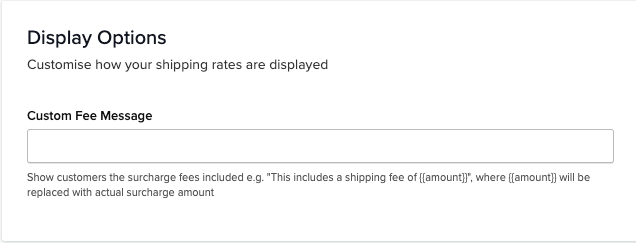
- In the Display Options section, in the Custom Fee Message field, add the text you wish to display at checkout for this surcharge
- If you want to include the surcharge amount in the message, use in the message, which will be replaced with the actual amount
- Click Save
When creating an new Surcharge rule:
- Navigate to Shipping Rules
- Select + to add a new rule
- Select Surcharge Rates
- Enter surcharge amount and conditions for applying the surcharge
- Select checkbox for "Add a custom fee message" to display the Custom Fee Message field, add the text you wish to display at checkout for this surcharge
- If you want to include the surcharge amount in the message, use in the message, which will be replaced with the actual amount
- Complete remaining steps for new rule and save
Verify your Custom Fee Message
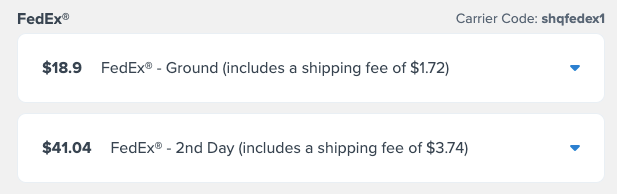
Verify in Test Your Rates to see the custom fee message appended to the end of your shipping rate, displaying your custom fee message. An example is shown below.
FAQ
Why don't I see the Custom Fee Message section on my Shipping Rule?
If the Custom Fee Message field isn't visible when editing your surcharge rule, the rule is likely a V1 Shipping Rule. Custom Fee Message is only available on V2 Shipping Rules. This typically only affects rules setup on legacy ShipperHQ accounts.
To convert a V1 rule to V2:
- Navigate to Shipping Rules
- Click the action menu (...) on the rule
- Select Duplicate
The duplicated rule will be created as a V2 rule with the Custom Fee Message field available. Once you've verified the new rule is configured correctly, disable or delete the original V1 rule to avoid both rules applying.