
Overview
A common shipping rule scenario for ShipperHQ merchants is to add a surcharge or a discount when quoting shipping rates to a specific zone. Shipping zones can be defined as a group of countries, regions, or states within a single country. Additionally, they can include one or more cities within a certain region or state, specific ZIP or postal codes, or ranges of postcodes.
Please visit our guide for creating shipping zones. If you'd like to apply a surcharge or discount to designated zones, please follow the steps in this guide to create shipping rules that match your desired rule type.
Setup
How to Surcharge Rates for a Zone
You can set up a surcharge rule for a specific zone with the steps below:
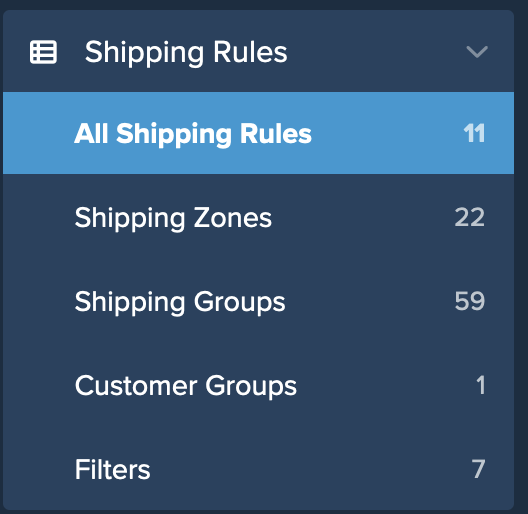
- Navigate to the "Shipping Rules" option in the left-hand navigation menu.
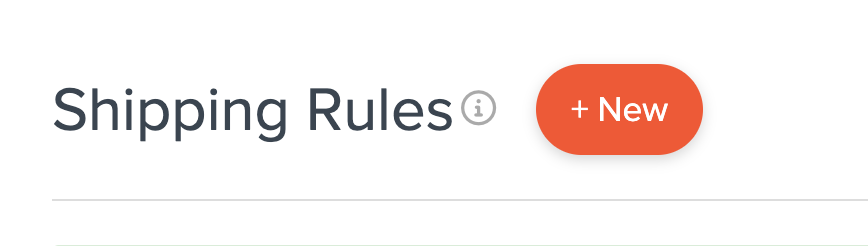
- Click "Add New" to create a new shipping rule.
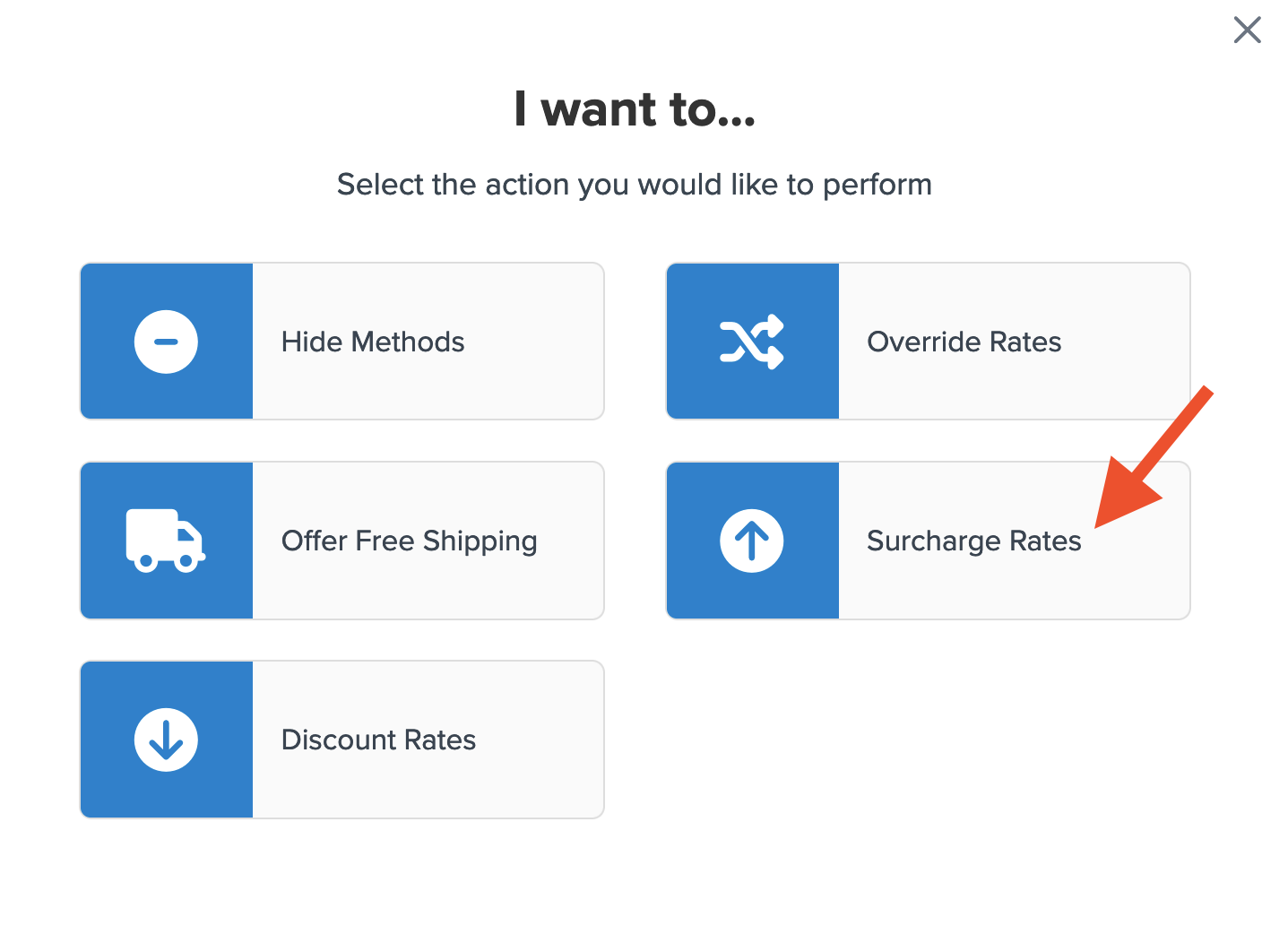
- Select "Surcharge Rates" as the action you would like the rule to perform.
- Apply the surcharge as a flat rate, a percentage, or both.
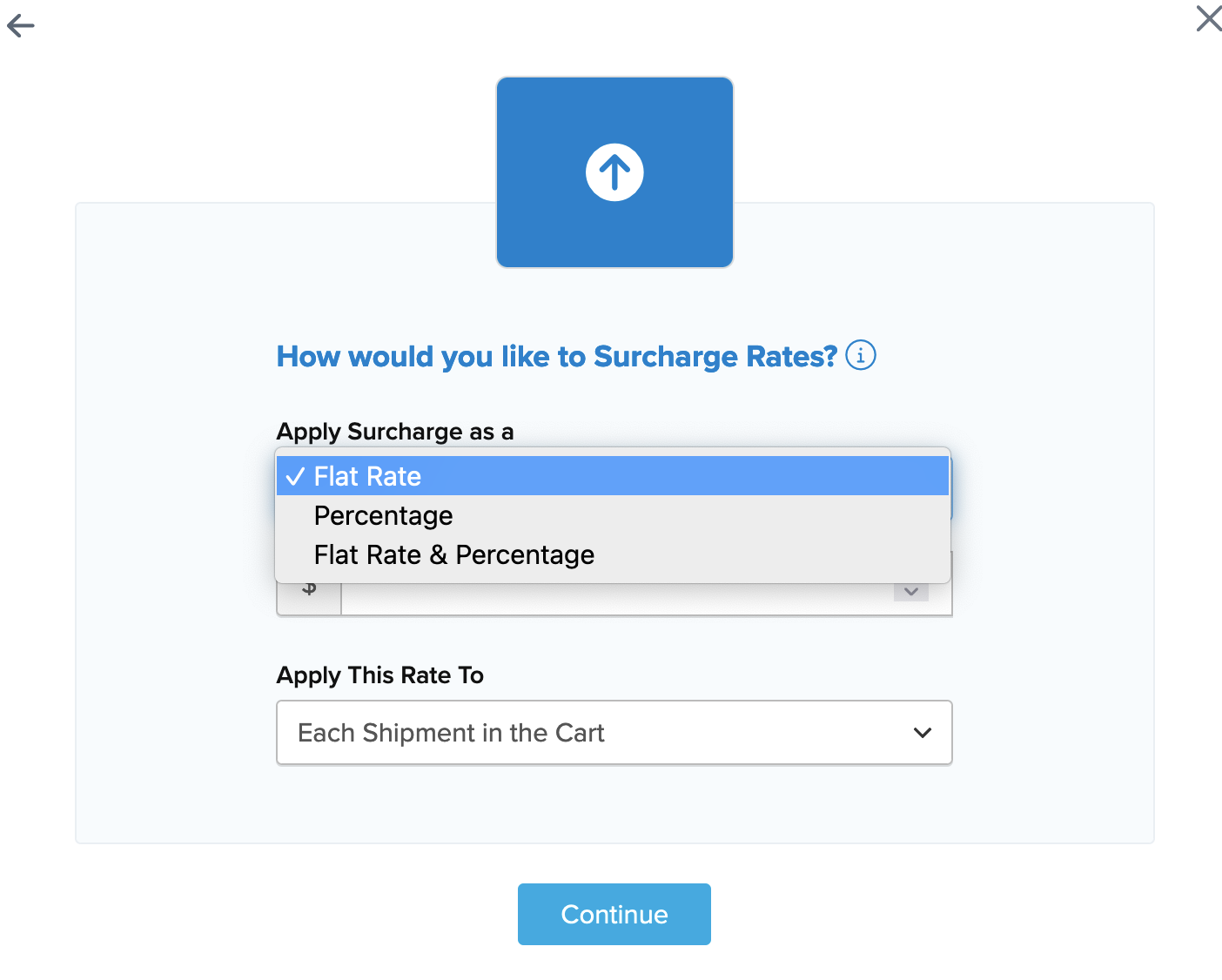
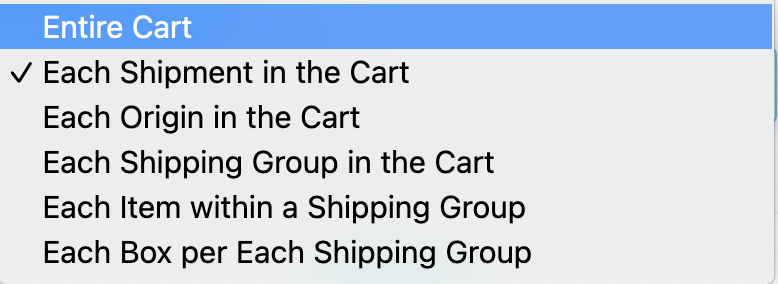
- Specify how the percentage should be applied.
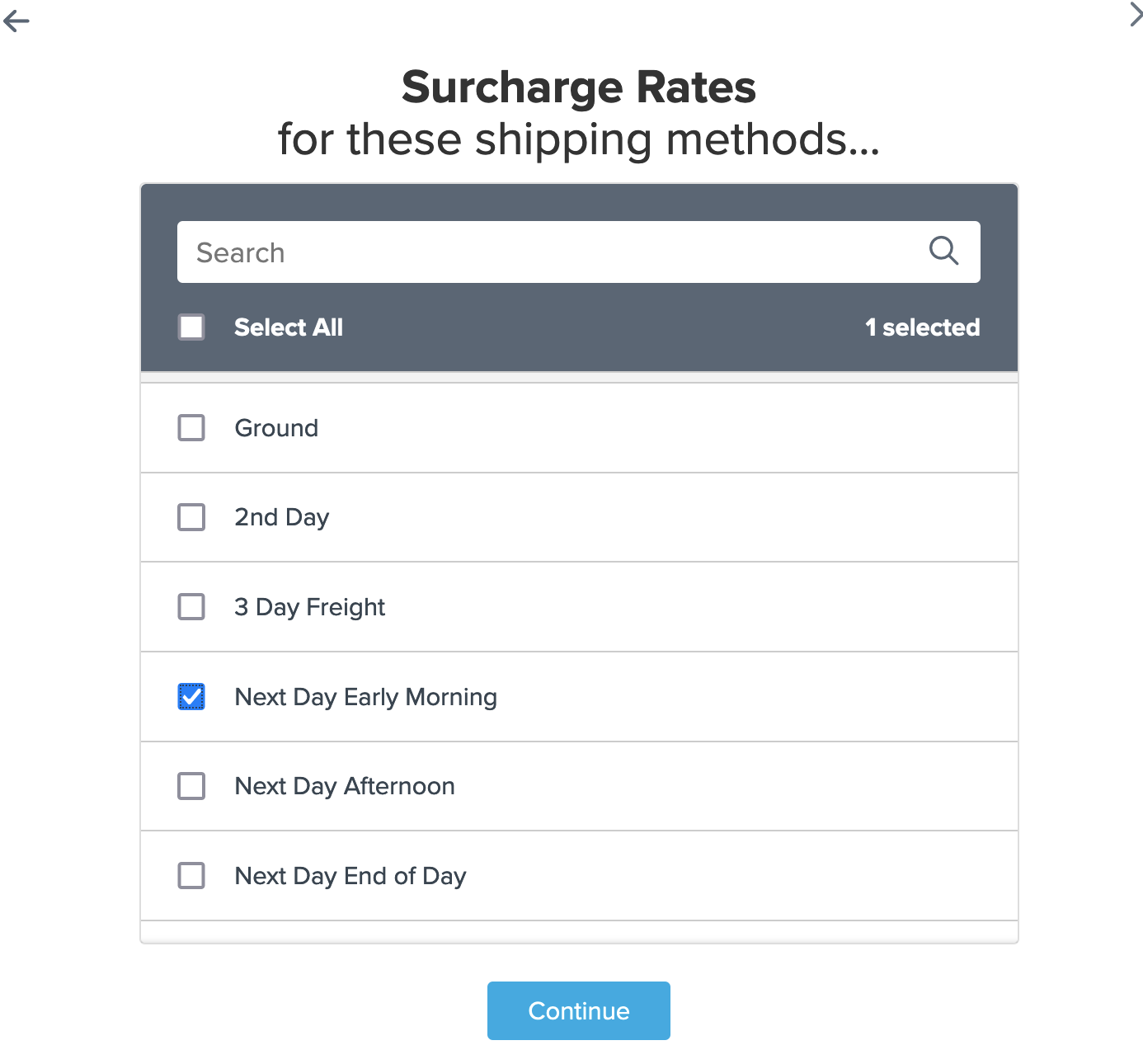
- Choose the shipping methods for this surcharge rule from the list of all available shipping methods.
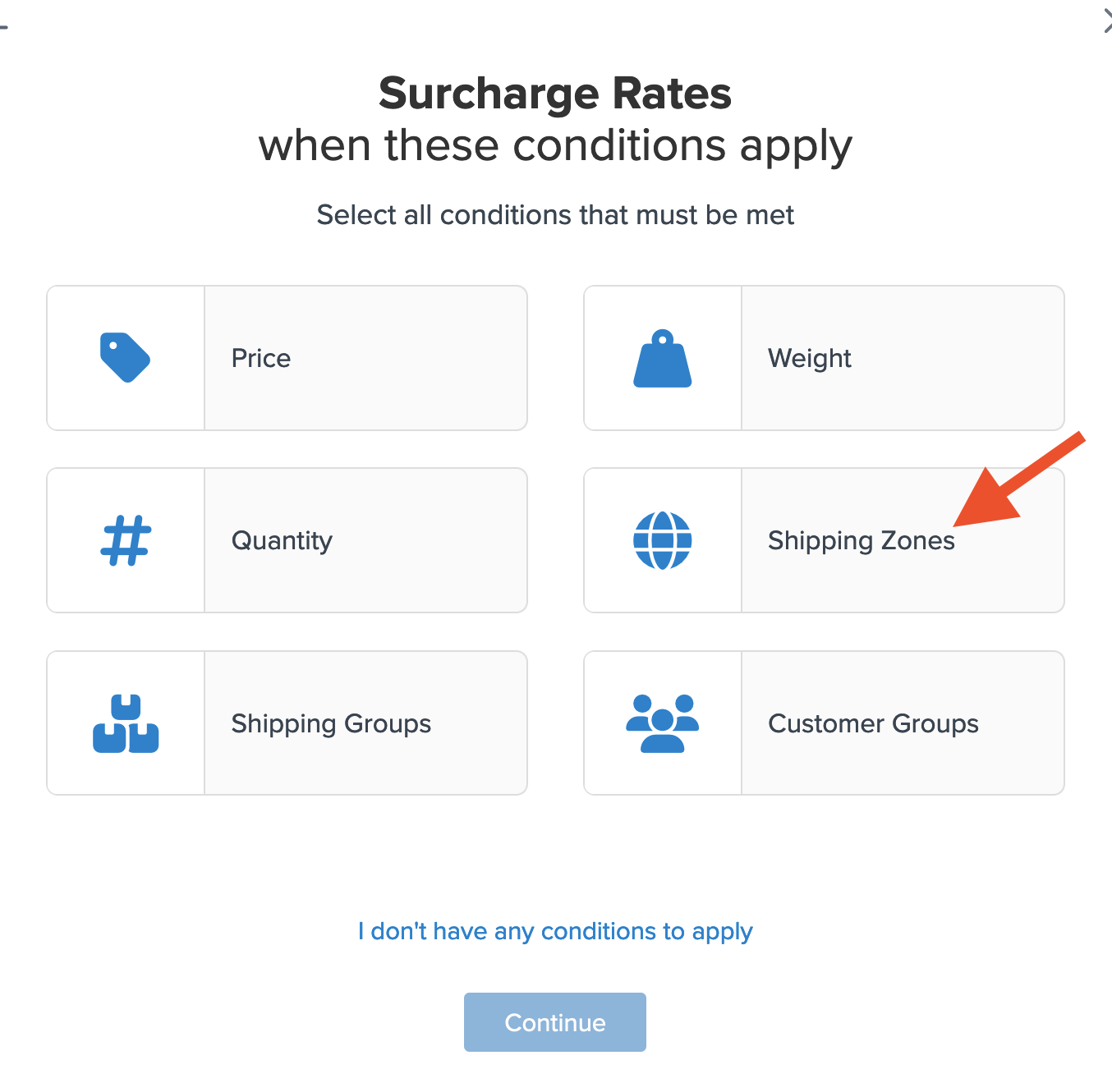
- Click the option to use "Shipping Zones" for the rule condition to apply this surcharge to the selected methods, then click "Continue" to proceed.
- Select the Shipping Zone(s) that the surcharge will apply to from the dropdown list.
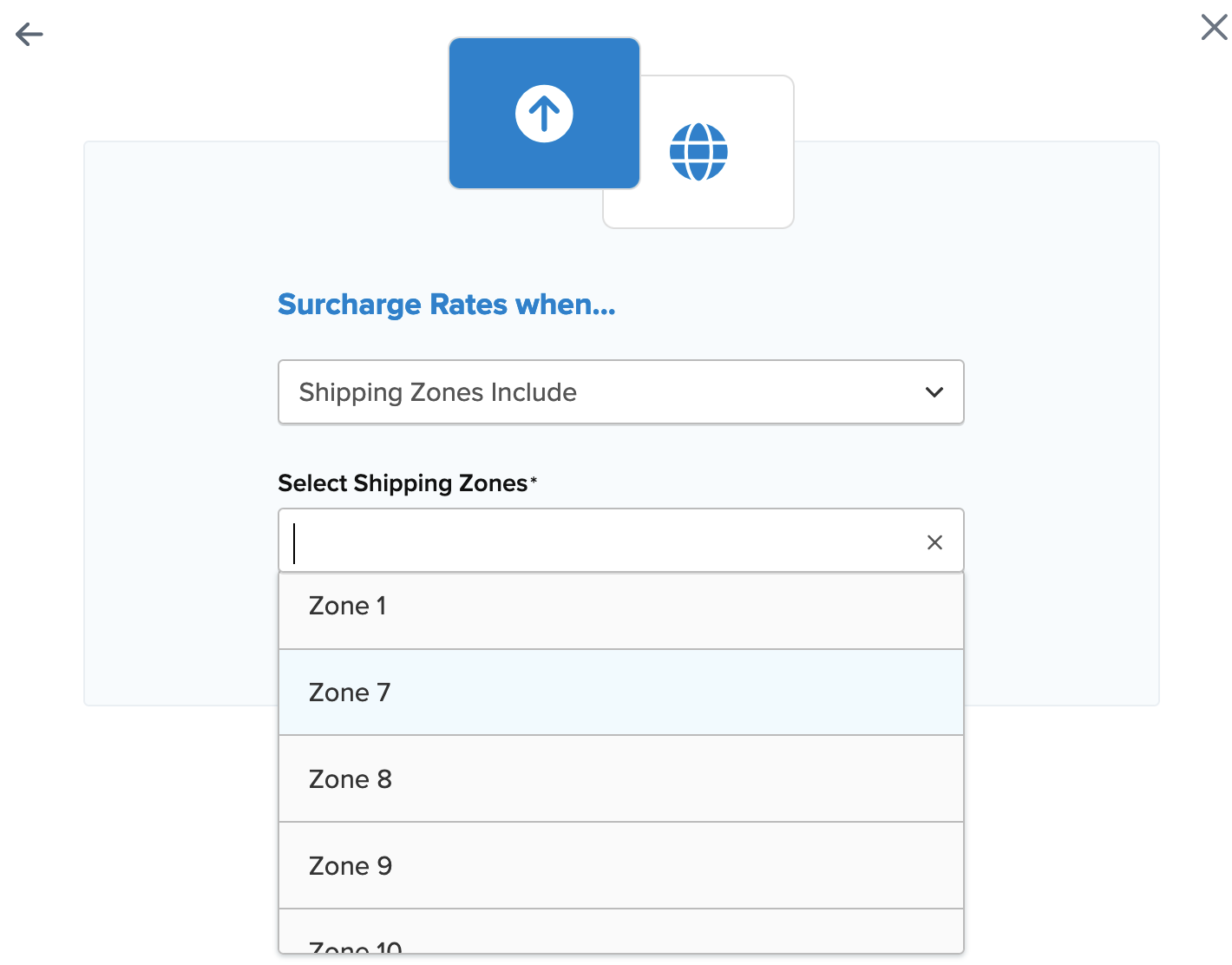
- If the desired zone isn't listed, create a new zone by clicking the link below the dropdown to "Create a new Shipping Zone".
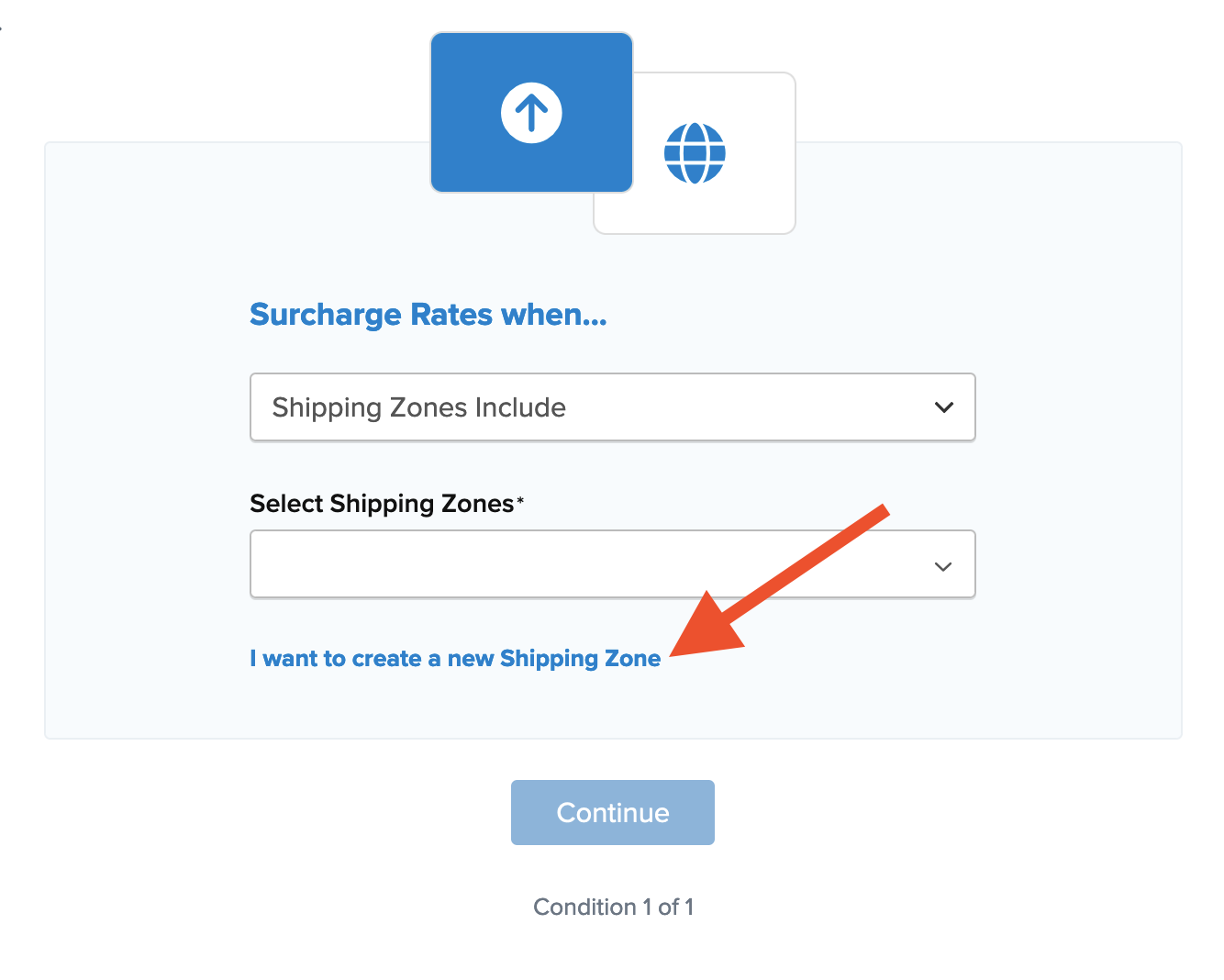
- After selecting the shipping zone and proceeding, a summary of the shipping rule appears. Add a title for easy identification in the shipping rules list and during testing.
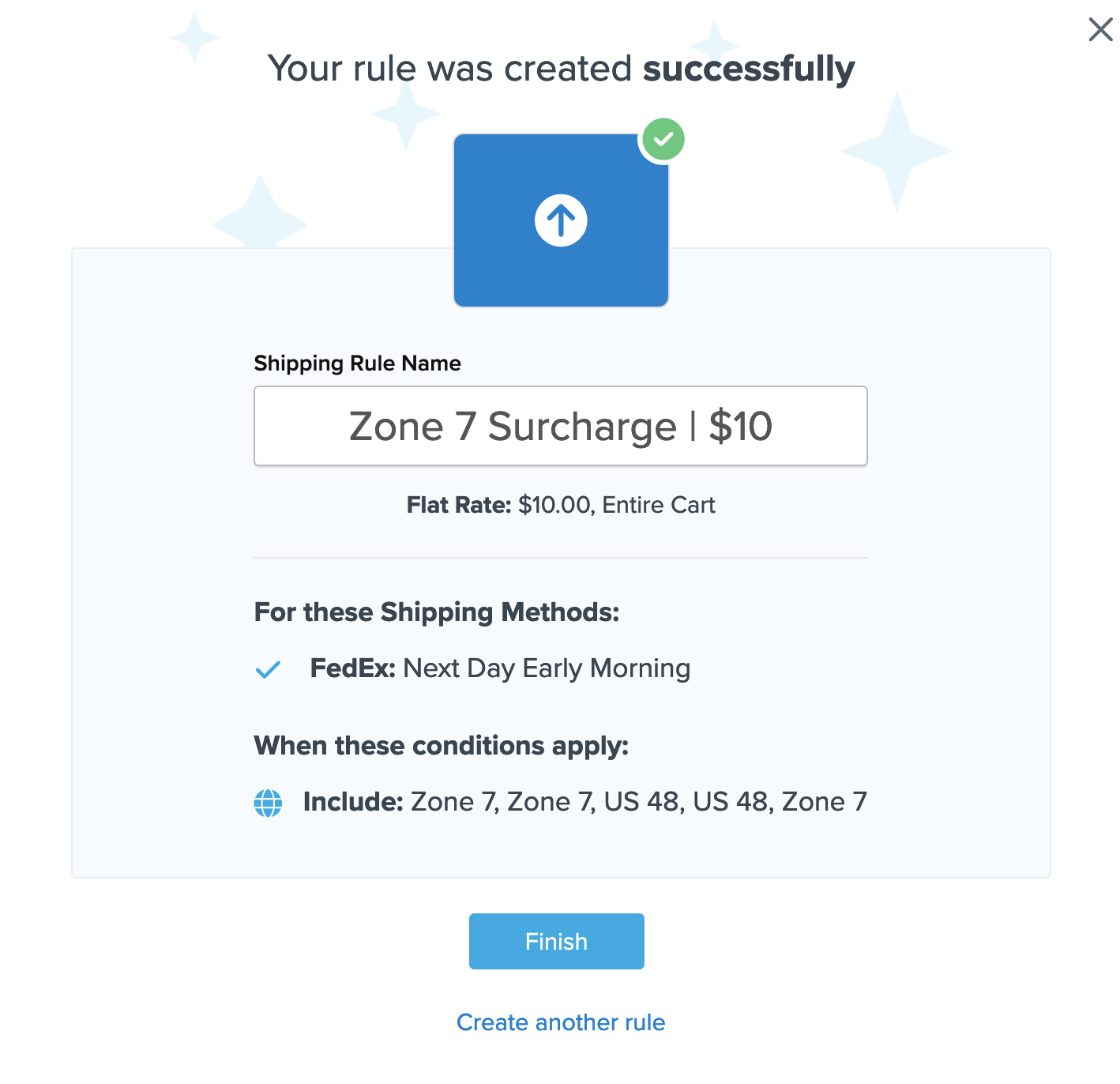
- Click "Finish" to save the new rule. This will apply the rule immediately.
- Once the rule is created, we recommend using the "Test your Rates" feature to confirm the new rule is working as intended. ✅
How to Discount Rates for a Zone
Follow these steps to set up a discount rule for a specific zone:
- Navigate to the "Shipping Rules" option in the left-hand navigation menu.
- Click "Add New" to create a new shipping rule.
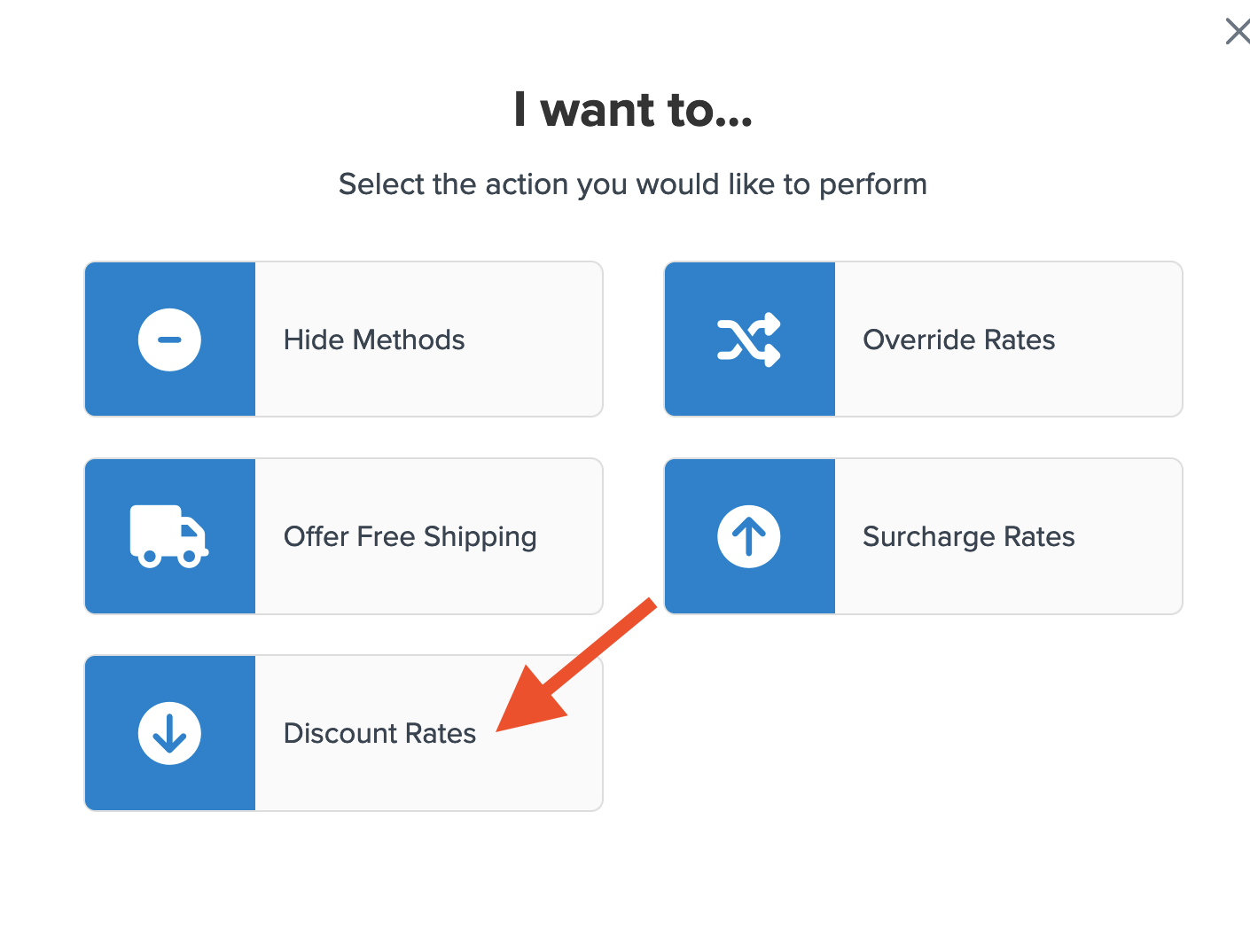
- Select "Discount Rates" as the action you would like the rule to perform.
- Apply the discount amount as a flat rate, a percentage, or both.
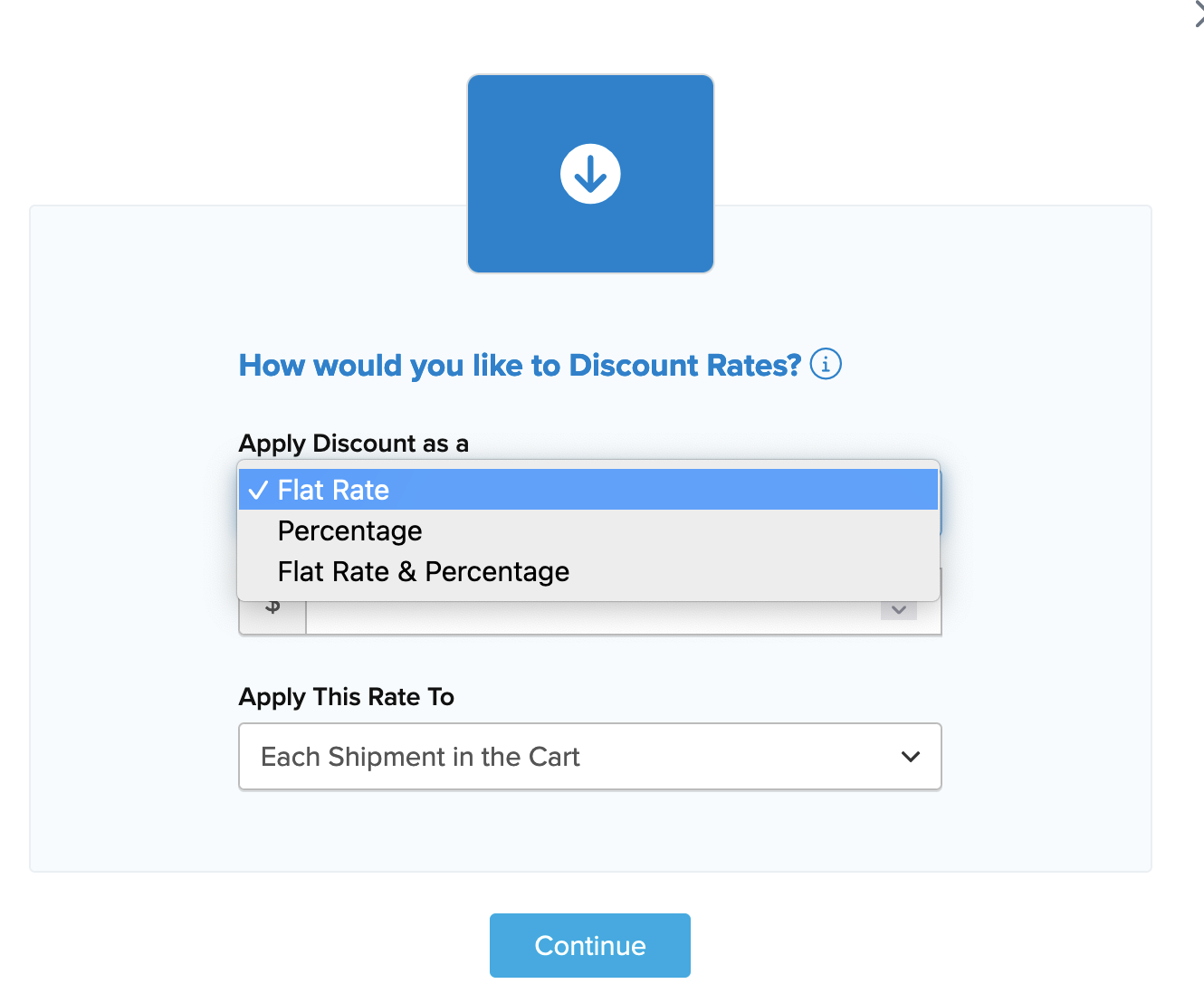
- Specify how the percentage should be applied.
- Choose the shipping methods for this discount rule from the list of all available shipping methods.
- Click the option to use "Shipping Zones" for the rule condition to apply this discount to the selected methods, then click "Continue" to proceed.
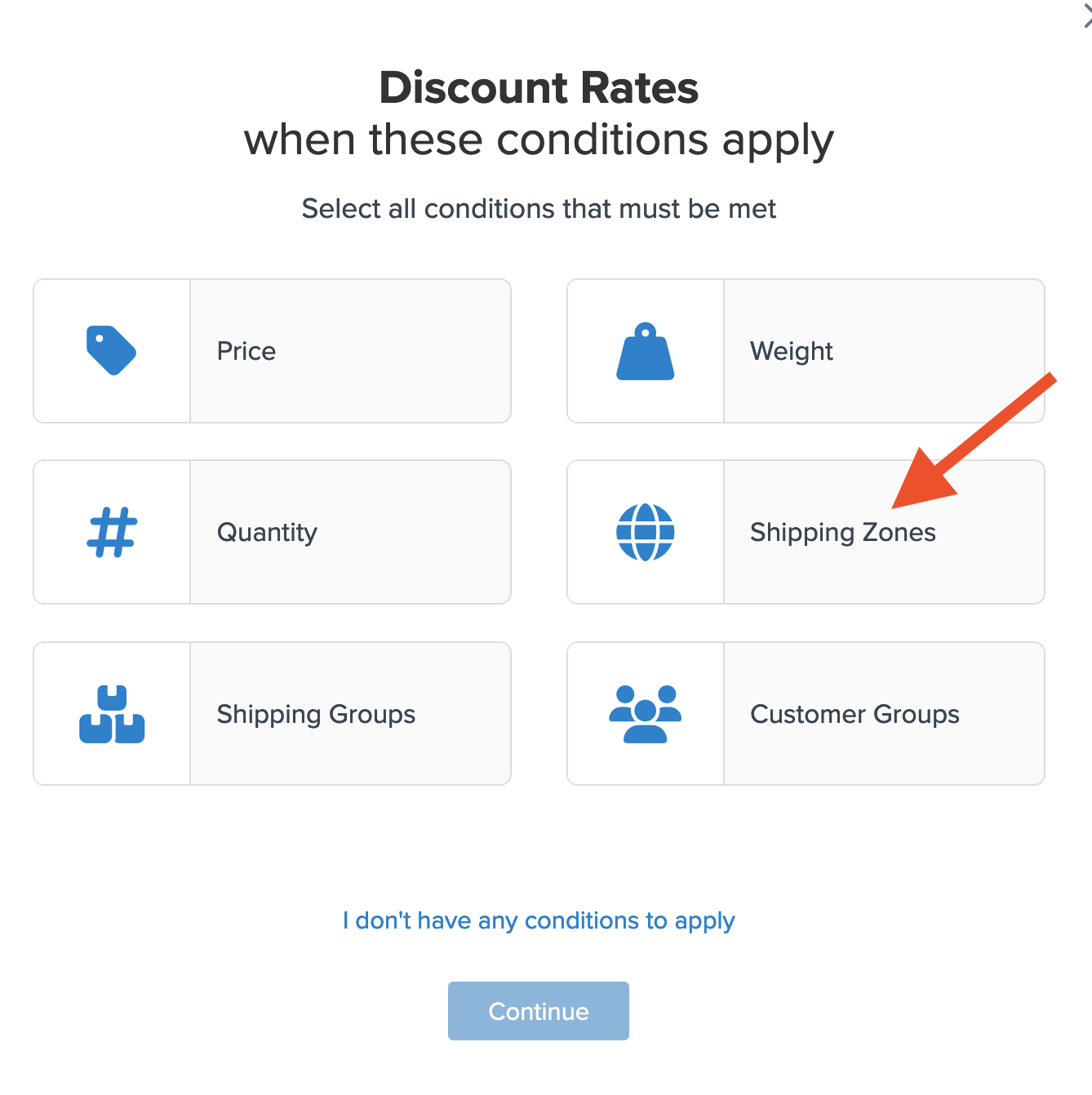
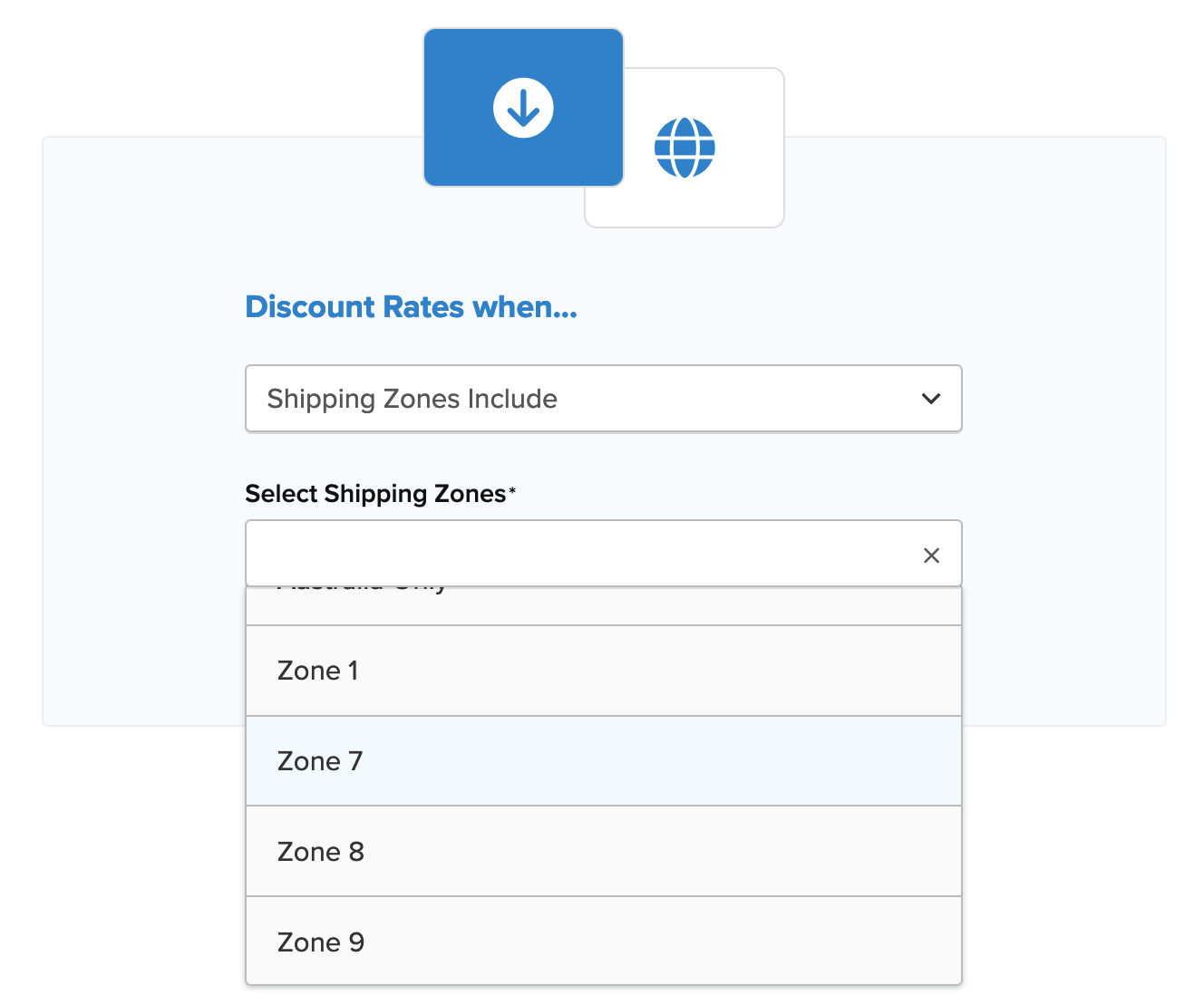
- Select the Shipping Zone(s) that the discount will apply to from the dropdown list.
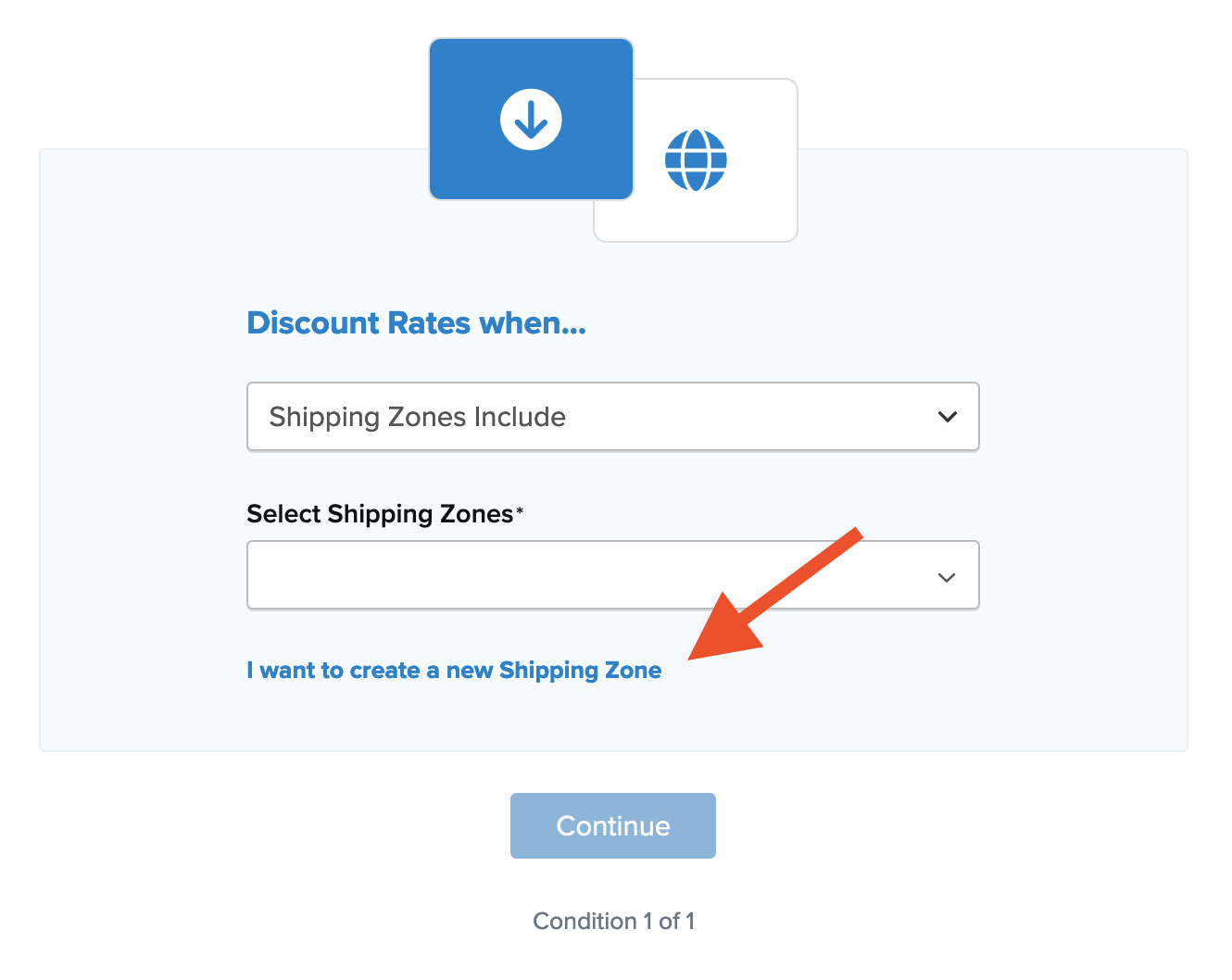
- If the desired zone isn't listed, create a new zone by clicking the link below the dropdown to "Create a new Shipping Zone".
- After selecting the shipping zone and proceeding, a summary of the shipping rule appears. Add a title for easy identification in the shipping rules list and during testing.
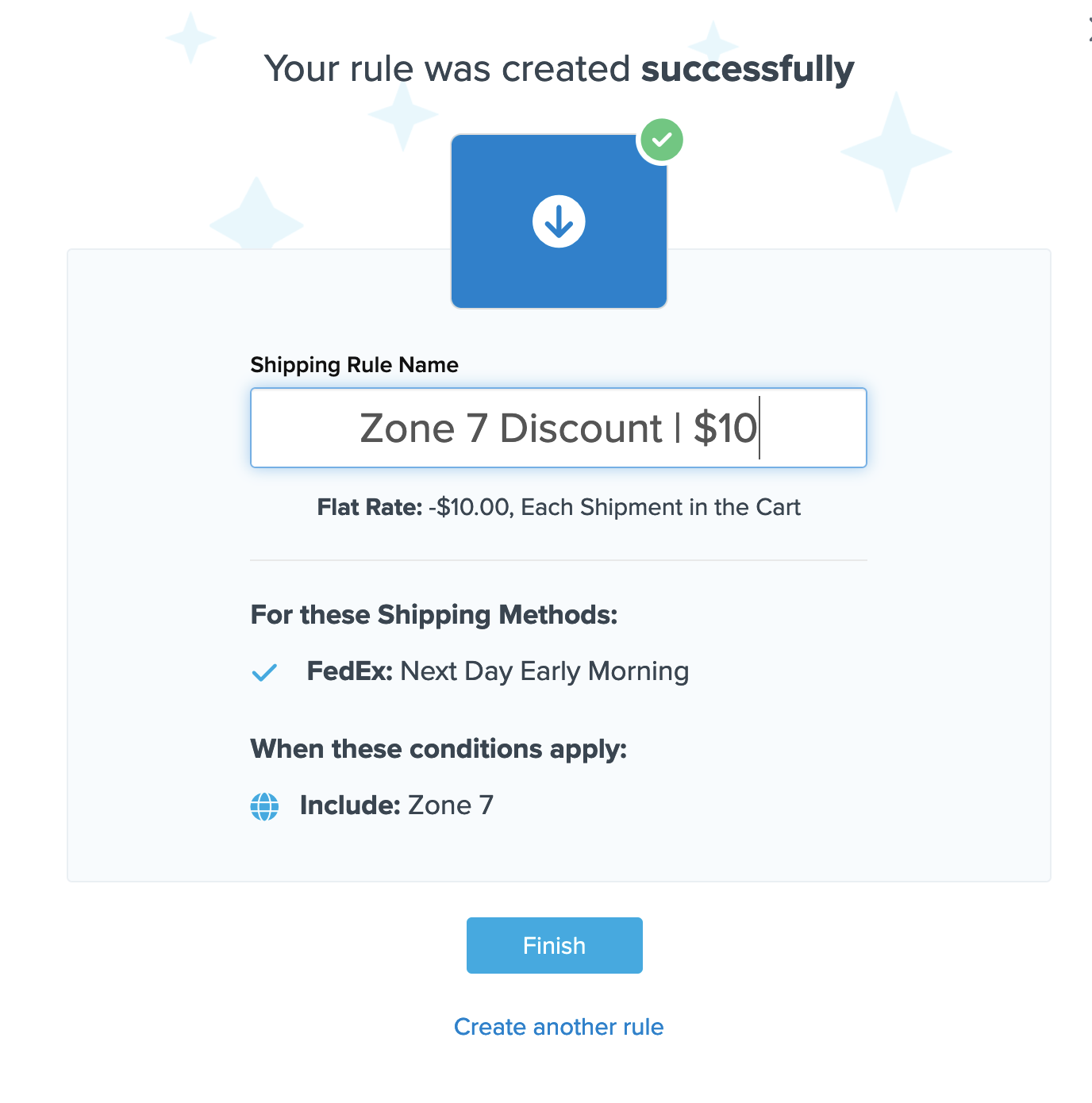
- Click "Finish" to save the new rule. This will apply the rule immediately.
- Once the rule is created, we recommend using the "Test your Rates" feature to confirm the new rule is working as intended.
Conclusion
Once completed, ShipperHQ will apply the designated surcharge or discount to the selected shipping methods whenever a customer's address is within the chosen zone. 💡