
Table of Contents
If you see a red error banner reading "Request failed with status code 403" on the ShipperHQ login page, it means the server is refusing your login request — most often because your IP address has been flagged or blocked. This can happen when you're accessing ShipperHQ through a VPN, a corporate or shared network, or from an IP address that has been associated with suspicious activity.
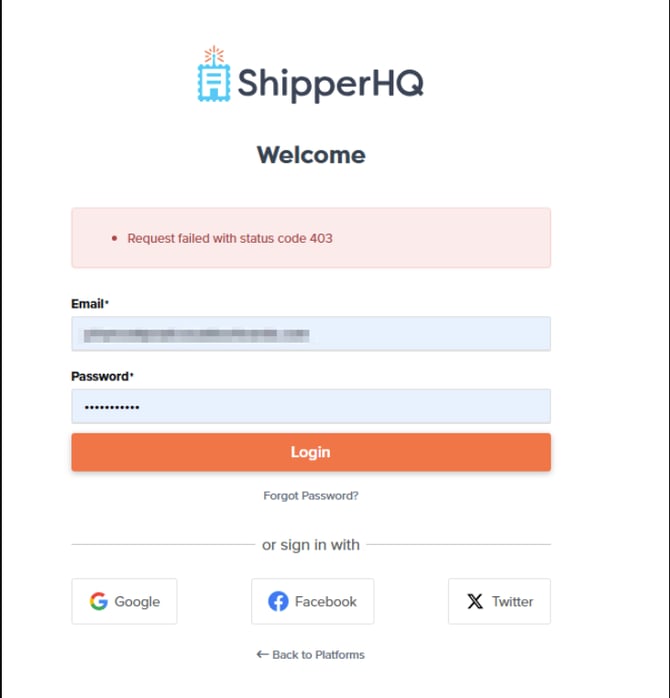
A 403 error is not the same as entering the wrong password. Your credentials may be completely correct — the request itself is being blocked before authentication can complete.
What Causes a 403 Login Error
The ShipperHQ dashboard uses security measures that can block login requests from certain IP addresses or network types. Common causes include:
- VPN or proxy usage — VPN exit nodes and proxy servers are frequently associated with automated or malicious traffic and may be blocked
- Corporate or shared office networks — IP addresses used by many people can accumulate a poor reputation over time
- Geographic IP restrictions — some IP ranges are restricted at the network level
- Browser cache or cookie conflicts — stale session data can cause requests to be rejected
Resolving the Error
Try a Different Network or Device
The fastest way to confirm whether your IP address is the cause is to attempt login from a different network. Try signing in using your mobile phone on its cellular data connection (not connected to Wi-Fi), since this gives you a completely different IP address.
If you can sign in successfully from your phone, your current network or IP address is the source of the issue.
Disable Your VPN
If you're connected to a VPN, disconnect it and try signing in again. VPN traffic is commonly blocked by security filters.
To sign in without a VPN:
- Disconnect from your VPN client.
- Confirm your connection is using your standard network.
- Attempt to Sign into ShipperHQ as normal.
Clear Your Browser Cache and Cookies
Stale cached data or cookies from a previous session can sometimes interfere with login requests.
To clear cache and cookies, refer to your browser's support documentation:
- Clear cache and cookies in Chrome
- Clear cache and cookies in Firefox
- Clear cache and cookies in Safari
- Clear cache and cookies in Edge
After clearing your cache and cookies, close and reopen your browser, then attempt to sign in again.
Try a Different Browser
If clearing your cache does not resolve the issue, try signing in using a different browser. For example, if you normally use Chrome, try Firefox or Safari.
Contact ShipperHQ Support
If you have tried the steps above and are still unable to sign in, contact ShipperHQ support. Include the following information to help the team investigate:
- The email address associated with your ShipperHQ account
- A description of your network setup (VPN, office network, home network, etc.)
- The steps you've already tried