
What is Test Mode?
Test Mode acts like a sandbox. It lets you experiment with your ShipperHQ configuration and test shipping rates without affecting your live checkout.
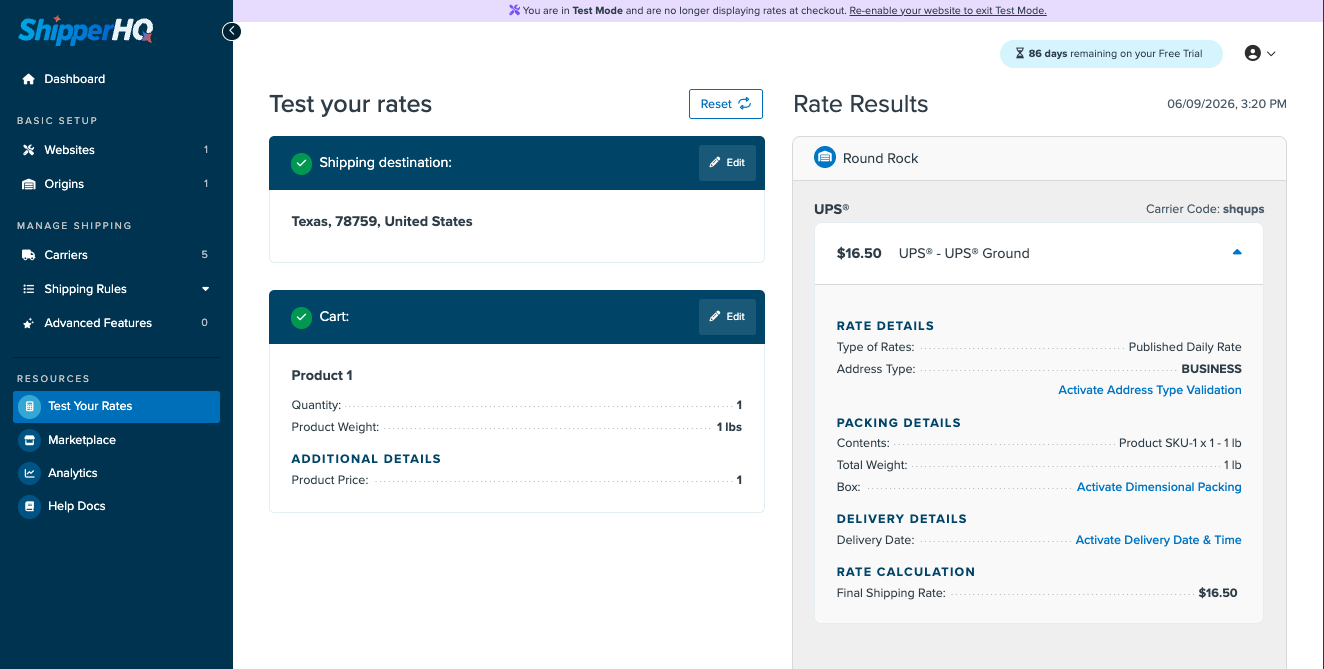
Merchants can use Test Your Rates to preview changes before enabling them in their store. This way, you can refine your setup safely.
How to Enable Test Mode for Shopify?
- After you create a new account, you are automatically put into test mode.
- If you have not already, you can set up and validate carriers.
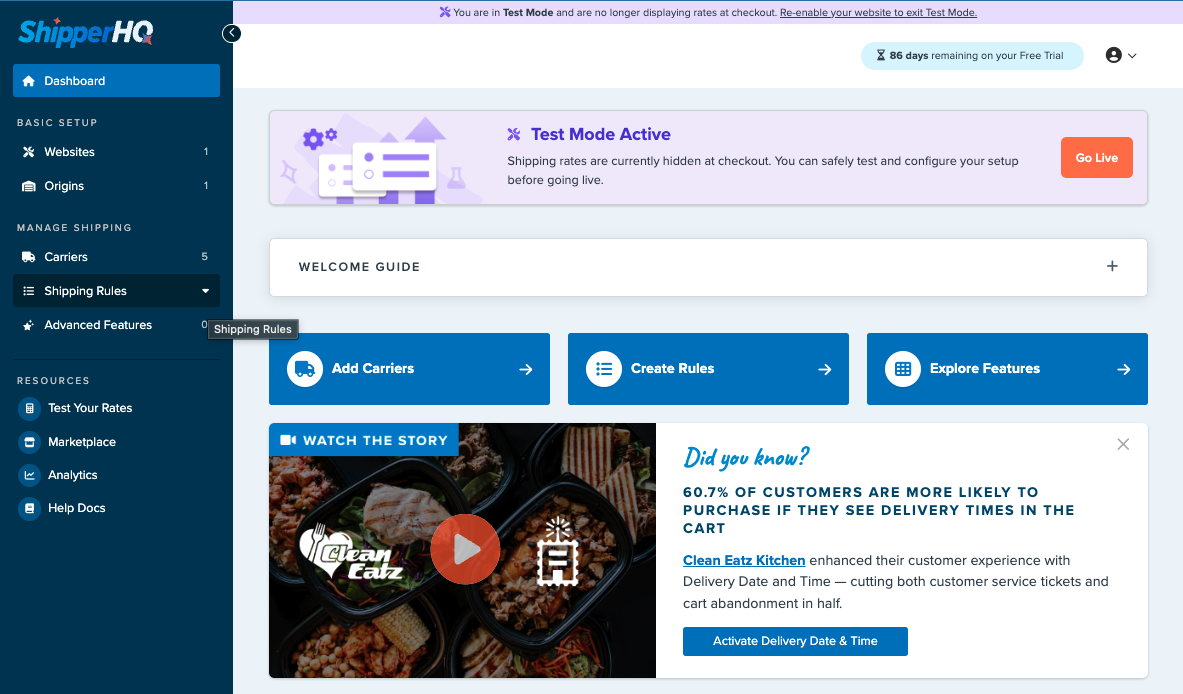
How to Enable Live Mode for Shopify?
- In the ShipperHQ dashboard homepage, click on the Go Live button.
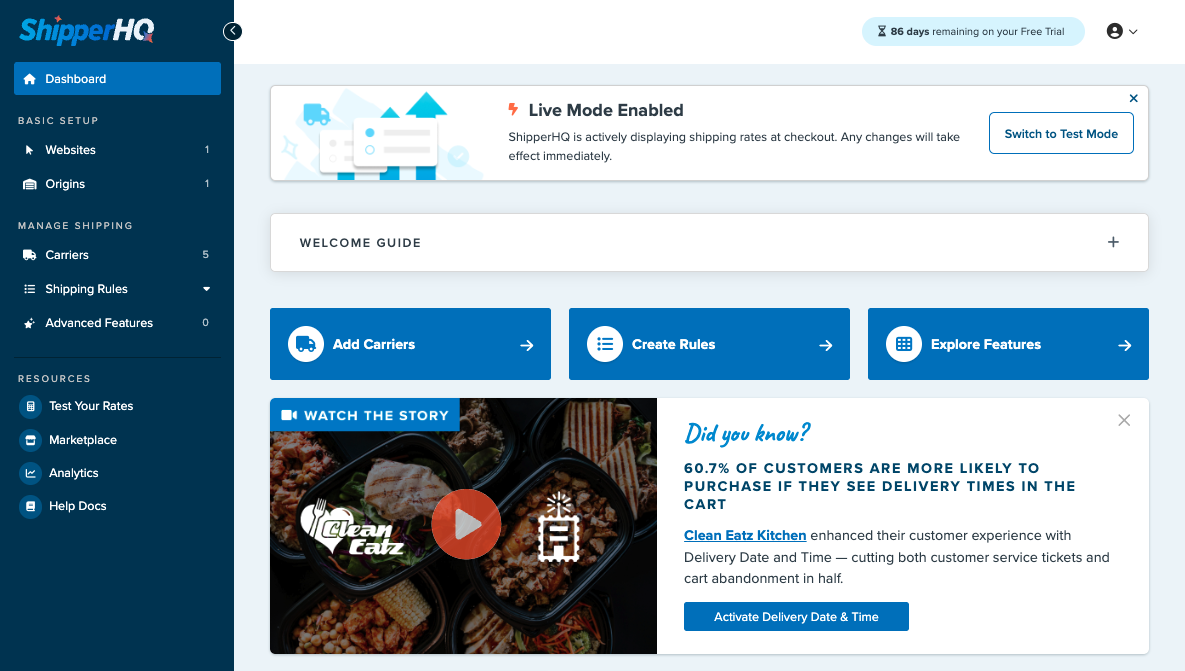
How to Re-enable Test Mode for Shopify?
- In the ShipperHQ dashboard homepage, click on the Switch to Test Mode button.
How to Enable Test Mode for other platforms?
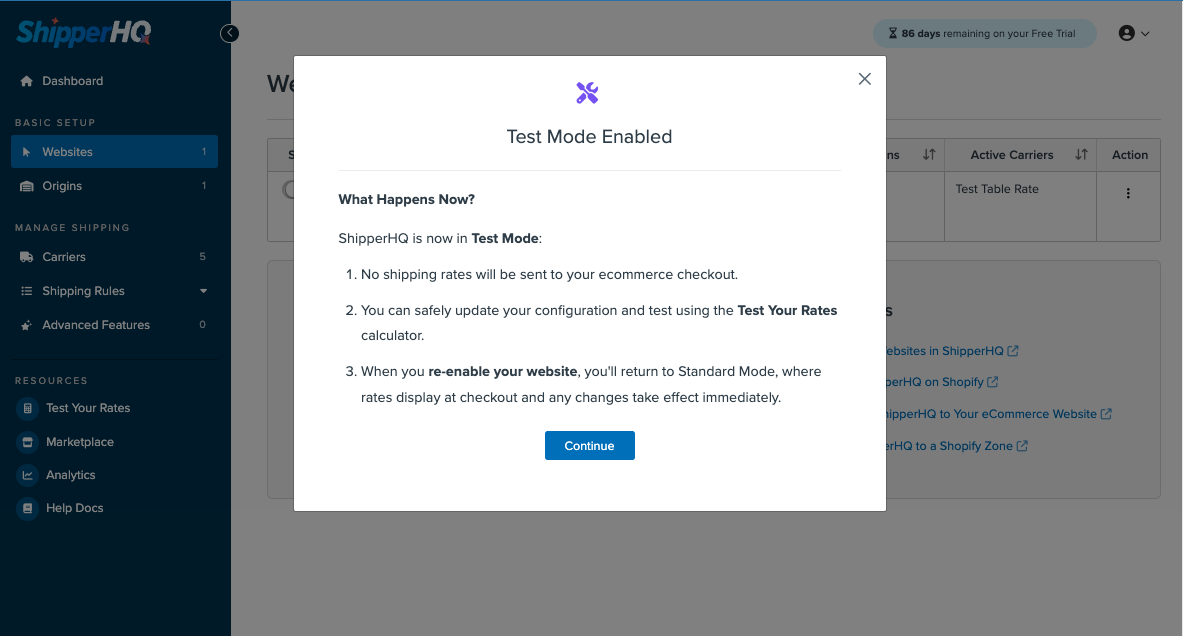
- In the ShipperHQ dashboard, go to Websites in sidebar
- If you only have one website
- Click Disable on that website
- A modal will confirm that Test Mode is now active
Testing Your Configuration On All Platforms
While in Test Mode, you can:
- Make changes to your configuration
- Validate carriers
- Use Test Your Rates to preview results
- Adjust and refine settings until they meet your requirements
For step by step instructions, follow our guide on testing your configuration
How to Disable Test Mode for other platforms?
Once you are happy with your setup, and ready to go live:
- Go to Websites in the sidebar
- Click enable on your website
- Shipping rates will now display in your live checkout.
Limitations of Test Mode
- Platforms: Test mode is available to users on Shopify.
- On other platforms, Test Mode is only available if you have a single website.