
Overview
When a cart exceeds 300lbs, you can prevent shipping rates from displaying in the cart/checkout and only show an error message. 😊
Restrictions
This feature is available on ShipperHQ Standard, Advanced, and Enterprise account tiers.
Note: Due to platform limitations, this feature is not supported on WooCommerce, BigCommerce or Shopify.
Setup
- Create a Filter and set the minimum cart weight to 300lbs.
-
Go to Shipping Rules and add a new rule:
-
Step 1: Create a New Shipping Rule
-
Go to Shipping Rules and click New Rule.
-
When prompted with the I want to... panel, select Hide a shipping method as your action.
Step 2: Choose Which Methods to Hide
-
On the Hide Methods for These Shipping Methods screen, select the methods you want to hide when the filter conditions are met.
-
Click Next to continue.
Step 3: Define Conditions
-
On the Hide Methods When These Conditions Apply screen, enter a Name and Purpose for your rule (e.g., Hide Rates When Cart Over 300 lbs).
-
Under Conditions, create or select a Filter that defines when the rule applies.
-
For this setup, set your filter to a Minimum Cart Weight of 300 lbs (or your preferred limit).
-
Step 4: Add an Error Message
-
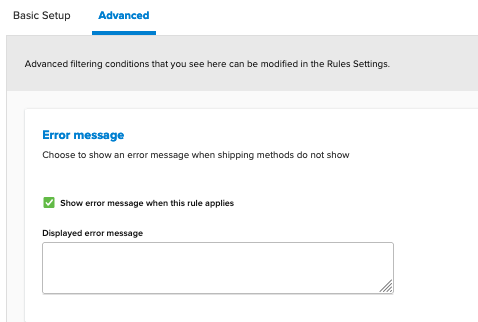
In the Advanced tab, check the box for Show error message when this rule applies.
-
Enter your custom message in the Displayed Error Message field.
-
Click Save Rule.
-
-
Voila! Whenever the cart is over 300lbs, the selected shipping methods will be hidden, and the error message you set will display to the customer in the cart/checkout. 😊
Note: The error message will only appear if no shipping methods are returned at checkout. If at least one shipping method is available, the message will not be displayed. ❌