
Overview:
This guide shows you how to prevent shipping fees from stacking when a cart includes products from multiple Shipping Groups. You’ll learn how to apply only one shipping fee, based on the highest shipping fee.
Two Setup Options
You can accomplish this using one of two methods:
- Custom Rate Carrier (Table Rates) - Easier to manage, auto-selects the highest shipping rate.
- Shipping Rules (Override Shipping Fees)- Offers more control with conditional logic.
Option 1: Use Table Rates with the “Highest” Algorithm
Best for: Merchants who want a simpler setup that automatically picks the highest rate when multiple Shipping Groups are in the cart.
How It Works
You’ll configure a Custom Rate Carrier with shipping rates tied to Shipping Groups and set the Rate Totaling algorithm to Highest. This ensures only the most expensive applicable rate is charged.
Steps
- Create a Custom Rate Carrier (Table Rates)
- Go to Carriers > Add Carrier > Custom Rate Carrier.
- Go to Carriers > Add Carrier > Custom Rate Carrier.
- Add Rates for Each Shipping Group
- Example rates:
- Free → 0
- FlatFee 5 → 5
- FlatFee 10 → 10
- Free → 0
- Example rates:
- Set Rate Totaling to "Highest"
- Go to the Properties tab of the carrier.
- Set Rate Totaling to Highest.
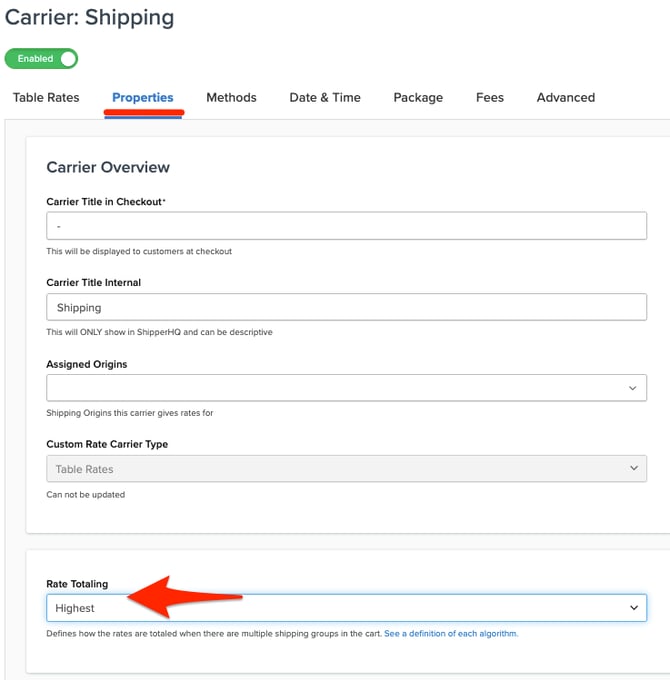
- The shipping groups must use the same method.
- Go to the Properties tab of the carrier.
- Assign Shipping Groups to Products
- Make sure each product is mapped to the correct group on the Platform side.
- Make sure each product is mapped to the correct group on the Platform side.

Result
If a cart includes multiple shipping groups, the highest rate is selected automatically.
|
Cart Contents |
Applied Fee |
|
Free |
0 |
|
FlatFee 5 |
5 |
|
FlatFee 10, Free, FlatFee 5) |
10 |
Option 2: Use Shipping Rules to Override Fees Based on Highest Shipping Fee
Best for: Merchants who need precise control over how shipping rates apply based on combinations of shipping groups and/or other conditions.
Prerequisites
- Shipping Groups and Override Shipping Fees must be enabled in your ShipperHQ account.
- All products must be assigned to a Shipping Group.
Setup Steps
In this example, we'll create three Override Shipping Fee rules, one per group. Use the "Shipping Groups that prevent rule from applying" setting to enforce which rule wins. Add another condition > Shipping Groups > Select Shipping Groups that prevent rules from applying.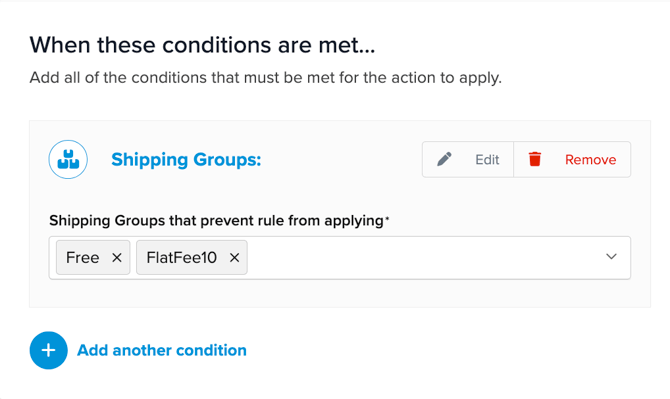 .
.
1. Rule for Free
- Override Rate: 0
- Applies When: Shipping Group is Free
- Prevented By: (none)
*Always applies when Free products are in the cart.
2. Rule for FlatFee 5
- Override Rate: 5
- Applies When: Shipping Group is FlatFee 5
- Prevented By: Free, FlatFee 10
*Applies only if Free and FlatFee 10 are NOT in the cart.
3. Rule for FlatFee 10
- Override Rate: 10
- Applies When: Shipping Group is FlatFee 10
- Prevented By: (none)
*This is the highest fee, so it's not prevented by any groups.
Expected Results
|
Cart Contents |
Applied Fee |
|
Free |
0 |
|
FlatFee 5 |
5 |
|
FlatFee 10, no Free, FlatFee 5 |
10 |
Only one fee is ever applied-based on the highest shipping fee group present.
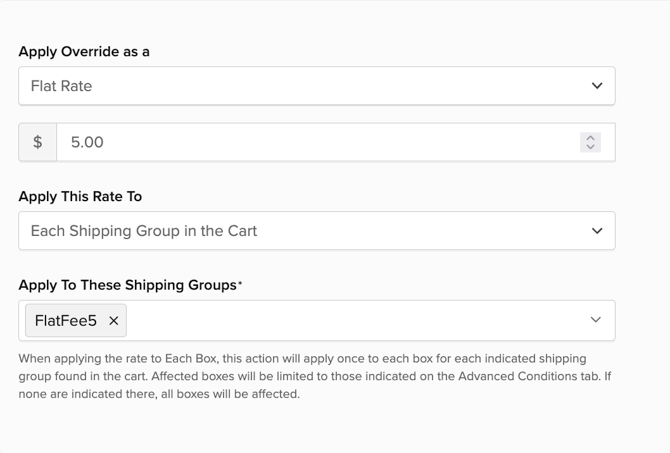
Shipping Groups > Select Shipping Groups that prevent rules from applying
Troubleshooting
- Multiple fees applying?
- For Shipping Rules: Check the “Prevented By” settings in each rule.
- For Table Rates: Confirm the Rate Totaling is set to Highest.
- For Shipping Rules: Check the “Prevented By” settings in each rule.
- Fee not showing up?
- Ensure all products are correctly assigned to their intended Shipping Groups.
- Ensure all products are correctly assigned to their intended Shipping Groups.