
Overview:
ShipperHQ's Dimensional Packing feature lets you decide exactly how products fit into boxes, so your shipping costs are accurate.
This guide shows how to use packing rules to control box selection for precise, predictable rate calculations.
A) Export, Edit, and Re-Upload Your Boxes
1. Export Your Boxes
-
Go to the Boxes page in ShipperHQ.
-
Click Export to download a CSV file of all boxes.
2. Edit the CSV
-
Open the CSV in Excel or Google Sheets.
-
Locate the column named All Products.
-
Set every row in this column to No.
-
If your sheet uses boolean values, use FALSE instead.
-
-
Save the file as CSV (UTF-8).
3. Re-Upload (Import) the CSV
-
Return to the Boxes page.
-
Click Import (or Upload).
-
Select your edited CSV file.
-
If prompted, choose Update existing (not Create new) to prevent duplicates.
-
Complete the field mapping and finish the import.
4. Verify the Change
-
Return to the Boxes page in ShipperHQ.
-
Confirm that the All Products column now shows No for each box.
💡 Tips
-
Keep a backup of your original CSV in case you need to roll back.
-
If your import tool matches boxes by a key (e.g., Box Name or Code), do not change that column.
B) Create a Default Packing Rule (Backup Rule)
1. Create the Rule
-
Go to Packing Rules → New.
-
Name the rule clearly (e.g., Default – Backup Packing Rule).
2. Assign Boxes
-
Under Assigned Boxes, add the boxes you want available by default.
3. Set as Default
-
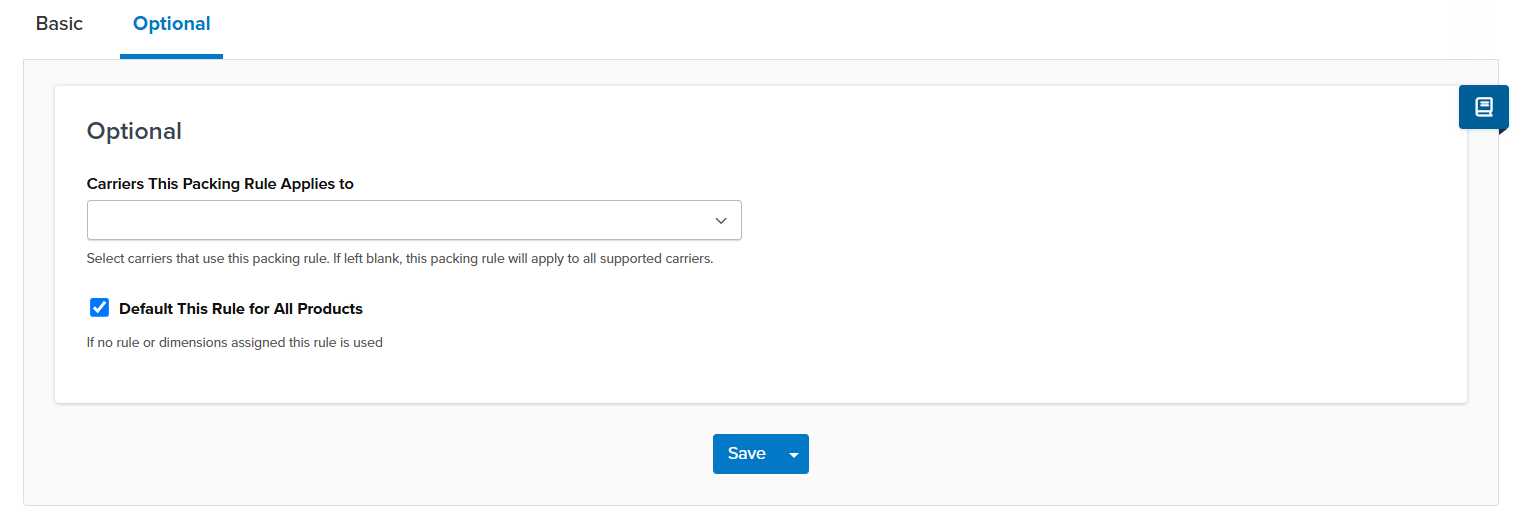
Open Optional Settings.
-
Enable Default This Rule for All Products.
4. Save & Enable
-
Save the rule and ensure it’s Enabled.
5. Test
-
Run a test quote or cart scenario to confirm that boxes are being selected from this default rule.
⚙️ Notes
-
Only one default packing rule should be active at a time.
-
Disable any other default rules to avoid conflicts.
-
More specific rules will override the default rule when applicable.
C) Create Product-Specific Packing Rules
Creating product-specific packing rules ensures each product uses the correct boxes, improving volumetric weight and rate accuracy.
1. Create a New Rule
-
Go to Packing Rules → New.
-
Choose Pack according to box rules.
-
Give it a descriptive name (e.g., Shoes – Medium/Large Boxes Only).
2. Assign Boxes
-
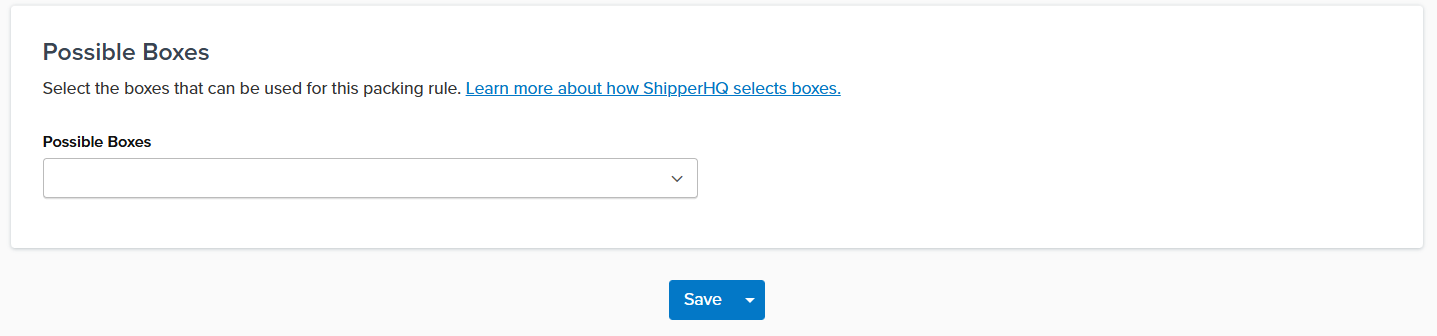
Under Assigned Boxes, select only the boxes that should be used for these products.
3. Test the Logic
-
Use Test Your Rates to simulate checkout and confirm the rule behavior.
-
Add those products to a cart and verify that the shipping price matches expectations.
Troubleshooting Box Selection Issues
❌ No Boxes Appear at Checkout
Check that:
-
The boxes you expect are listed under Assigned Boxes in the default rule.
-
The packing rule is Enabled.
-
The CSV import correctly set All Products = No (and did not create duplicates).
⚠️ Products Still Use Unexpected Boxes
-
Check if another packing rule is taking priority.
-
Adjust rule order or conditions so your intended logic applies.